

Apply a colour filter
A colour filter may be used to highlight particular rows in a data grid and may help you to identify patterns or track certain types of information. By default, a palette of four colours is provided, but this can be extended if desired.
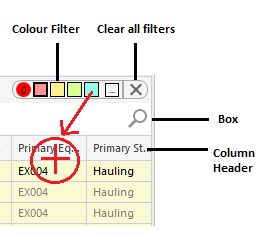
From left to right, the following options are provided on the Colour filter toolbar at the top-right of the view:
| Number of filters | A number is shown which displays the number of colour filters currently applied. |
| Colour Palette | Select a colour from the palette of colours. Double-click on a colour to pick a new colour: |
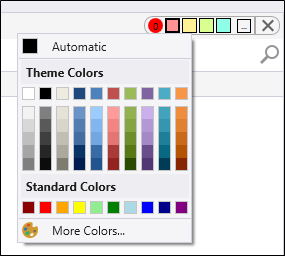
|
|
| Advanced Colour Filter | Click this button  to set advanced filter options. |
| Close | Click this button to close all current filters. |
To apply a colour filter:
- Select a colour from the palette of colours. The cursor will change to apply colour mode
 .
- Click on a column value that you want to apply the colour to.
Any records with the same value in that column will be highlighted using the same colour.
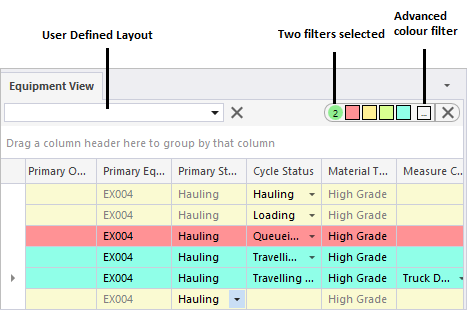
The colour filter will be saved when you save a user-defined layout.