

Pitram Assistant
The Pitram Assistant enables operators to ask questions in plain language and get help based on either the application documentation for "How to" questions, or live Pitram data through PRIS (read-only) for questions about the site's own production data. The assistant runs on Micromine's cloud AI platform, so Pitram data is processed in the cloud only to answer the question asked.
To use the Pitram Assistant, the following prerequisites must be met:
-
PITRAM Assistant Service has been installed on a machine that has access to the internet or at least the following domains:
-
https://cls.cloud.micromine.com:443
-
https://login.cloud.micromine.com:443
-
https://ai.cloud.micromine.com
-
-
MLS licence has been provisioned for AI Data Services module
-
You have a Micromine ID and have been invited as a user to the Cloud Licence associated with the ‘AI enabled’ MLS licence
On site, the assistant runs as the PITRAM Assistant Service, which needs outbound Internet access to the Micromine AI gateway and Cloud Licensing. See your Pitram Administrator if you require the Pitram Assistant installed and configured.
Pitram Assistant can be accessed via both Control Room applications: Data Acquisition (DA) and Event Editor (EE).
To open the Pitram Assistant, from either application,
-
Click the Pitram Assistant button on the toolbar.

The Pitram Assistant panel opens at the right. It can be repositioned if required.
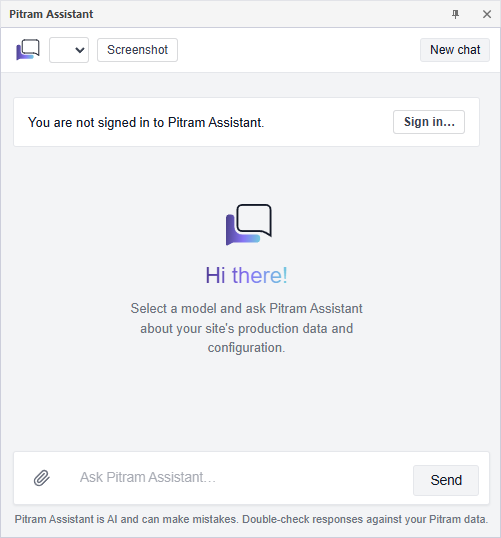
If you are not signed in to your Micromine ID, you will need to;
-
Click Sign in...
The Micromine Nexus login page will open in a system browser.
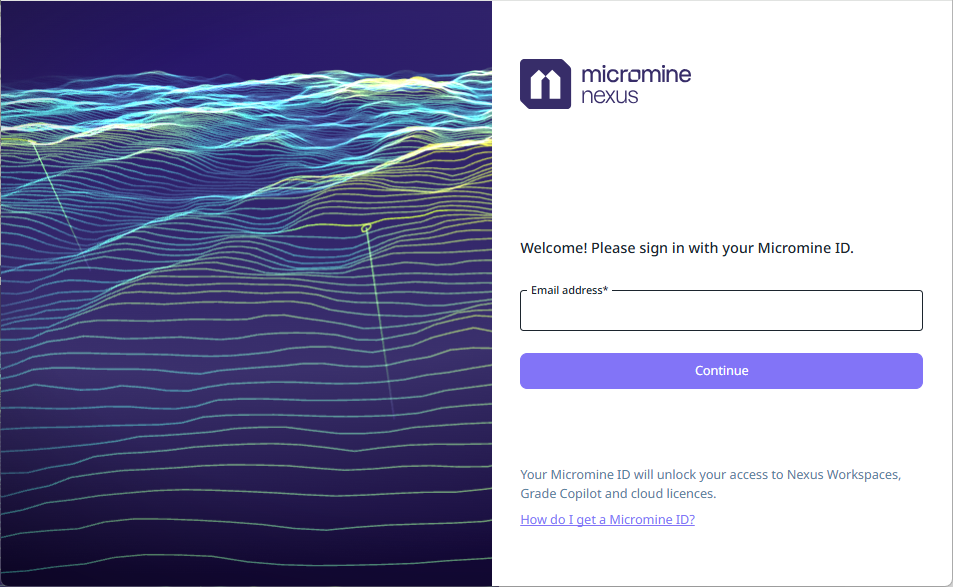
-
Sign in to Micromine Nexus with your Micromine ID credentials.
The Pitram Assistant is now enabled and you can begin asking questions.
Using the Pitram Assistant
When you have logged in successfully, the Pitram Assistant panel will display a Licensed badge in its header.
-
Click the Licensed badge to display the MLS licence and feature that has been checked out for this session:
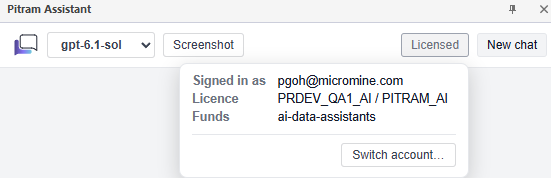
To ask a question, you can either;
-
Enter your question in the Ask Pitram Assistant field at the bottom of the panel and,
-
Click Send; OR,
-
Select one of the preconfigured prompts listed in the Pitram Assistant panel.
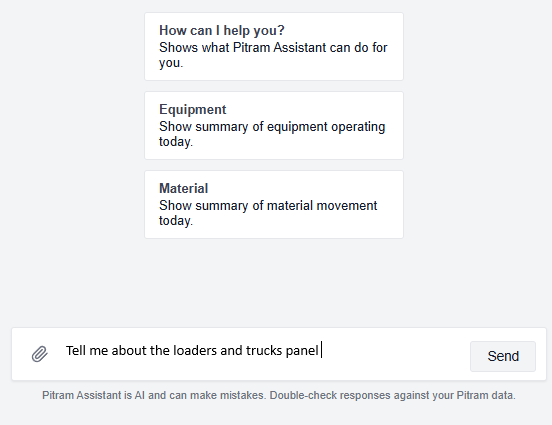
If you clicked a preconfigured question, the Pitram Assistant will display the answer below the question; for example:
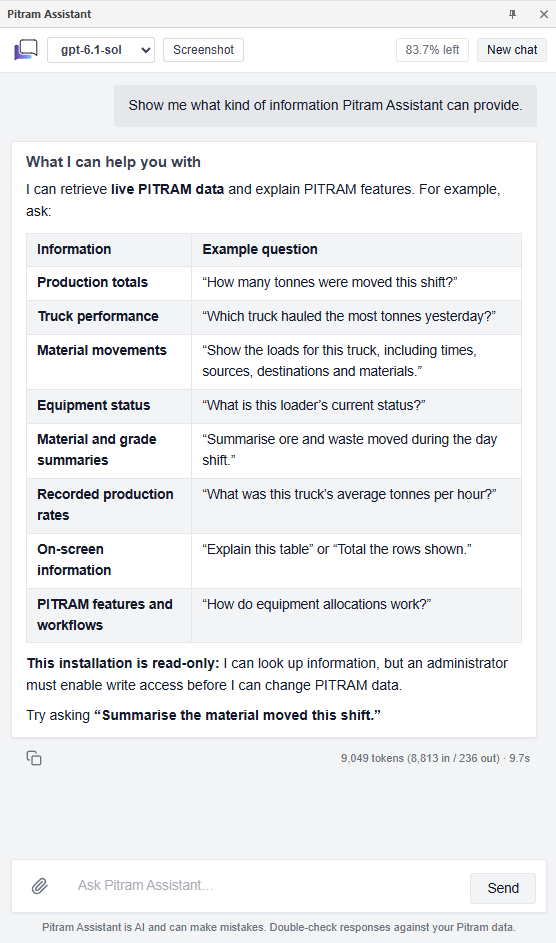
In the same way, asking a question and clicking Send will display the answer under the question enetred:
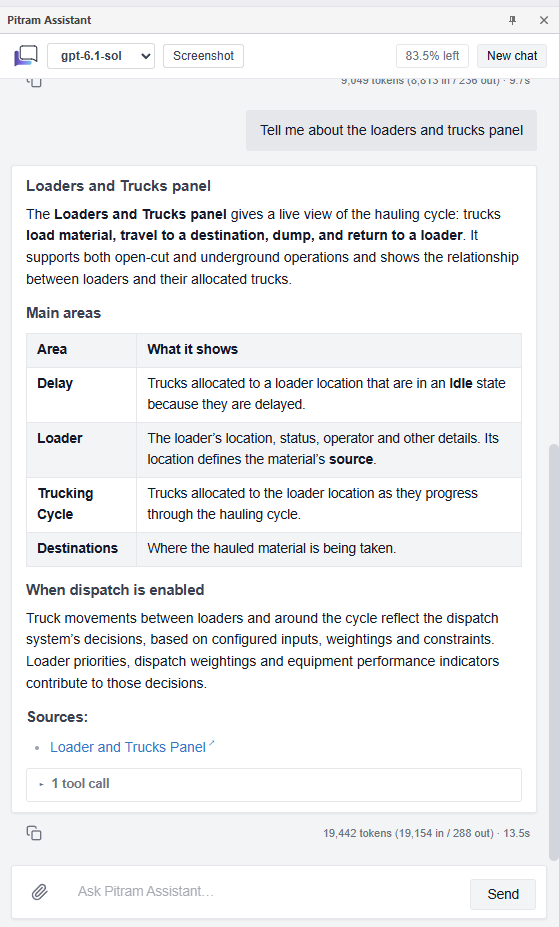
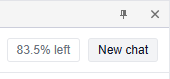
After your first prompt in a session, your Usage allowance will be displayed as a percentage in the Pitram Assistant panel header:
Answers are generated from a wide range of material including online help, training courses and development documentation. Links to source documents are provided where available.
Follow up questions after an answer is received can be asked in the same way in the Ask Pitram Assistant field. Follow up questions will contain all the context of the previous answer and be added to the conversation thread.
You can start a new question thread using the New Chat button.

In addition to How To style questions, you can ask the Pitram Assistant about production data. Production information related to your question may be retrieved via PRIS:
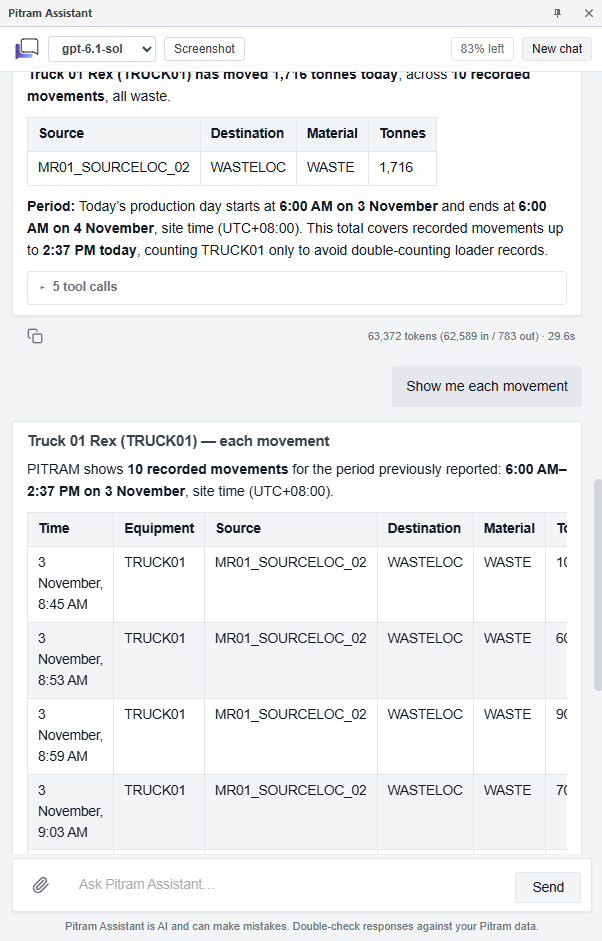
The Screenshot tool is used to attach screenshots from the control room application directly to your query to provide the Pitram Assistant with further information and context about your question.
-
Click the Screenshot button at the top of the panel.
-
Use the mouse to select the section of the screen you would like to capture and attach.
The captured image is added to the panel and you can enter any accompanying text to submit:
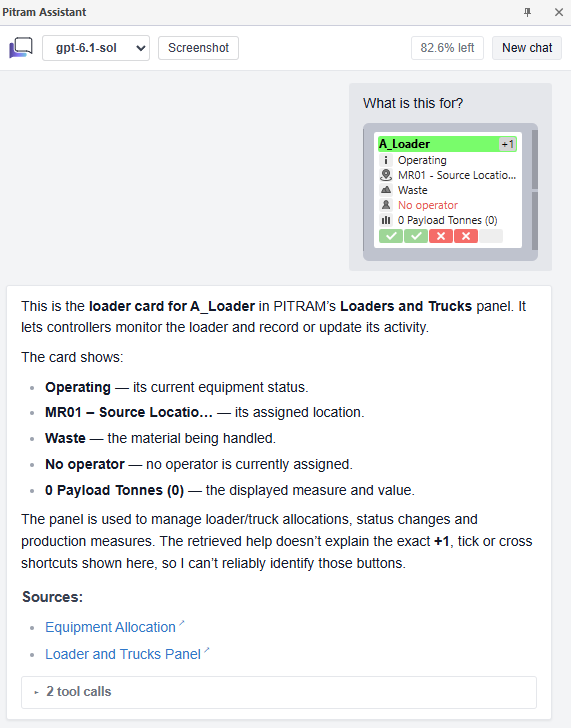
You may want to ask a question about a common Reference Data token such as Equipment or Location. Entering an ‘@' symbol followed by the token you’re looking for brings up an auto complete list.
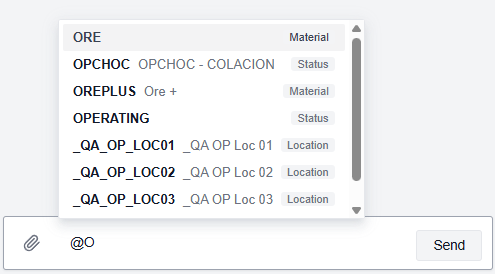
Entering specific tokens via '@' entries helps guide the Pitram Assistant to better find information that is relevant to your question. By default, auto complete is configured for Equipment, Location, Status, and Material.
Note: As outlined below the Ask Pitram Assistant field, the assistant is AI and can make mistakes. Please double-check responses or contact Support.
You can download a copy of the Micromine Artificial Intelligence Transparency Statement from the link.