

Qualifications
Qualifications reference data groups can be configured to ensure that the allocation of people to equipment is restricted to personnel qualified to work with that equipment in a given role (i.e. Operator).
If a person is not qualified, this will be flagged in Data Acquisition. However, if the qualification requirement is allowed to be overridden (as part of the configuration of the qualification) the Data Acquisition operator will be prompted to allow or deny the allocation of an unqualified person to that equipment and role.
To enable operator qualifications in Data Acquisition, three reference groups must be configured.
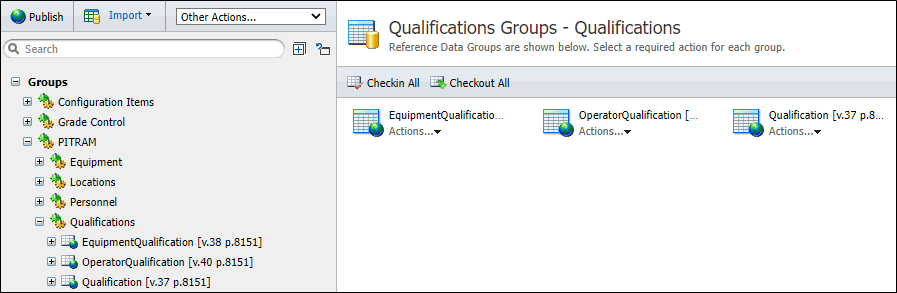
To access the Qualifications configuration screens:
Click on the Reference Edit icon to open the Reference Data service:

The first step is to set up the qualifications that will be associated with equipment, operators, and roles.
Qualification
In the Reference Data tree view, click on the Qualification reference group:
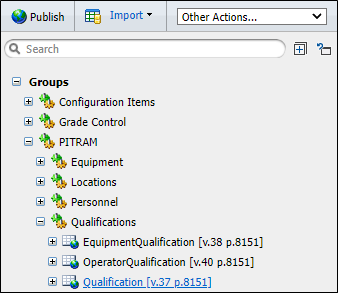
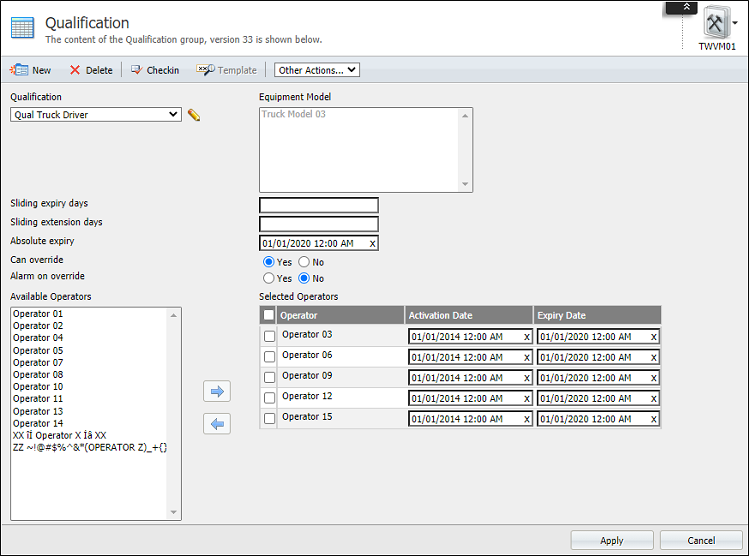
The Qualification Group Configuration screen is displayed:
Qualification
The Qualification drop down contains a list of qualifications (from the Qualification reference group) sorted alphabetically, with the first qualification in the list selected as the default.
If a different qualification is selected from the list, the screen is reloaded and any changes made to the configuration of the previous qualification will be lost unless you have clicked Apply to apply those changes to the reference group.
Equipment Model
When a qualification is selected from the Qualification drop-down, the Equipment Model pane will be populated with the equipment models linked to that qualification.
Sliding Expiry Days
Specify the number of days a qualified person can go without operating the equipment before the qualification expires. The SlidingExpiryDays value you have specified will be reset whenever the person operates the equipment.
For example, if SlidingExpiryDays is set to 5 days and an operator does not operate the equipment within 5 days, the qualification will expire.
If the operator uses the equipment 4 days after a sliding expiry of 5 days has been set (i.e. there is 1 day left until expiry) the sliding expiry will be reset to 5 days.
Set the Sliding expiry days to 0 (zero) to turn the SlidingDaysExpiry function off.
Absolute Expiry
Use the Calendar and Clock controls to specify an absolute date and time at which the qualification will expire. Once this expiry date and time has been reached, the qualification is no longer valid, irrespective of the state of any Sliding Expiry Days setting.
CanOverride
Specify whether a qualification associated with equipment and an operator can be overridden. Enter 1 to allow the qualification to be overridden. Enter 0 to deny a qualification override.
- If a qualification can be overridden, then the Data Acquisition operator may ignore a displayed warning and allocate an unqualified person to that equipment and role. When the allocation has occurred, Data Acquisition will display an override code. This code must be given to the Mobile unit operator so that he or she can login. When the mobile unit detects that the person logging in is not qualified, and that the qualification may be overridden, it will prompt the unqualified operator to enter the override code.
- If a qualification cannot be overridden, Data Acquisition will not allow the operator to be allocated to that equipment in that role.
Note that if you are using the right-click menu to allocate the person to equipment, the person will not appear in the menu if they are unqualified for that equipment and role. If there are no qualified people for a particular role, then the role will not appear in the allocation menu for that equipment.
AlarmOnOverride
If CanOverride has been enabled, specify whether an alarm should be raised if a person is allocated to a unit of equipment and a role they are not qualified for. The purpose of the alarm is to allow other users and instances of Data Acquisition (e.g. another instance of Data Acquisition is being viewed by a shift supervisor outside of the control room) to see that a qualification has been overridden.
If only one instance of Data Acquisition is running (typically in the control room) then the AlarmOnOverride function is not really needed.
Enter 1 to enable the alarm. Enter 0 to disable the alarm.
Available Operators
The available operators pane
Selected Operators
Use the Right arrow key to move operators to the Selected Operators pane.
Equipment Qualifications
Once qualifications have been added to the Qualifications reference group, we can associate them with equipment.
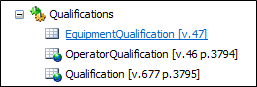
Check-out the EquipmentQualifications reference group table and click the New button to add qualifications to the table.
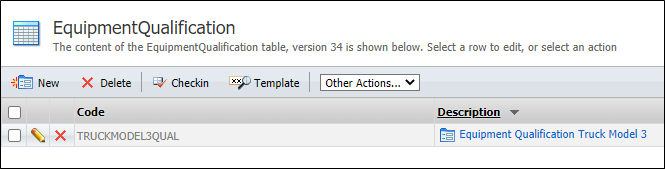
The following attributes must be defined:
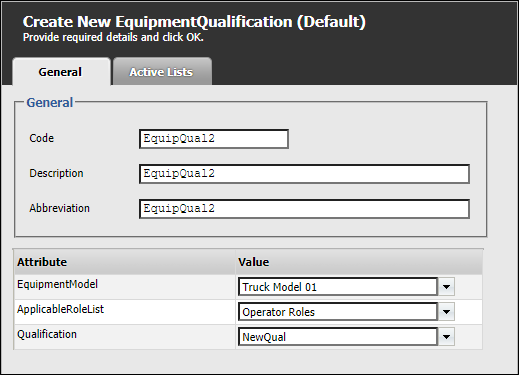
Equipment Model
Select the model of equipment you want to associate with a qualification.
ApplicableRoleList
A qualification is associated with one or more roles. Since the people allocated to equipment must have at least one role, this allows the allocation of a person to equipment to be granted or denied based on role.
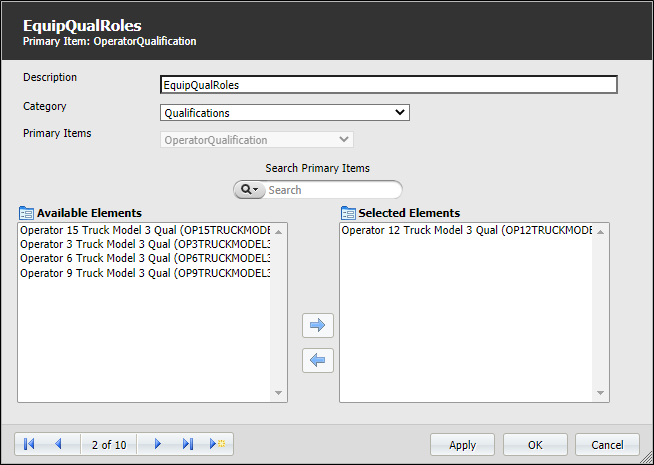
The roles you want to associate with the qualification are defined in an active list.
In the screenshot above, the NewQual qualification is granted to the roles defined in an EquipQualRoles active list. If we edit the active list, we can see that the roles granted this qualification are selected from an OperatorRole primary table:
Qualification
Select the qualification that will be associated with the chosen equipment model. Since the qualification is also associated with one or more operators, this defines the link between the equipment and the people who are 'qualified' to operate it.
Operator Qualifications
Once qualifications have been added to the Qualifications reference group, we can associate them with the operators of equipment. In the Reference Data tree view, click on the OperatorQualification reference group:
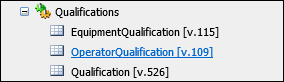
The Operator Qualification Group Configuration screen is displayed:
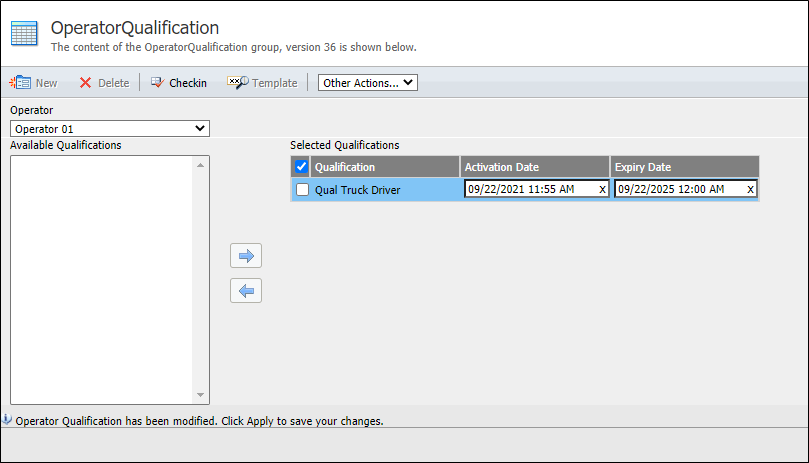
The following inputs must be specified:
Operator
Select a person who will be granted this qualification to operate equipment.
Available and Selected Qualifications
Select the qualifications that will be granted to the chosen operator and use the Right arrow to add them to the Selected Qualifications grid. Since the qualification is also associated with an equipment model, this defines the link between the operator and the equipment he or she is 'qualified' to operate.
Activation Date
(Optional) This is the date (and time) from which the qualification will be active for this operator. If no activation date is specified, activation of the qualification is immediate as of the date and time at which the reference data is published.
Expiry Date
This is the date (and time) on which the qualification will expire for this person. If this expiry is earlier than the expiry date set for the qualification itself, it will override the qualification expiry.