

Shift Comments
Select the View | Comments menu option in Data Acquisition or Event Editor, or click the Comments button in the toolbar to enter or modify comments on Shifts in the system
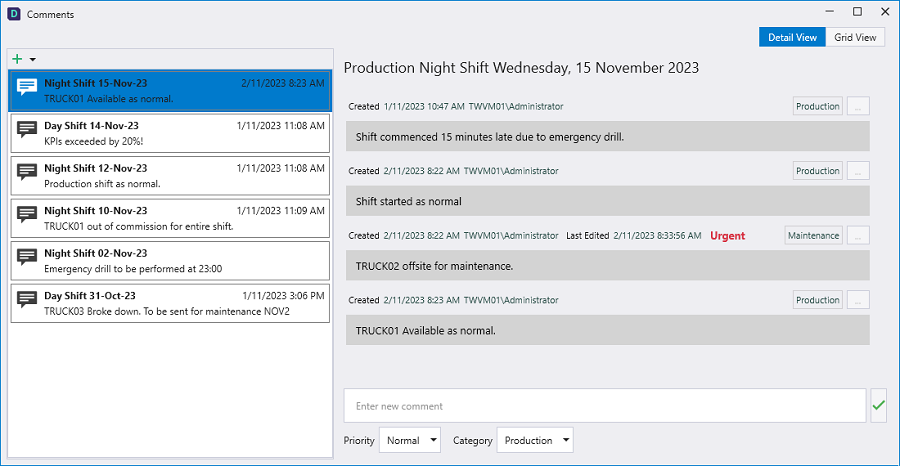
Comments that have been added to Shifts are listed in the panel at the left in Detail View. You can select a Shift at the left to view the comments for that shift in the pane at the right.
Comments can be edited by Administrators, or by the User who created the comment. Any changes made to a comment will not reset the time stamp and user attributes.
To edit a comment displayed in the panel,
-
Select the Shift for the comment in the panel at the left,
-
Select the comment to be edited from the panel at the right.
-
Click Edit from the More menu drop down for the comment.
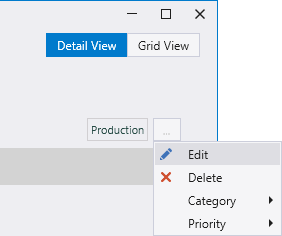
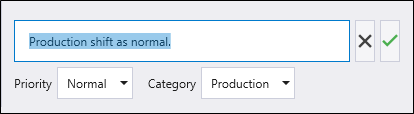
The Comment field is placed in Edit mode and you can make the required changes and save it using the green check button, or cancel using the X button.
The Category and/or Priority of the comment can also be changed from the options in the More menu.
To delete a comment,
-
Select the Shift for the comment in the panel at the left.
-
Select the comment to be deleted from the list at the right.
-
Click Delete in the More menu.
If you prefer, you can place the Comments panel in Grid View using the button at the top right corner.
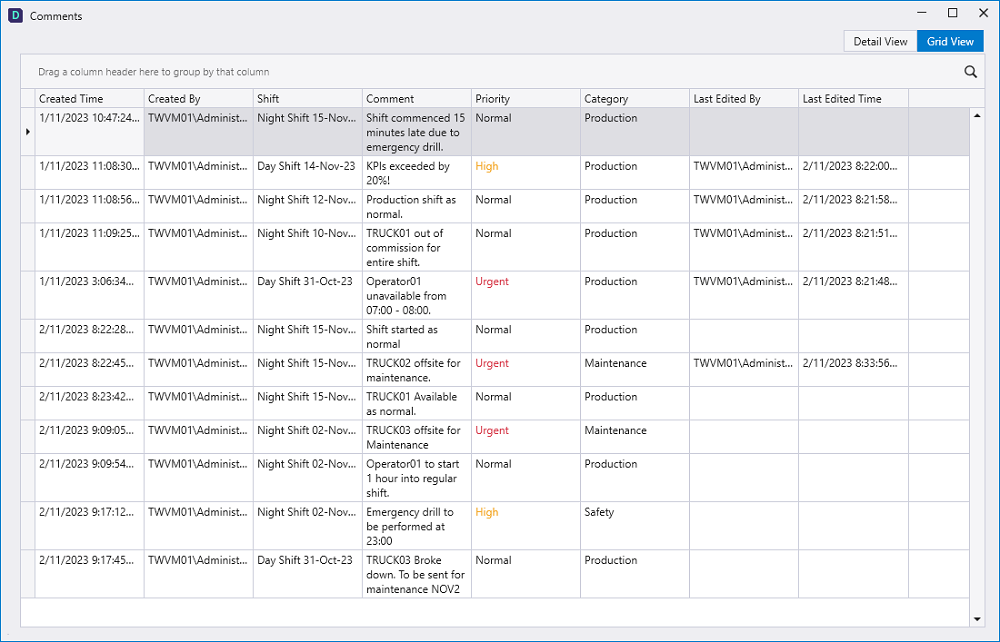
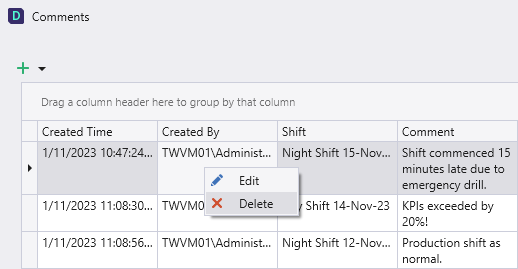
In Grid View, you can place a comment in Edit mode by clicking in the row to change the details manually and tabbing out of the cell to save any change.
Like the Detail View, new comments can be added by first selecting the target shift via the Shift Selection button. Existing comments can be edited and deleted via the context menu . It is also possible to delete a selected comment using the Delete option.
Information on adding comments to a shift is contained in Add Shift Comments.