

What’s New
Pitram 2027 (version 17.0) includes the following new features and enhancements:
 Pitram Mobile on Android
Pitram Mobile for Android
Micromine Pitram version 17.0 brings Pitram Mobile to Android tablets.
The operator interface has been rebuilt on the cross-platform Avalonia framework, so the same application now runs on both Windows® and Android. With this release, all sites move to the new interface, and the previous Windows® (WPF) client is retired. Peer to peer data transfer also works on Android, through Android versions of the Ad Hoc Network Service and Postman. Tablets can therefore keep collecting and delivering data out of network coverage, as Windows® units do today, and they use a registered site network in preference to a peer to peer connection whenever one is available.
On Android, Pitram Mobile can share the tablet with other applications, such as a vehicle's situational awareness or collision avoidance system. While another application is in the foreground, Pitram Mobile shows a small floating button on top of it. Operators tap it to switch back to Pitram Mobile, or to open a launcher menu that runs selected Pitram Mobile actions without leaving the other application. This builds on the external application support that already exists in Pitram Mobile on Windows.
The Android applications update themselves silently from the Pitram server and restart automatically. They get the update either directly from the server or from each other over peer to peer. Device management, such as Microsoft Intune, can be used to deploy the applications and grant their permissions centrally, but it is not required.
To support the configuration of Mobile for Android, the MobileLauncherButtons and MobileLauncherProfile attributes have been added to the Reference Data.
For more information, see Mobile for Android.
Pitram Assistant
Pitram Assistant
Micromine Pitram version 17.0 introduces the Pitram Assistant, an AI assistant pane built into Data Acquisition and Event Editor.
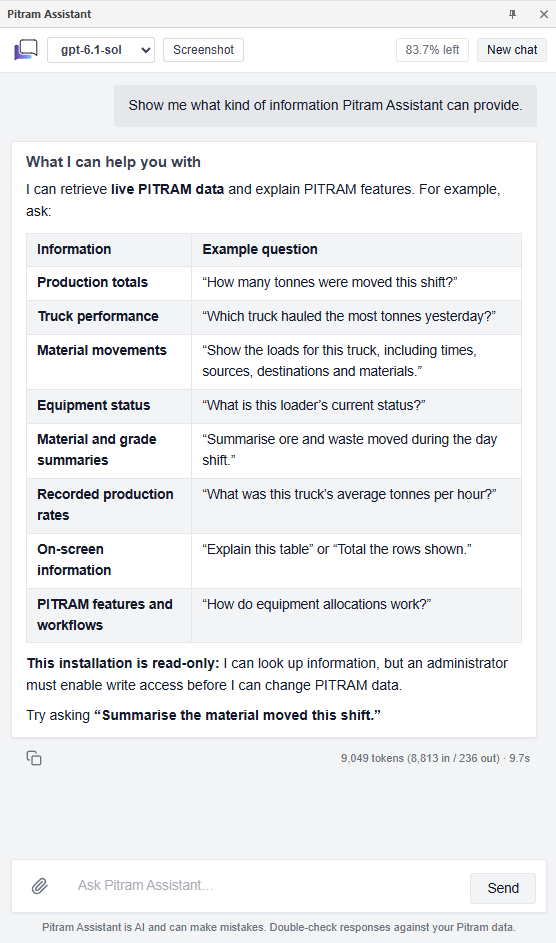
The Pitram Assistant enables operators to ask questions in plain language and get help based on either the application documentation for "How to" questions, or live Pitram data through PRIS (read-only) for questions about the site's own production data. The assistant runs on Micromine's cloud AI platform, so Pitram data is processed in the cloud only to answer the question asked.
The assistant is a licensed module, and it is not enabled by default. Once installed and configured on site, the feature is enabled for each user through the licence and their Micromine ID. Usage is measured against the AI allowance for the site through Micromine Cloud Licensing, and the pane shows how much of the allowance is left.
On site, the assistant runs as a new PITRAM Assistant Service, which needs outbound Internet access to the Micromine AI gateway and Cloud Licensing.
You can download a copy of the Micromine Artificial Intelligence Transparency Statement from the link.
For more information, see Pitram Assistant.
Drill Holes
Drill Holes
Pitram version 17.0 replaces the paper drill plan for underground long-hole drilling with a fully digital workflow.
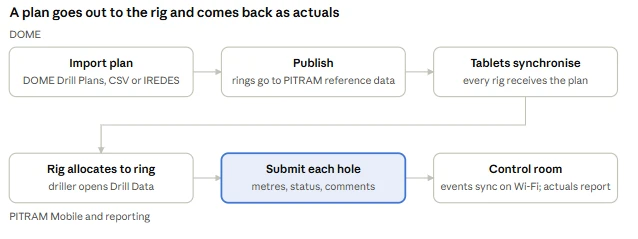
The drill and blast engineer imports the drill plan into Pitram Portal and publishes it. The driller sees the planned holes for each ring on the Pitram Mobile tablet in the cabin and records what was actually drilled. The results come back to the control room and into reporting. Plans are attached to rings, not to individual rigs or tablets. Any rig working on a ring sees its plan, so swapping a rig mid-shift needs no help from engineering.
For more information, see Drill Data.
Drill Plan Importer
As part of the new digital drillhole workflow in Pitram 17.0, drill plans are imported into the Drill and Blast module using the Data Importer.
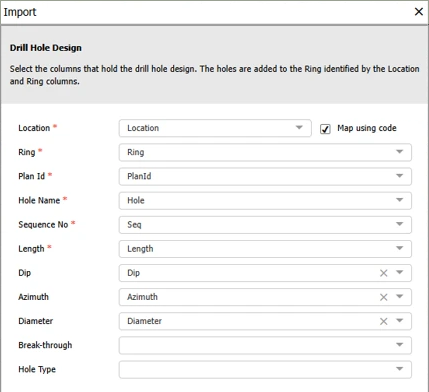
The importer accepts CSV files, and IREDES drill plan files that follow the Micromine Origin & Beyond format. Each plan is identified by its Plan ID. It holds the designed holes for one or more rings: name, sequence, length, dip, azimuth, diameter, breakthrough and hole type. For IREDES files, hole length, dip and azimuth are calculated from the collar and toe positions.
For more information, see Importing Drill Data.
Drill Plans Screen
A new Drill Plans tab in the Drill and Blast module lists the imported plans with their locations, ring and hole counts, total designed length and status. Plans can be filtered by period, Plan ID, location and status. Selecting a plan shows its designed holes, grouped by ring.
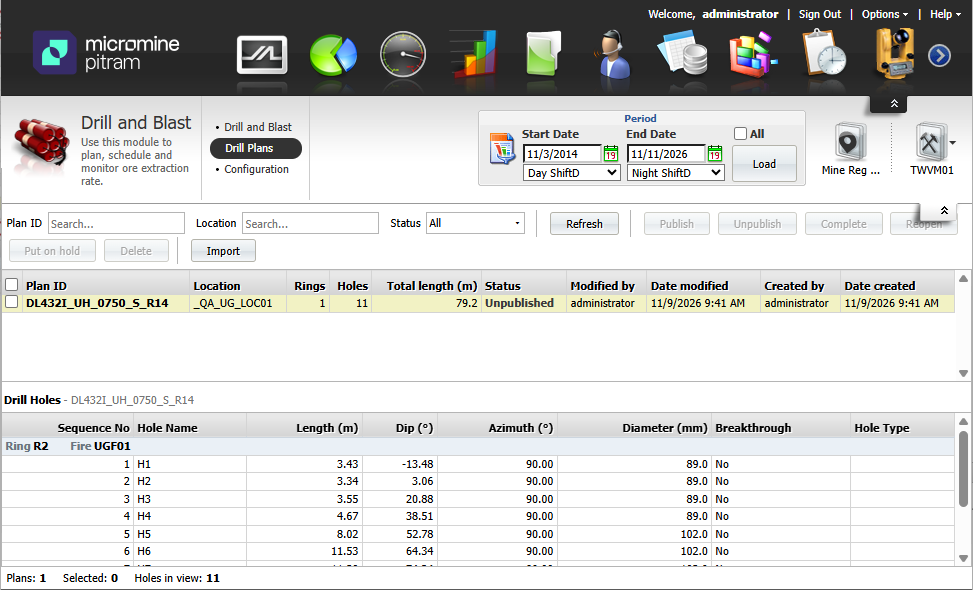
Each plan moves through a simple lifecycle: Unpublished, Published, On hold and Complete. Publishing a plan sends its rings to the Pitram Mobile tablets. Unpublishing it, or marking it Complete, takes them off again, and completed plans are kept for the record.
For more information, see Managing Drill Data.
Drill Hole Capture on Pitram Mobile
When a drill rig is allocated to a ring with a published plan, the driller opens the new Drill Data screen on Pitram Mobile. Each hole appears as a tile showing metres drilled against metres planned, coloured by its state: not started, incomplete, complete or abandoned. Opening a hole shows the planned values next to the actual values the driller enters. Drillers can add preset or free-text comments and set the hole status.
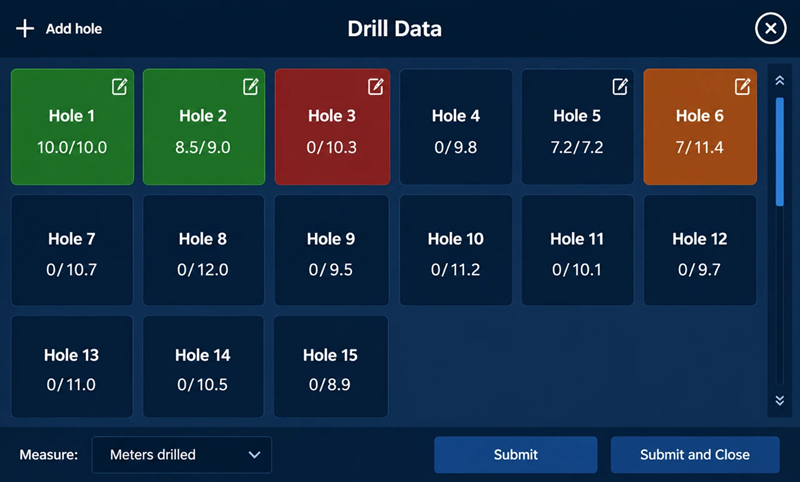
Everything works offline at the face, and the submitted holes are sent to the server once the tablet reaches the network. Redrilled holes, and extra holes approved on the spot, can be added directly on the tablet. Progress stays on the tablet across shifts, so the next crew sees what has already been drilled.
For more information, see Publishing Drill Data.
Mobile Keyboard Entry
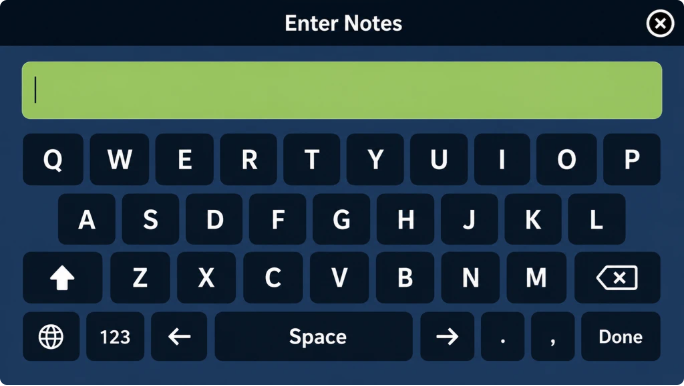
An input keyboard has been implemented for the Drill Data screen in Micromine Pitram Mobile to support the free text entry of notes on drillhole data.
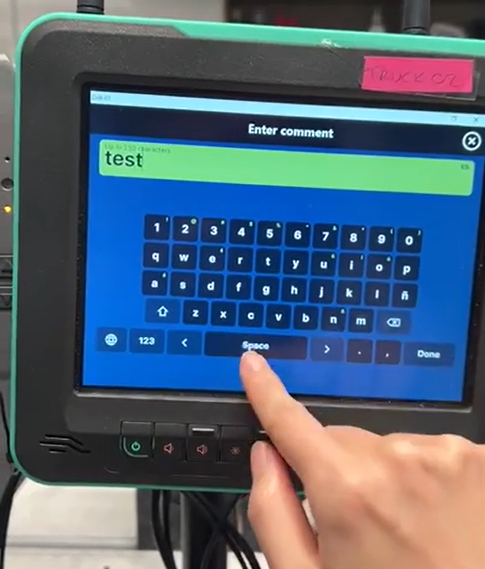
The keyboard is enabled with a new Reference Data group; namely UserInputProfile. Attributes for the new group consist of KeyboardLanguages, DefaultKeyboardLanguage and KeyboardDisplayNumericRow. The new group is registered on the MobileUserInterfaceProfile and defines the selected and default language for the keyboard (en, es, ru, mn, tr, id, el supported) and whether the keyboard shows a top numbers row by default.
Up to 250 characters can be entered in the Enter Notes field and saved to the drillhole data, and a messager will be displayed if the limit is reached.
Keyboard input of comments is only supported with Drillhole data. Consult your Micromine Pitram Administrator if you require configuration of the new keyboard input feature.
Drill Holes in Reporting
Captured holes flow into the Pitram reporting database alongside data from the existing drill guidance systems. A new drill hole actuals report compares planned and actual values for each hole by shift, location and ring, and includes hole status and comments.
Displayed in the report for each hole is the following:
| Column | Content |
|---|---|
| Plan ID, Location, Ring, Hole | Where the hole is. Location is the ring's parent location. |
| Status | Not started, Incomplete, Complete or Abandoned, as last set on the tablet. |
| Completed | Time of day the hole was last submitted as Complete; blank otherwise. |
| Ad Hoc | Yes for a hole added on the tablet (extra hole or redrill). |
| Planned and actual per parameter | Length, Dip, Azimuth, Diameter and Breakthrough side by side. The column captions are the labels from the site's parameter reference data, so they match the tablet. Actual length is the metres drilled, summed from the measure events in the shift, net of any downward corrections. |
| Hole type | From the plan; never has an actual. |
| Comment | The hole's comments as last submitted, joined with a vertical bar (for example Void at 6 m | Water inflow). |
A ring completeness summary shows how many of the planned holes are complete, abandoned, incomplete or not yet started.Holes can be added with these values definable from the Drill Data screen, and you can copy the plan details to actual using a dedicated button in the Hole screen.
For more information, see Reporting Drill Data.
Drill and Blast Improvements
Rings Grouped by Location
Rings are now listed under their parent location, which shows how many firings it has and expands to show them. Users can see which locations still have fired rings without scrolling through every firing.
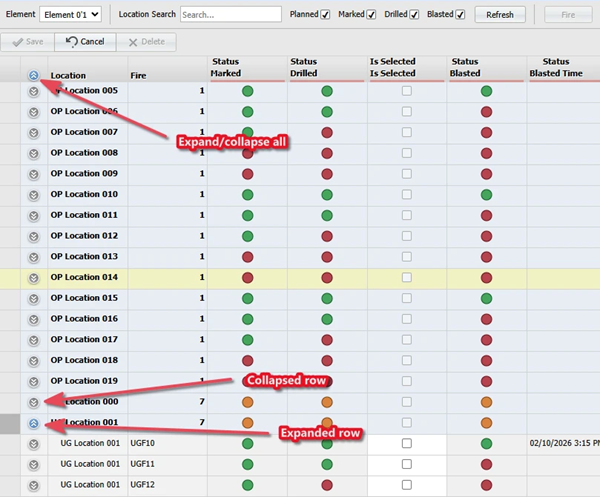
Underground locations are fired many times, a few rings at a time, so a single parent location can have dozens of rows in the Drill and Blast grid, one per firing. With firings grouped under their parent location, collapsed by default but easily expanded, operators can see at a glance which locations still have firings outstanding.
Fort more information, see Drill and Blast.
Drill and Blast Comments
The Comments column has been added to the Drill and Blast module to support the entry of free text comments against each location fire row.
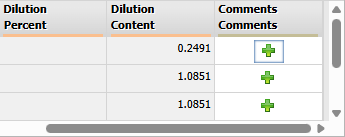
The green plus icon in the Comment column on the row will open the Add Comment form in which you can enter up to 2000 characters of text to be saved with the rest of the row.
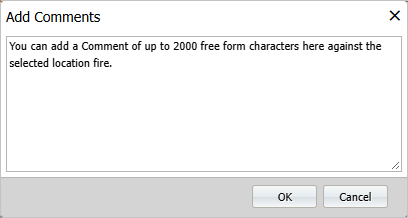
Comments are editable and stored against the location fire. Comments can be reported and exposed to other systems at a later time.
Any saved comment will appear in the Comments column for the row:
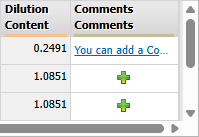
You can click the comment to open the Add Comments form and make any changes, if required.
For more information, see Design Data.
Pitram Connect - Location Enhancements
Location Attributes Display
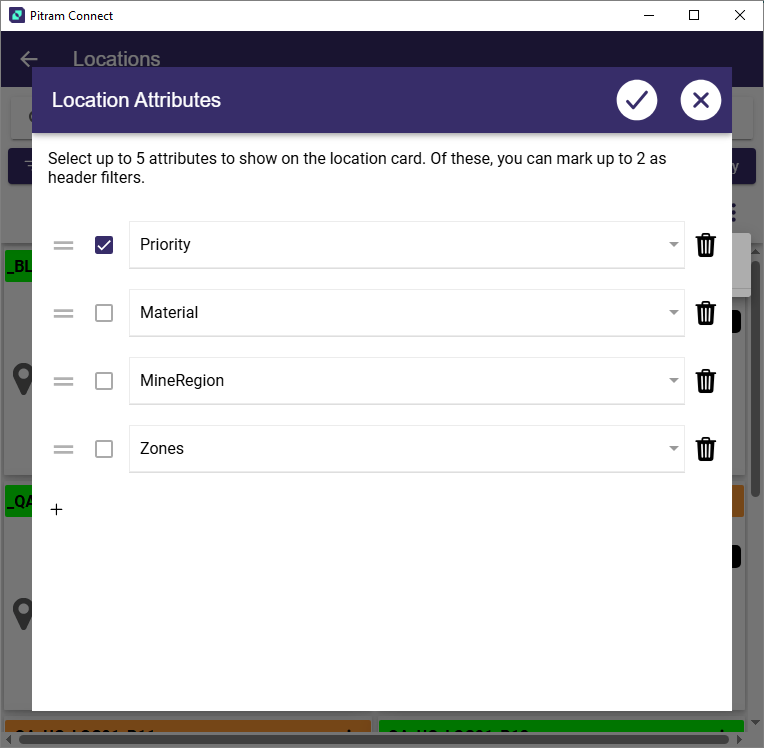
The Location Attributes option has been added to the More menu on the Locations view to enable the display of custom attributes on the Location card.
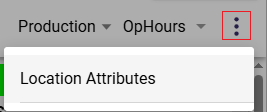
The new option will open the Location Attributes panel to allow selection of up to 5 attributes to be displayed on the Location card. Up to 2 of the selected attributes can be designated as header filters.
Any Location Attributes that were added will be displayed in the Location card. The designated attribute/s will also be displayed as header filter/s which can be used to filter the Locations:
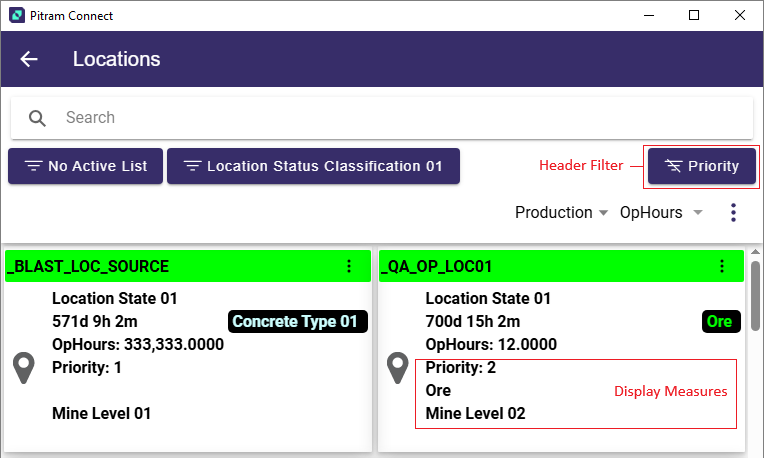
For more information on the Location module in Pitram Connect, see Locations.
Location Display Measures
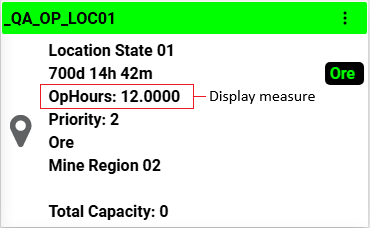
The Display Measures drop down has been added to the Locations view to support the display of a selected measure for the location details.
If you tap the Location Measures drop down, the list of available measures is displayed:
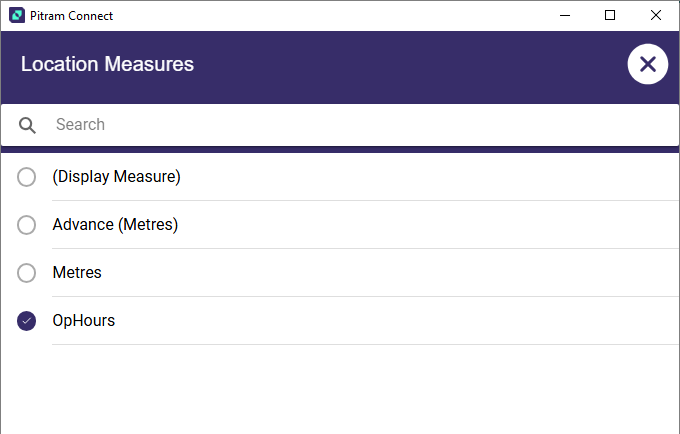
If you select (Display Measure), the configured Display Measure for the Location Type will be displayed. If you select an alternate option, the selected measure will be displayed in the Location detail card:
For more information on the Location module in Pitram Connect, see Locations.
Automated Status Rules Enhancements
Micromine Pitram version 17.0 adds two new automatic rules that take routine updates off the control room:
Location Status Change After a Duration
A location's status can now change automatically once it has stayed in a given status for a set time, of up to 24 hours.
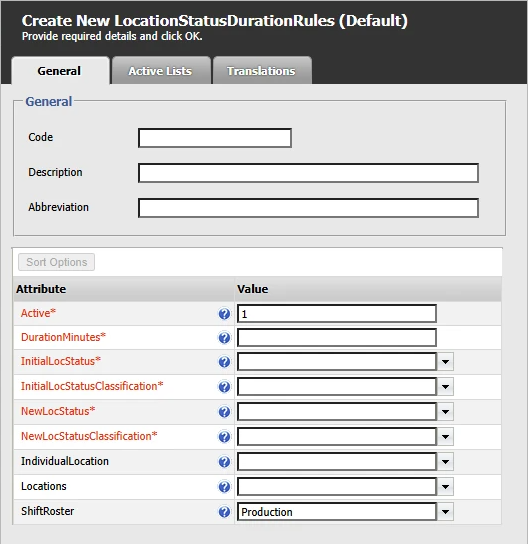
For example, a location set to one status can move to the next status 30 minutes later, with no operator action. The rule can apply to all locations or to selected ones.
Scheduled Operator Deallocation
At a set time of day, Pitram can deallocate all operators from selected equipment that is in a given status. This works like the existing rules that allocate primary operators to equipment, but in reverse.
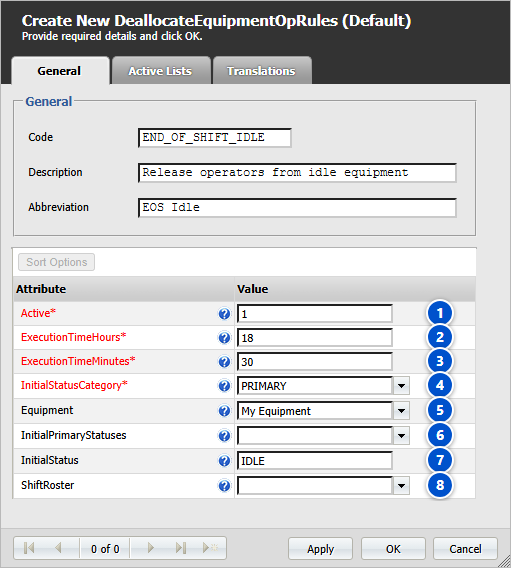
The new rule is particularly useful for sites who want to clear the operators of idle or down equipment at the end of a shift, so the next crew starts from a clean allocation.
Shift Reprocessing with Newer Reference Data
Reference Data Version for Shift Reprocessing
Until now, when a shift was reprocessed against the reference data in use at the time, events that used items added in later reference data versions were left out, such as a new location or material. Event Editor already shows these events, so the reporting data could differ from what users saw in Event Editor.
Micromine Pitram version 17.0 adds a third reference data option for shift reprocessing in Pitram Portal: Historic with tokens created in future versions, alongside the existing Historic and Current options.
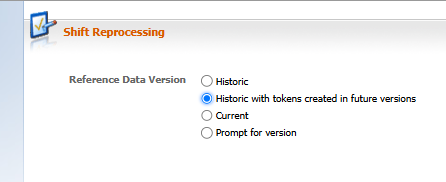
With this option, the shift is reprocessed against the reference data that applied at the time, but items added later are also available, so the reporting data matches Event Editor.
The option can be set as the default in the configuration or chosen each time a shift is reprocessed.
UI Enhancements
Shift Planner Task Dependencies
Many mining activities can only start once another has finished. Pitram version 17.0 makes these task dependencies easier to plan and to follow.
Dependencies can now be included when tasks are imported into Shift Planner from Excel, so repetitive plans with linked activities no longer have to be connected by hand.
On Pitram Mobile, operators see a task's dependencies in the task menu, so they don't start a task before the work it depends on has taken place.
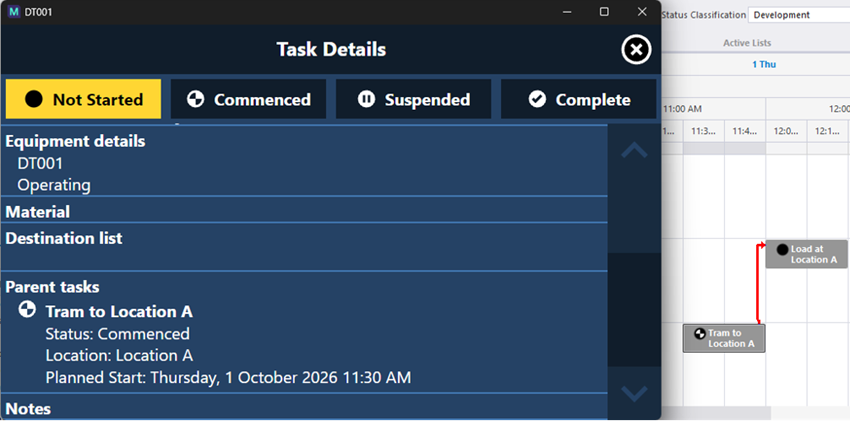
A new Go to next task button in Shift Planner takes the planner straight to the next task for the selected equipment or location, which makes it easier to stay oriented when planning ahead or zooming in and out.
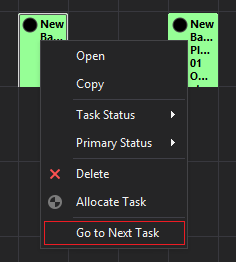
For more information, see Shift Planner.
Data Acquisition Improvements
Data Acquisition includes a number of usability improvements requested by sites:
-
Panel definition wizards for the Loaders and Trucks, Multiple Loaders, Loader Performance, Equipment Timeline, Maintenance and Fuel Monitoring panels use clearer, more consistent titles and descriptions.
-
Panel filters now work consistently. A panel's location and status filters both limit what equipment the panel shows and what can be selected from it, so equipment no longer disappears from the panel it was just edited in.
-
Person allocation can be filtered by an active list of equipment and locations, which speeds up allocating crews at the start of the shift.
-
Sublocations can be shown in the Locations navigator, so measures and statuses can be recorded against them directly. In the shotcrete panel they are grouped and ordered under their parent location.
-
The Mobile Health panel now shows each unit's external IP address, so support staff can connect to units remotely even when the units sit behind a shared network switch.
For more information, see Data Acquisition.
Integration Enhancements
Pitram Integration
Pitram version 17 improves several integrations with third-party equipment systems, giving sites more control over the data these systems bring into Pitram.
-
PLM: Sites can now choose which events the PLM integration generates. Swings, cycles and auxiliary measures and attributes, such as haul distances, haul and loading times and carryback, can each be switched on or off. Pitram then records only the data the site needs. For more information, see PLM Integration.
-
Sandvik DCU: Pitram Mobile now supports the token-based authorisation that the latest Sandvik OptiMine Knowledge Box firmware requires. A new optional signal log on Pitram Mobile records every signal value received from the Knowledge Box. It helps with commissioning and troubleshooting, and the log files can be requested remotely like other Mobile logs. For more details seeSandvik DCU Integration Setup.
-
Komatsu payload: A new optional smoothing mode brings the payloads Pitram calculates closer to Komatsu's own reports by reducing the effect of suspension bounce on the readings. The existing calculation stays the default. For more information, see Komatsu Integration.
For more information, see Integrations.
.NET 10 Platform
Upgrade to .NET 10
Pitram version 17.0 moves Pitram from .NET 8 to .NET 10, Microsoft's current long-term support release.
The move covers Pitram Mobile, Pitram Control Room, the Pitram Server services, PRIS, the Dome Connector, integration adapters, Pitram Vision and the Pitram Licence Service.
Pitram Mobile on Windows no longer needs the .NET Framework. Pitram Portal continues to run on .NET Framework 4.8.
Running on a supported runtime means sites keep receiving Microsoft security updates. It is also the foundation that lets Pitram Mobile run on Android.
The .NET 10 runtimes install automatically when Pitram Mobile on Windows is upgraded with the AppLife package that includes the runtimes, including over peer to peer. Upgrade Prerequisites lists the runtime each component needs.