

Importing Drill Data
The following information assumes that Drill Data configuration is complete; that the Drill Data Profile exists, the drill rigs have it set, and the Manage Drill Plans permission is granted.
Importing a drill plan
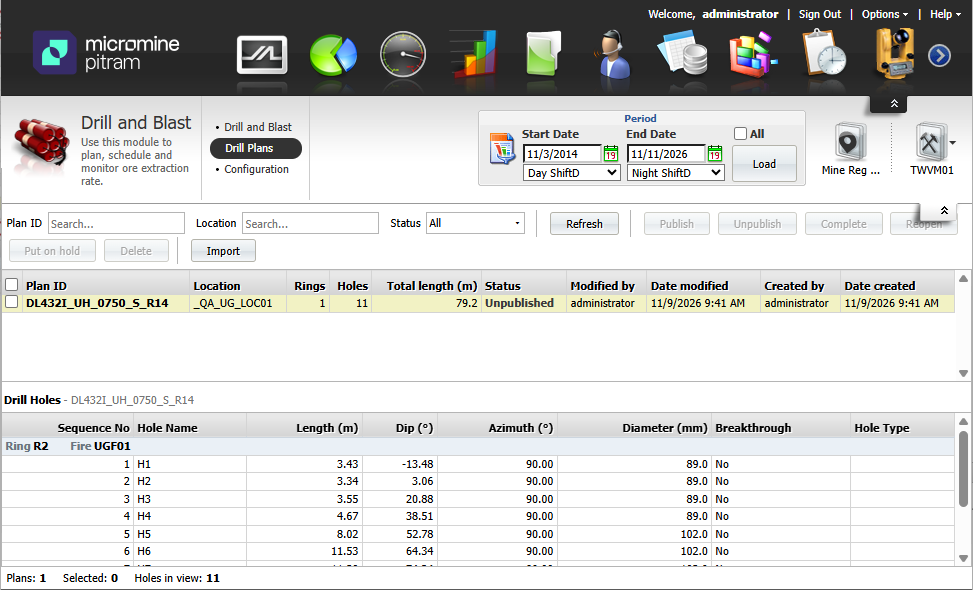
A plan is imported through the Data Importer from the Import button on the Drill Plans tab (Drill and Blast module). Every imported plan starts as unpublished; nothing reaches the tablets until you publish it.
What the file must contain
The importer accepts a CSV or XLSX file created manually, an export from the design package (Micromine Beyond, Deswik, Vulcan and others) or an IREDES XML drill plan. Rings and their locations must already exist in PITRAM; the file adds holes to them, it does not create rings.
The following table contains information on what is required in a CSV or XLSX import file:
| Column | Required | Notes |
|---|---|---|
| Plan ID | Yes | Identifies the plan, up to 64 characters, unique on the site. Re-importing a file with the same Plan ID updates that plan. |
| Location | Yes | PITRAM location code, or its description if you tick "map location using description" on the mapping page. |
| Sublocation (ring) | Yes | The ring description as held in PITRAM. |
| Hole name | Yes | Unique within the ring (1, 2, 3A, 3B). |
| Sequence No. | No | Order of the holes on the tablet. Leave it unmapped to use the order in the file. If mapped, every row needs a whole number of 0 or more. |
| Length | Yes | Designed down-hole length in metres. The only mandatory hole value. |
| Dip, Azimuth, Diameter | No | Degrees, degrees and millimetres. Unmapped columns are stored as 0 and are hidden on the tablet when the profile does not show that parameter. A mapped column with a blank cell is an error. |
| Breakthrough | No | 1 or 0, blank means No. |
| Hole type | No | Free text such as blast, reamer or split, shown on the tablet only when the profile enables it. |
IREDES files carry their own layout: The importer reads the Plan ID from the plan header, the location from the Stope element and the ring from the Fan element, derives length, dip and azimuth from each hole's collar and toe points, and maps the columns for you. When the file's positions do not name PITRAM rings, the importer lists them and asks you to map each one to an existing ring.
Importing
In the Drill and Blast module, on the Drill Plans tab,
-
Click Import.
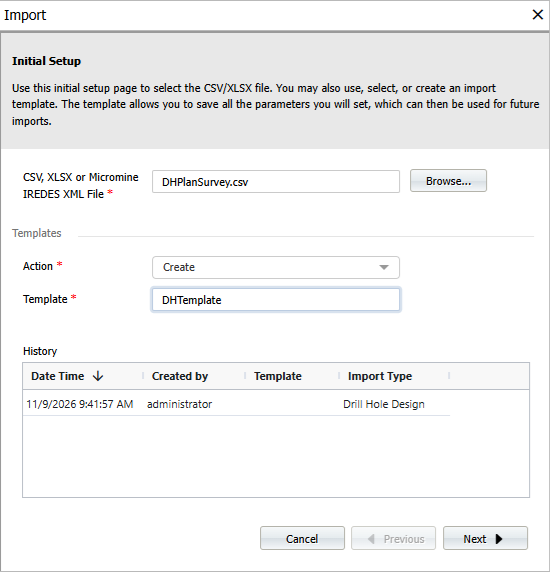
Choose the site, the import type Drill Hole Design and the file.
For a CSV, pick a saved template or map the columns manually; an IREDES file has no template.
-
Set the header row and the first data row and click Next.
-
Check the data preview and click Next.
-
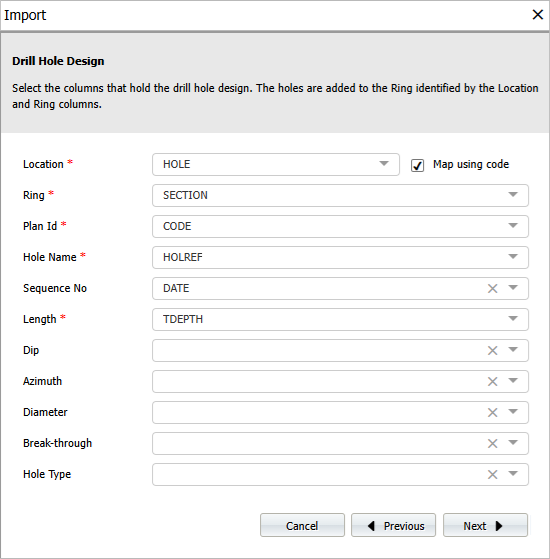
On the Drill Hole Design mapping page, confirm each column.
Select whether the Location column holds a code or a description, and click Next.
-
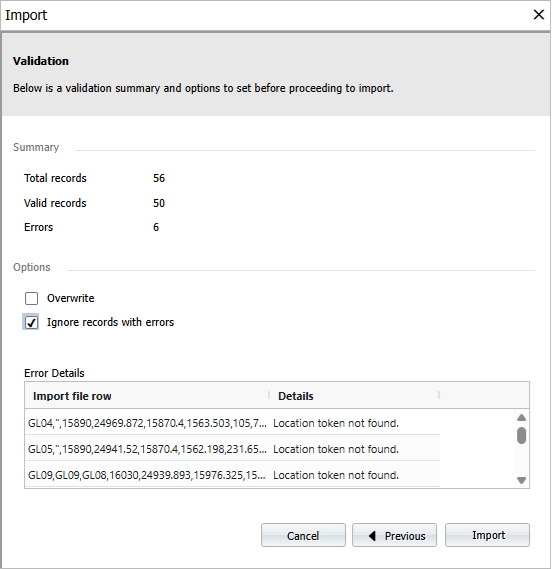
Review the validation page.
Rows with problems are listed with the reason. Fix the file or the mapping and validate again. You can also select Ignore records with errors to import only the valid records.
-
Click Import.
The importer reports what was written, and the Drill Plans grid refreshes with the new or updated plan.
Rules the import applies
-
The plan is created or found by Plan ID, each ring in the file is linked to it, and only those rings' holes are replaced. Rings not in the file are left alone.
-
A ring whose current plan is published is rejected: Unpublish the plan first. A ring whose plan is complete is rejected: Reopen it first.
-
A plan that the import changes, goes back to being unpublished - even if it was on hold.
-
A plan that no ring references any more is deleted automatically.
-
Negative length, sequence, azimuth or diameter values are rejected.
For information on managing Drillhole Plans in the Drill and Blast module, see Managing Drill Data