

Managing Drill Data
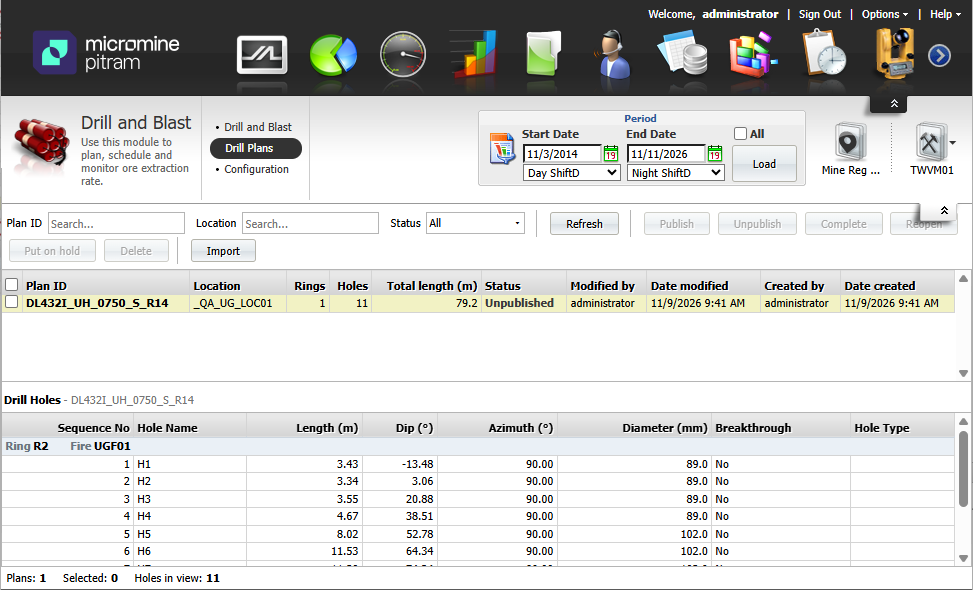
The Drill Plans tab of the Drill and Blast module lists every imported plan, one row per plan. This is where the control room owns the life of each plan from import to completion.
To open the Drill Plans tab, in Dome,
-
Open the Drill and Blast module.
-
Click Drill Plans from the ribbon.
Finding Plans
The Period filter in the module header determines the plans displayed in the grid by date modified. To filter the grid;
-
Set the Start Date and End Date using the calendars,
-
Select the Shift for each date from the drop downs, and,
-
Click Load.
The plans displayed in the grid will be limited to the those modified during the date range you applied.

To further limit the displayed plans,
-
Type part of a Plan ID or Location in the fields of the toolbar, or,
-
Pick one or more statuses in the Status drop down filter.
The Refresh button will reload the grid.
The grid shows Plan ID, Location, number of Rings, number of Holes, Total (designed) Length in metres (m), the Status in colour, and the user who Modified and Created the plan and when (local time).
Select a plan to see the holes it contains in the detail grid; grouped by ring with the location (when the plan spans several locations) and the fire in the group header.
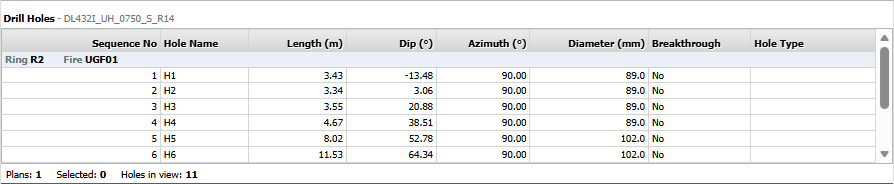
The available columns contain information on Sequence No, Hole Name, Length, Dip, Azimuth, Diameter, Breakthrough and Hole Type. (See What the file must contain).
The Hole detail docks below or to the right of the plans, according to the configured Rings panel layout chosen on the Drill and Blast screen.
Plan Statuses
| Status | Colour | Meaning |
|---|---|---|
| Unpublished | Black | Imported or withdrawn; editable by re-import; not on the tablets. |
| Published | Green | Released; its rings are on the tablets. |
| On Hold | Grey | Postponed; not on the tablets; reopen to use it later. |
| Complete | Blue | Drilling finished; taken off the tablets; kept for the record. |
Lifecycle actions
Select one or more plans in the grid and use the toolbar buttons. A button is enabled only when every selected plan is eligible for that action; so to use a subset of plans, narrow the selection. Actions apply to all selected plans. If someone else has changed a plan or plans in the meantime no action will be applied to any plans, and a displayed message will explain the reason.

The following actions are available:
| Action | Allowed from | Result |
|---|---|---|
| Publish | Unpublished | Published. The plan's rings go to the tablets. |
| Unpublish | Published | Unpublished. The rings are taken off the tablets. Use it before re-importing a corrected file. |
| Put on Hold | Unpublished | On hold. |
| Complete | Published | Complete. The rings are taken off the tablets. Use it when every hole is drilled. |
| Reopen | On Hold, Complete | Unpublished, ready to publish again. |
| Delete | Unpublished, On Hold, Complete | The plan and its designed holes are removed; the rings stay. Not allowed while published. |
Note: A plan that spans several rings or fires is always acted on as a whole. There is no per-ring publish.
In DOME, a plan stays until it is deleted. Nothing archives or expires it on its own, so Complete and Delete should be a part of the end-of-ring routine. Plans should be pt on hold when priorities change, rather than leaving them published.
On the Tablet, submitted holes are kept for the retention period set in the Drill Data Profile (62 days by default), so the next Shift can see which holes are drilled. A plan that stays open longer than the set period will show early holes as Not Started again; ask your Administrator to raise EventRetentionDays if rings routinely take longer.
In Reporting, every submitted hole is kept; including actuals recorded against a plan that was later replaced. Replacing a plan only changes what the driller sees.
For information on using Tablets to publish plans to drill rigs, see Publishing Drill Data