Sandvik DCU Integration Setup
Overview
This
Connecting Hardware
The DCU is the CrossCore XA box that looks like this:
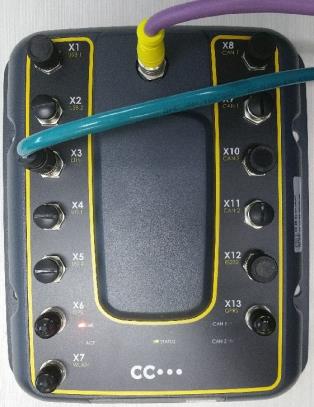
- Connect the DCU to the network via the X3 Eth port (light blue cable).
Unfortunately, the DCU is currently unreliable, so it occasionally needs to be rebooted. Wait until the STATUS light is green before you proceed.
Configuring Pitram Portal
In Reference Data:
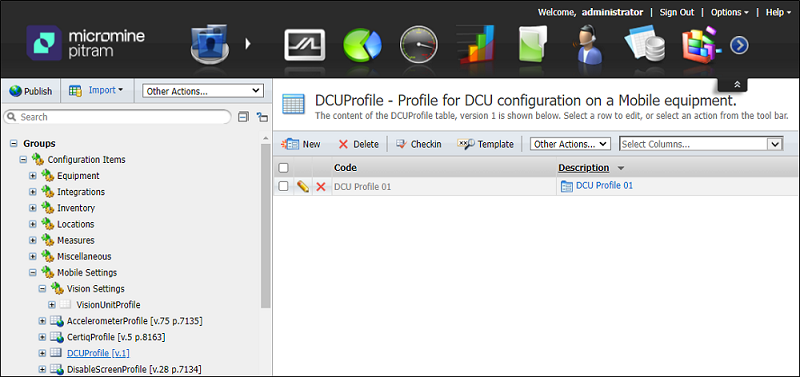
- Create a new DCU Profile
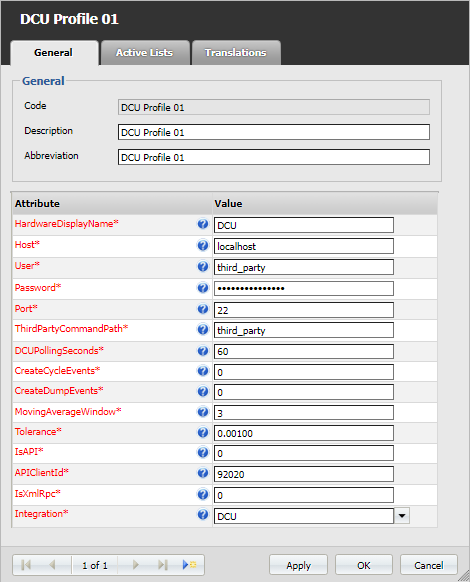
- DCU Profile example:
- HardwareDisplayName - The display name for this device in Mobile.
- Host - SSH host name that this DCU is using (eg ip address).
- User - SSH user name that this DCU is using.
- Password - SSH password that this DCU is using.
- Port - SSH port that this DCU is using (e.g. '22').
- ThirdPartyCommandPath - Directory where command file must be copied. It should contain subdirectories inbox and outbox.
- DCUPollingSeconds - The interval, in seconds, on how often the DCU module will query the measures from the DCU server. A query can take about 20 seconds, so it should be set higher.
- CreateCycleEvents - Whether to create cycle events based on the payload value. Defaults to on (1), specify 0 to turn off.
- MovingAverageWindow - Size of moving average window between 2 and 100 samples for filtering payload measure values.
- MovingAverageHandler - internally keeps a sum of the values within the window. Defaults to 3 samples. See https://en.wikipedia.org/wiki/Moving_average for how cumulative moving average works.
- Tolerance - Tolerance used for event measure value equality. Defaults to 0.001.
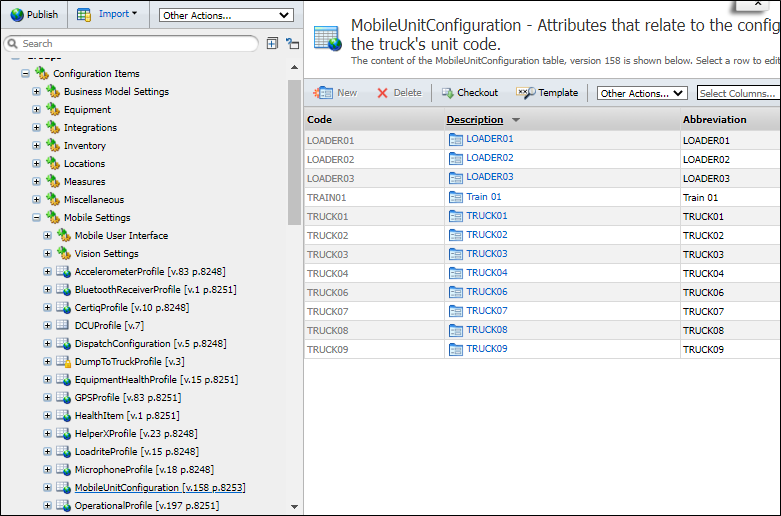
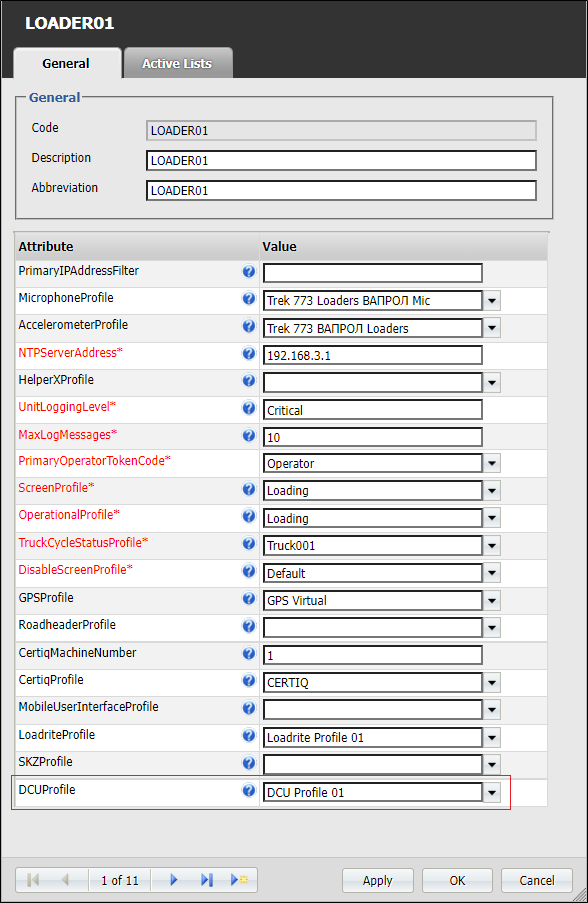
- Edit the MobileUnitConfiguration.
- Link MobileUnitConfiguration to the created DCU Profile.
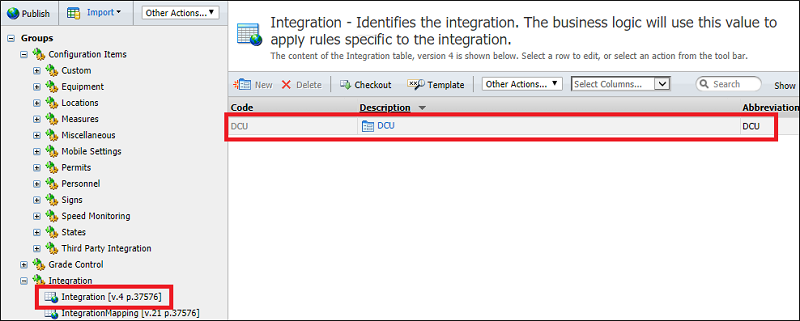
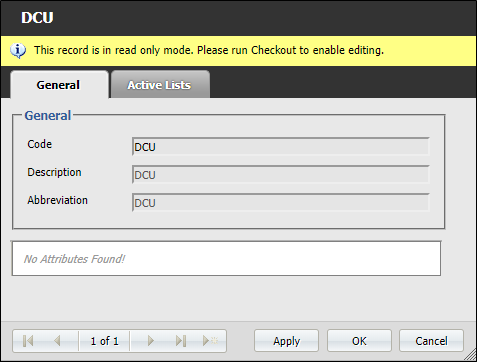
- Create a new Integration with Code, Description and Abbreviation set to DCU.
- The DCU integration token will have the same Code, Description and Abbreviation.
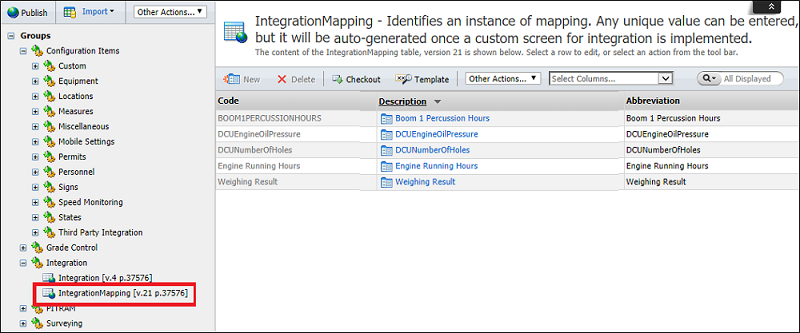
- Create new IntegrationMapping entries for each signal (measure) you want to create measure events for.
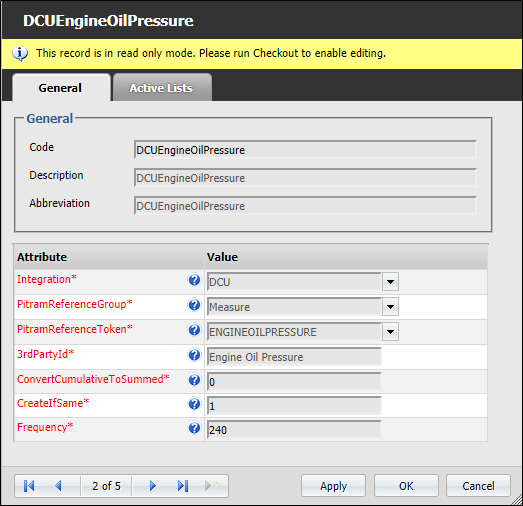
- Here's an example integration mapping for "Engine Oil Pressure" DCU signal to an SMU measure ENGINEOILPRESSURE:
- Integration - Set to DCU.
- PitramReferenceGroup - Set to Measure.
- PitramReferenceToken - Set to the measure token to create events for.
- 3rdPartyId - Set to the signal name present in DCU reports. See UnmappedSignals.txt for a list of unmapped signals.
- ConvertCumulativeToSummed - Whether to convert cumulative signal into a summed measure. It does this by using the difference between the value and the previous value. Defaults to off (0), specify 1 to turn on.
- CreateIfSame - Whether to create an SMU measure if the signal has not changed. Defaults to on (1), specify 0 to turn off.
- Frequency - The time interval, in seconds, that needs to pass before a measure is created. Set to 0 to create measures for every sample.
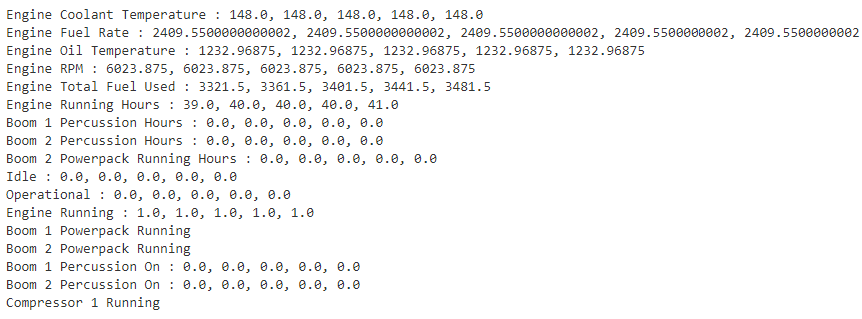
- A list of the currently unmapped signals can be found in the PitramMobileUnmappedSignals\UnmappedSignals.txt in the PITRAM ProgramData profile folder. Mobile needs to have completed a poll that contains signals before the file is created. It also lists the last 5 readings.
This value should not be too large and also bear in mind the possibility of overflow and floating point error as
Here is an example of UnmappedSignals.txt:
Monitoring Mobile in Action
This section illustrates how to see if mobile is communicating with the DCU and creating measures.
Remove DCUMarkerFile.xml from the machine folder if the DCU integration has been running for a long time, and you do not want Pitram Mobile to process all the changes since the last time it was run. This step might be needed if we want to avoid processing a time range when the DCU was not connected to the CAN bus (and thus didn't receive data).
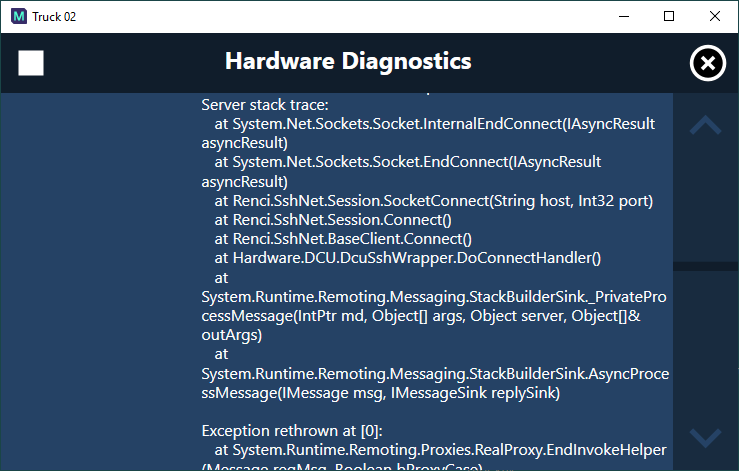
The Device Diagnostics for the DCU should look like this:
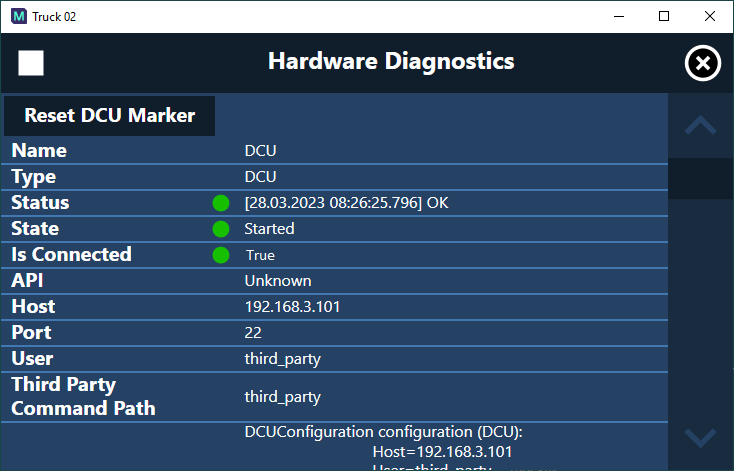
The F5 diagnostics tab should show where mobile is up to processing the data.
Pitram Portal Reports
After letting mobile create measures for DCU signals, DOME reports can be generated to see how the measures changed. One thing to keep in mind is some reports filter out measures with 0 values, so only non-zero data will be shown in the reports.
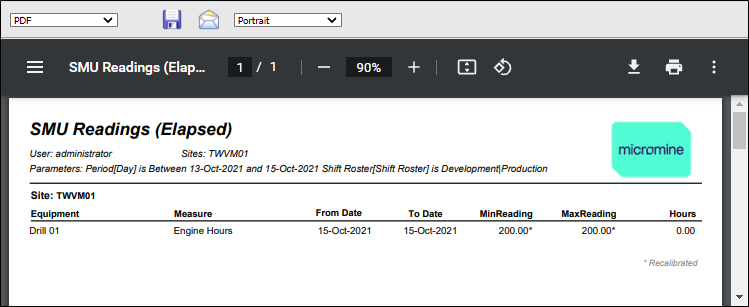
The SMU Readings (Elapsed) report is an example of a report showing measure changes:
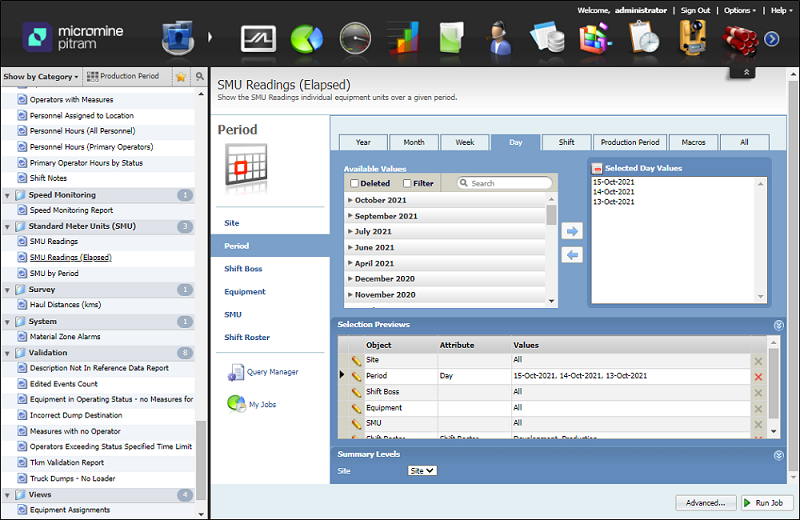
The report shows how the ENGINEOILPRESSURE changed from 5 to 7.52 (see MinReading and MaxReading):