Certiq Integration Setup
Overview
Certiq from Epiroc is a monitoring system for collecting and communicating data from Epiroc machines. In common implementations the data are transmitted to a Certiq Central Cloud Server for presentation and further analysis.
Pitram currently provides a customised solution that assumes Certiq servers are installed onboard equipment units. This allows Pitram Mobile to collect and present data, even if equipment is operating outside the Wi-Fi range.
Certiq relies on an SQL Express Database installed on Pitram Mobile. The current Pitram to Certiq integration accesses the database directly. For future integrations, it is also possible to configure the system to communicate with a Certiq server via RESTful services, both onboard and in the cloud.
Applications
The following applications need to be installed on the device running Pitram Mobile:
- Certiq Local Server (CLS) - Certiq Local Server is a software that is present locally at the mine that collects and stores the data from the machines. It also filters and processes the data and transmits it to the Certiq Central Server. The machine data, logs, and settings can be viewed on a CLS diagnostic App.
- SQL Server Express
- A link to SQL Express 2008 R2 that was successfully installed by Maxim Shtaba while testing the solution:https://www.microsoft.com/ru-ru/download/details.aspx?id=30438
Two options:
SQLEXPR_x86_ENU.exe 110.4 MB or
SQLEXPR_x64_ENU.exe 1122.4 MB
Certiq Local Server Activation
- Pitram specialists install Certiq Server, SQL Server on a TREK unit.
- Epiroc technicians configure the Epiroc device (machine).
- After the Epiroc device is configured, Certiq server and Epiroc device can be launched and basic information between these two will begin (activation data). No production data will be exchanged yet.
- The Certiq server web page on the TREK will show the Epiroc device.
- The activation data will be used to activate the Epiroc device and the Certiq Local Server on the global Certiq Server – this will need to be done either by Pitram specialists or Epiroc technician
- Once all activated, the production data exchange will begin.
Authentication Code
Certiq will generate token for every single local server right after the registration. Certiq also sets up the token lifetime. By default, it is generated for 3-6 months, but this depends on the EULA.
Integration with Certiq Database
While the preferred way to integrate with Certiq in the future is to make API RESTful calls against the Certiq local or cloud server, Pitram Mobile is also able to query the Certiq database directly. This type of data transfer is currently required by the client using the integration.
The name of the database used by Certiq is promine_db.
Connection to the database must be defined in reference data (see below).
Reference Data
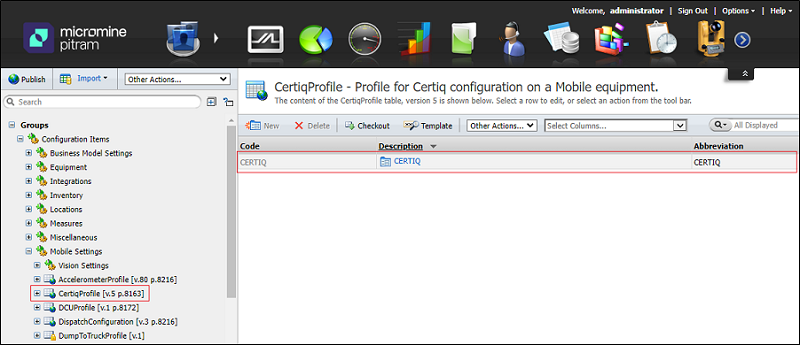
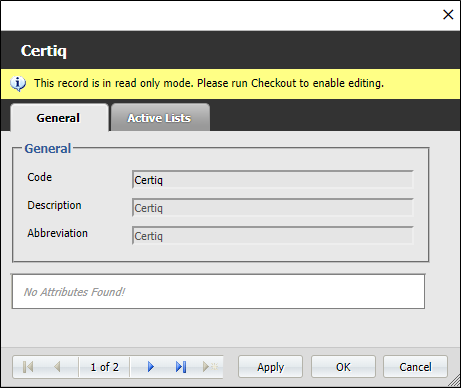
- Create new Certiq profile.
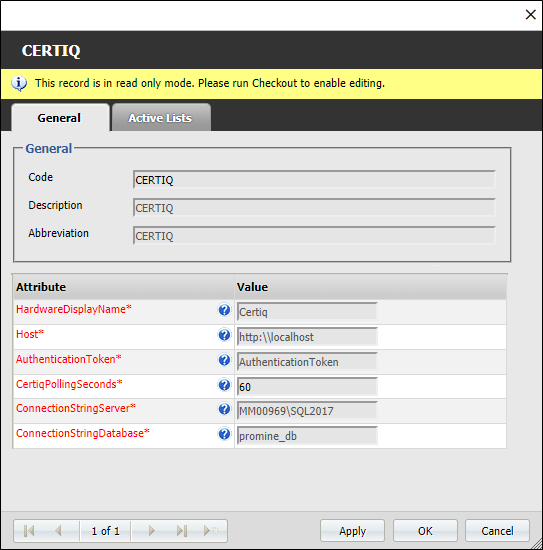
- Configure Certiq profile.
- HardwareDisplayName: The display name for this device in Mobile.
- Host: URI of the web services host. E.g.: http:\\localhost
- AuthenticationToken: The local server authentication does not require username and password. Certiq will generate token for every single local server right after registration. Certiq also sets up the token lifetime. By default, it is generated for 3-6 months but depends on EULA.
- CertiqPollingSeconds: Frequency of RESTFul calls by Pitram Mobile to Certiq Server.
- ConnectionStringServer: Certiq database connection string host for promine_db. Defaults to localhost.
- ConnectionStringDatabase: Certiq database name. Defaults to promine_db.
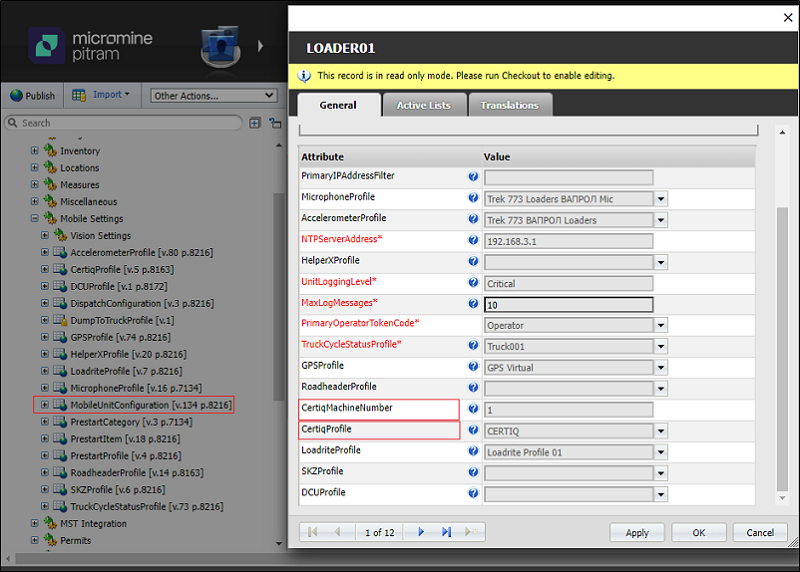
- In the equipment MobileUnitConfiguration, set the CertiqProfile and a CertiqMachineNumber. CertiqMachineNumber might not be used but it is still required.
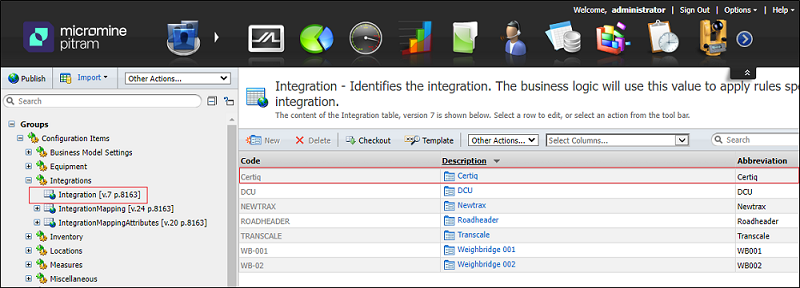
- Setup an integration to Certiq:
- Setup the Certiq token:
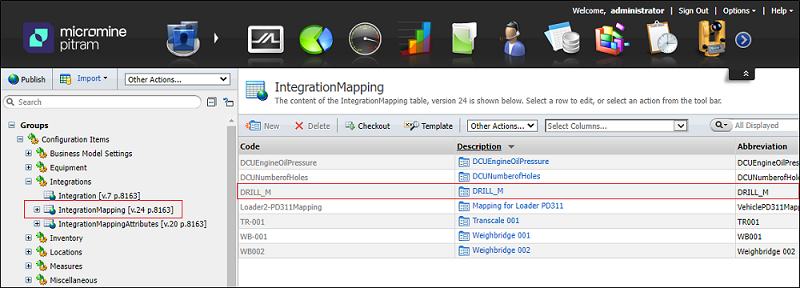
- Fill in the integration mapping:
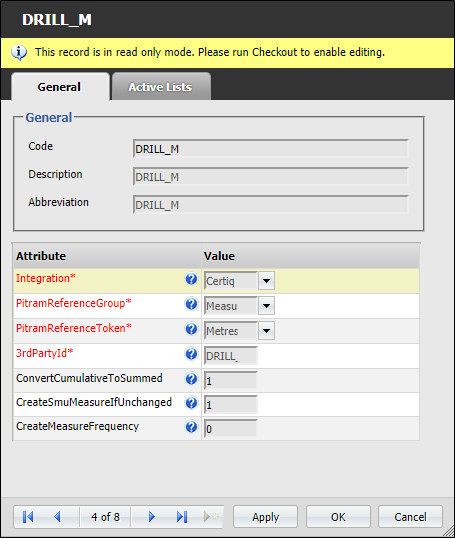
- The following example shows mapping of the DRILL_M RegisterName (3rdPartyId).
- Integration: A DataTokenGroup lookup value. Allows to select a token from the Integration reference group.
- PitramReferenceGroup: A ReferenceGroup lookup value. Allows to select a value from all available reference groups in the system.
- PitramReferenceToken: A GroupAttributeValue lookup value. Allows to select a token from the reference group selected in the AssociatedGroupAttribute field.
- 3rdPartyId: A 3rd party item value to be mapped to a Pitram token.
- ConvertCumulativeToSummed: Whether to convert cumulative signal into a summed measure. It does this by using the difference between the value and the previous value. Defaults to off (0), specify 1 to turn on.
- CreateSmuMeasureIfUnchanged: Whether to create an SMU measure if the signal has not changed. Defaults to off (0), specify 1 to turn on.
- CreateMeasureFrequency: The time interval, in seconds, that needs to pass before a measure is created. Set to 0 to create measures for every sample.
Other measures can be discovered by querying the database manually.
Mobile
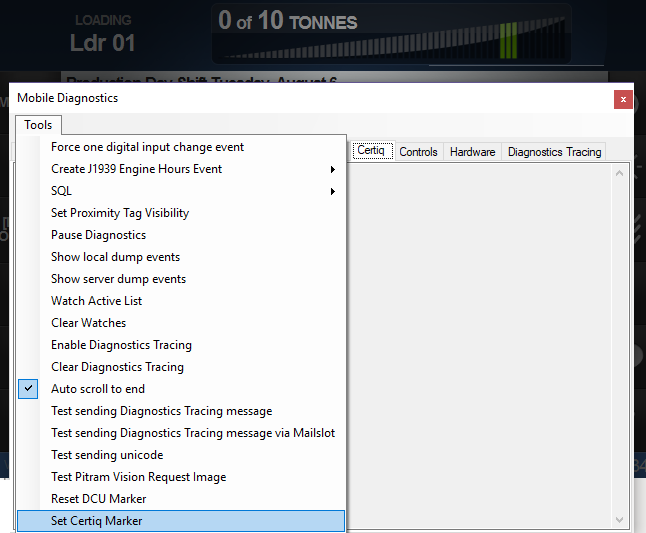
- When mobile is running, press F5 to see the Certiq tab.
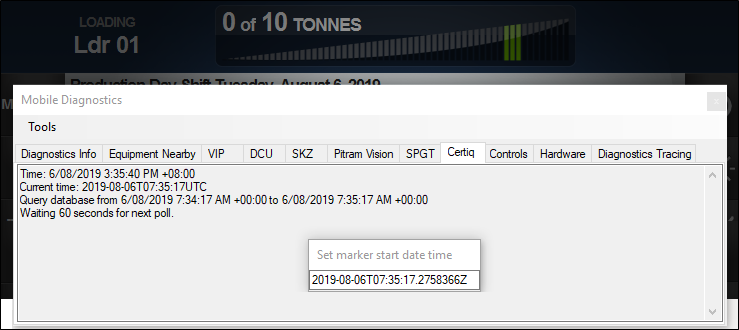
- For testing purposes, it is possible to set the marker earlier, so it can process historic data in the database.
- The marker data time can be modified.
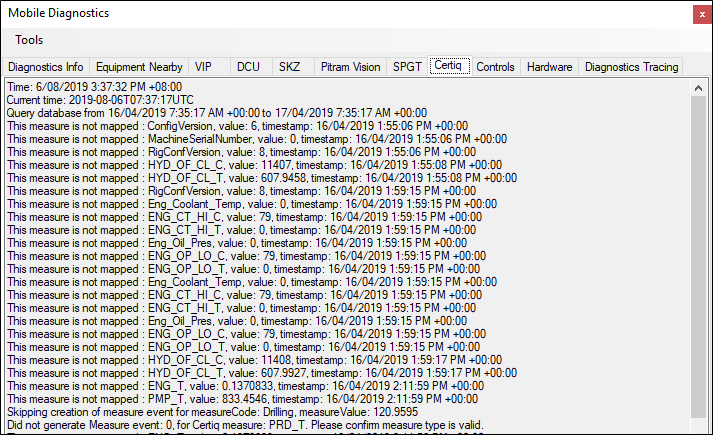
- A list of processed data is displayed:
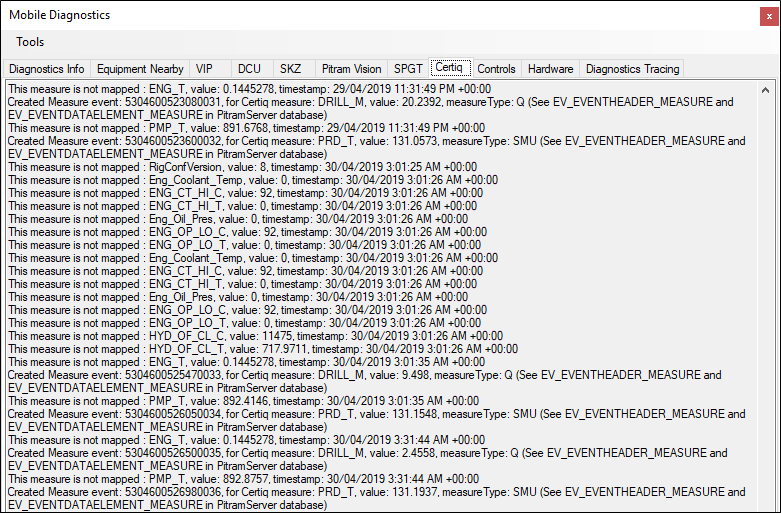
- Below is an example with Pitram events. The event key can be looked up in the Pitram Server database. The events can also be inspected in the Event Editor.
The following screenshot shows an example where the marker is already past the data available in the database.
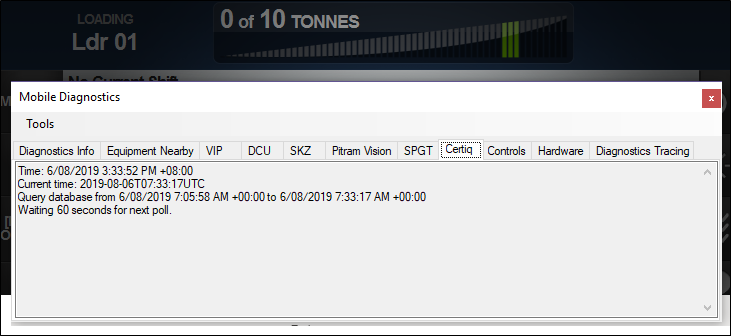
(Select tools / Set Certiq Marker).