

Selecting a shift to edit
When you open the Event Editor, you will be prompted to select a Shift and select a View option:
Shift
The mine operates 24 hours per day. Typically you may be working with two shifts per day - a day shift and a night shift.
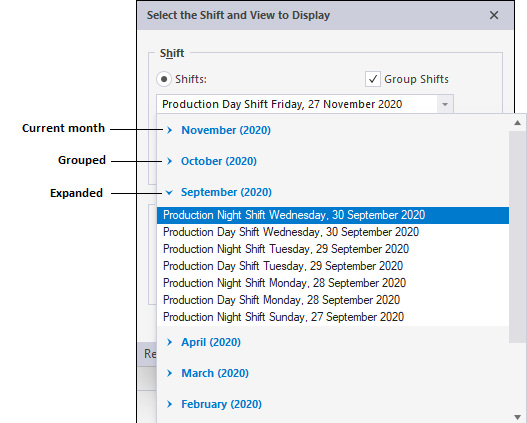
There is an option to Group Shifts at the upper-right of the dialog. If this option is selected, with the exception of the current month, all shifts will be grouped into the appropriate + Month (Year). To view the shifts in a particular month, click on the plus icon (+) to expand the list for that month.
Select the shift that you want to review from the drop-down box. By default, the current shift is selected.
View
Your choice of view will determine which events are displayed in the editor for the selected shift.
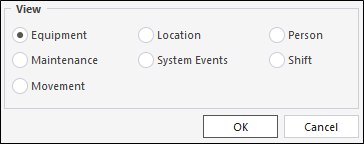
For example:
If you select an Equipment view, events recorded against equipment units will be displayed. You can also apply a filter to restrict the view to a subset of the data.
After you have selected a shift and chosen a View option, click OK.
The events associated with the Shift, and the View type you have selected, are displayed in the editor.
The shift and view selection can be changed at any time by selecting File | Open Shift from the editor menu, or by clicking the Open Shift tool on the editor toolbar.
Edit a person allocation event