

Edit a start/end of shift event
- Select Shift View.

A grid showing Shift start and Shift end events in the database is displayed
- Select the event you want to edit in the Shift Events data grid:
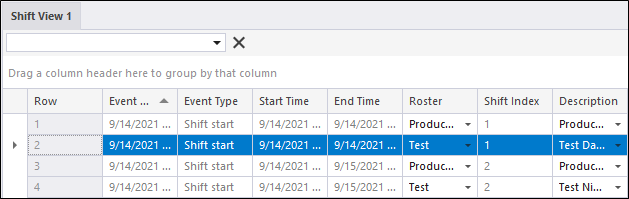
In the case of Shift events, you can only edit the Shift Description and (for a Start shift event) the Crew. Pick-lists are provided. The data grid provides a sequential view of all Shift events and uses a shaded colour to differentiate between Shift start and Shift end events.
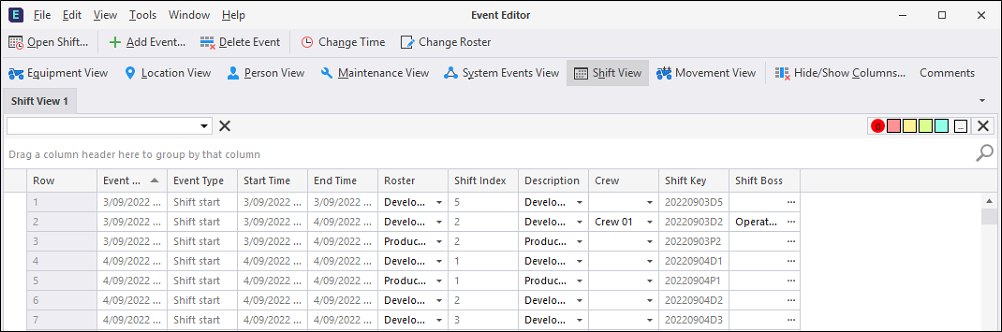
In this way, you can quickly identify duplicate events that need to be deleted:
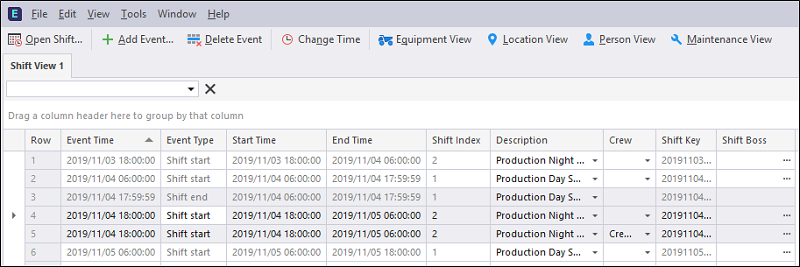
Other errors are denoted by a red cross. Hover the mouse over the field to display an error message:

When you select an event in the grid, a complete summary of the event (all columns) is displayed as a Card view to the right of the data grid. The values that can be edited for the current event are highlighted in Bold. Column values that cannot be edited are shown as greyed-out.
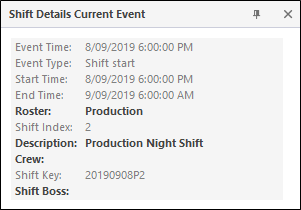
There are no measures that can be edited for Shift start and Shift end events.
Shift Boss
The Shift Boss column provides information about the shift bosses allocated during the shift.
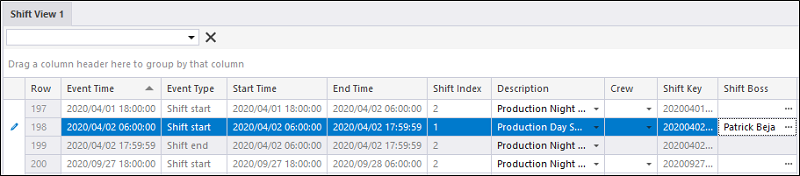
To change the selected shift bosses, users can click on the ellipses button inside the Shift Boss field and open the Select Shift Bosses dialog:
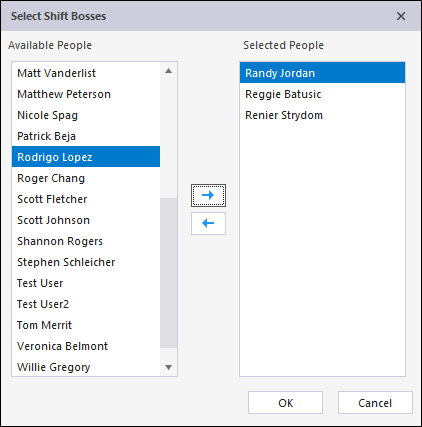
To designate personnel as shift bosses for the new shift, select them in the Available People pane and use the Right arrow to move them across to the Selected People pane. To change the Shift Boss selection, use the Left arrow to move them back again.