

Add a start/end of shift event
-
Click the Shift View button or select View | Shift View from the menu.

-
Click the Add Event button or select the Edit | Add Event menu option to add an event:
Optionally, select an existing event in the Shift Events window.
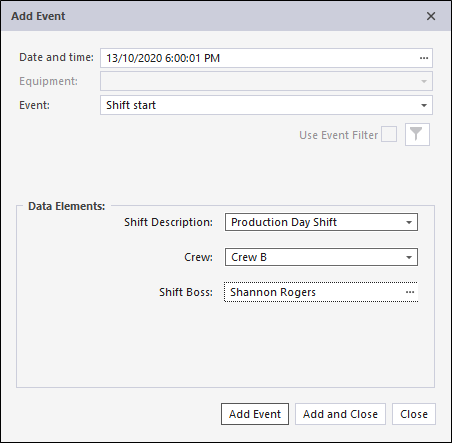
- Accept the default Date/Time or specify the Date/Time of the event you are adding.
By default, the date/time will be 1 second after the event that is currently selected in the grid.
To set the Date/Time, use the mouse to select the component of the date and time you want to change. Then use the increment/decrement controls to change the selected component.
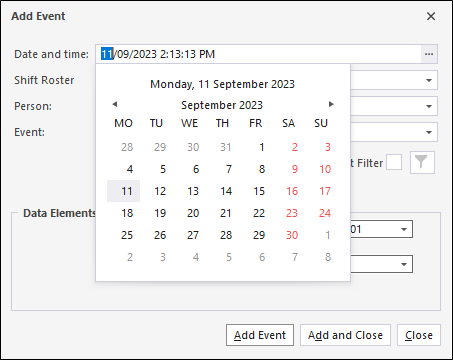
If the date and time you specify is invalid, the date/time will be set back to the default date/time.
- Specify whether you are adding a Shift start event or a Shift end event.
- Select a Shift Description from the drop-down list provided. This will typically be Production Day Shift or Production Night Shift.
If you selected Shift start as the event type, you will also need to select a Crew:
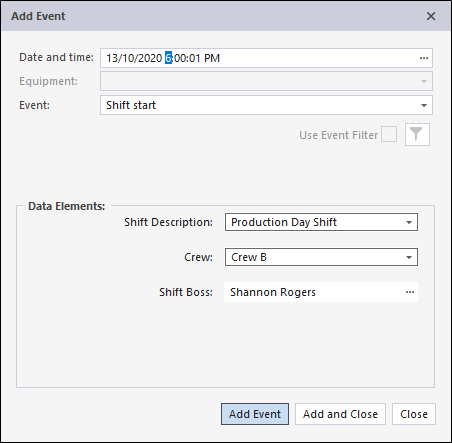
- Select a Crew from the drop-down list provided.
- Click the Add Event button to add the event and keep the dialog open.
- If you have finished adding events for equipment, click the Add and Close button.
- To cancel (i.e. close the dialog without adding the event), click Close.