

Views and Events
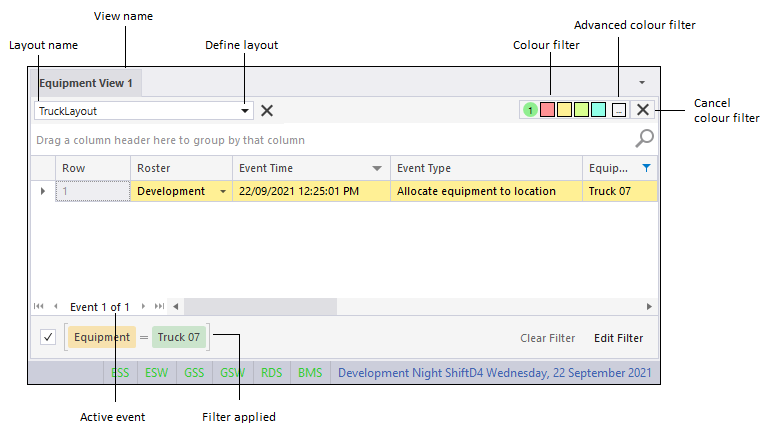
When you open a new Event Editor view (i.e. Equipment, Location, Movement, Shotcrete etc.), the view type is used as the default name for the new view and a numeric suffix is added - for example, Equipment View 1:
Rollover Events
Any event which has not been changed since the previous shift is shown in the current shift as a Rollover Event.
A production drill is assigned to a location at 3:30 PM. If its location has not changed by the start of the next shift, it becomes a rollover event. Such events are displayed in the current shift with a pale yellow background.
Event Types
All events listed in the editor have a type. For example, it is the event Type that determines which columns are mandatory (i.e. must have a value). When adding or editing an event, it is important to ensure that the correct event Type is selected.
Most event types are self explanatory. If you are in doubt about setting the event type, try to find a similar event to see how its associated columns are defined.
Group By
To group by a selected column (or columns), drag the column (s) onto the view header, immediately above the grid:
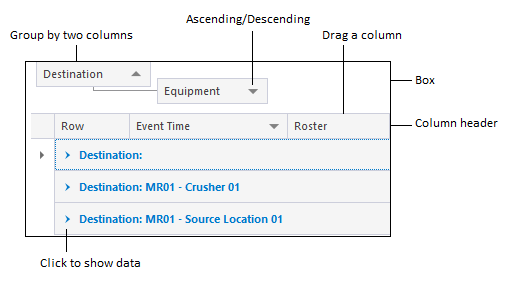
To remove the grouping:
- Right-click in the view header and select Clear Grouping. This will remove all columns from the view header and return them to the grid's column header.
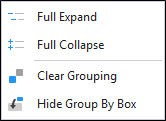
- Alternatively, click and drag a column back onto the grid's column header.
Filter
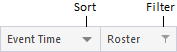
To apply a filter, select an option from the filter drop-down menu to the right of a column name. Alternatively, right-click on the column name and select Filter Editor. For more information refer to the Apply Filter topic.
Rename
To rename a view, right-click on the name and select Rename to make the name editable.
Create View
To create a view, right-click on the name of an existing view and select Create New View. The new view will be a copy of the original view and have the same name but with an incremented suffix, for example Equipment View 2, if the view shown above is the one copied.
Close
To close a view, right-click on the name and select Close. Alternatively, select the Close All But This option to close all views except the current view.
For more information, refer to the following topic links: