

Edit an equipment SMU measure
- Click on the Equipment View button.
- Select the equipment event you want to edit measures for in the Events data grid:
A data grid showing the events recorded against equipment during the shift is displayed.
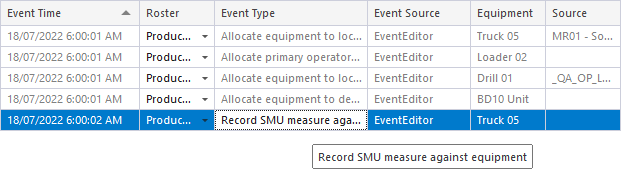
Typically, editable columns will be readily available in the data grid, while less important columns will be hidden.
For the columns that can be edited, pick-lists are provided wherever possible to ensure that existing column values can only be replaced by valid values for that column.
The data grid allows you to view events sequentially, as they occurred during the shift. The ramifications of any changes you make to an event will be seen in subsequent events.
When you select an event in the grid, a complete summary of the event (all columns) is displayed as a Card view to the right of the data grid. The values that can be edited for the current event are highlighted in Bold. Column values that cannot be edited are shown as greyed-out.
- Select a Measure Code and enter a Measure Value.
When entering measures or other numeric data, validation is performed to ensure that the value entered is valid for that column.
You cannot edit the Date/Time of an event. However, you can delete an event and replace it with an event with a new date and time.