

Add a system event
-
Select the System Events View button or select (View | System Events) from the menu.
-
Click the Add Event button or select the Edit | Add Event menu option.
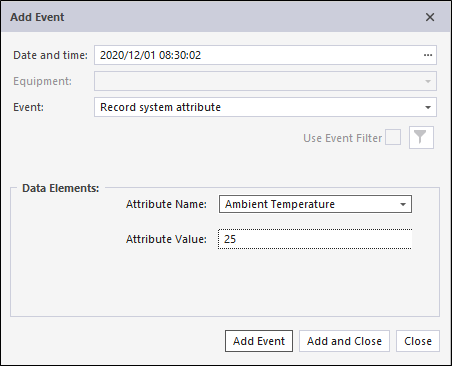
- Accept the default Date/Time or specify the Date/Time of the event you are adding.
By default, the date/time will be 1 second after the event that is currently selected in the grid.
To set the Date/Time use the mouse to select the component of the date and time you want to change, then use the increment/decrement controls to change the selected component.
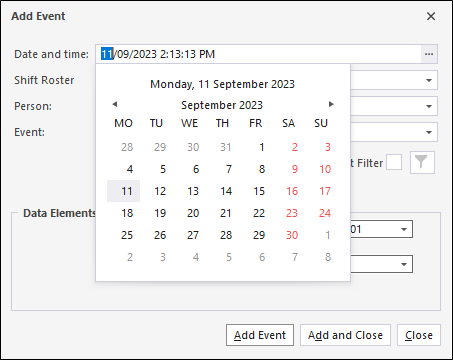
If the date and time you specify is invalid, the date/time will be set back to the default date/time.
- Select an Attribute and an Attribute Value from the drop-down list provided.
The system events configured at your site will vary depending on your site requirements.
- Click the Add Event button to add the event and keep the dialog open. If you have finished adding system events, click the Add and Close button.
To cancel (close the dialog without adding the event), click Close.