

Add and Edit Roles
On the Services ribbon: Select System | Administration | Manage Roles to manage user roles.
On the header, two options allow you to:
-
Add Users, Actions or Shift Rosters, depending on which tab is the active tab.
-
Delete selected Users, Actions or Shift Rosters, depending on which tab is the active tab.
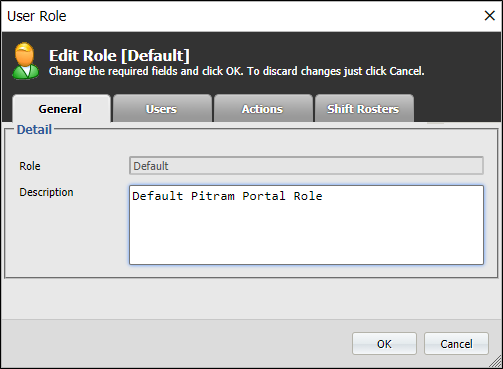
General
Define the Role name and enter an appropriate Description.
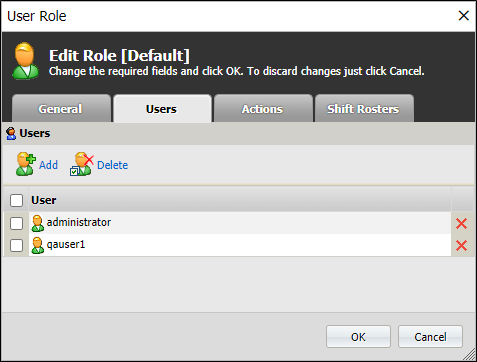
Users
This tab allows you to assign users to the current role. Click Add to select from a list of current users. Go to Manage Users to define a new user.
Select the check boxes of the users to be removed from the role, then click Delete.
Actions
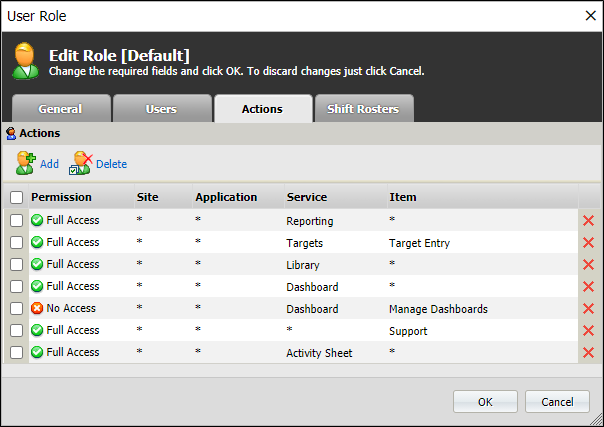
This tab allows you set access permissions for application services across or between sites.
-
An Action is one of the Pitram Portal services.
-
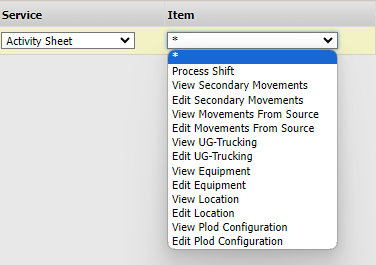
A Service, for example Reference Edit, comprises multiple Service items. Access may be granted to the service but be denied to one or more items.
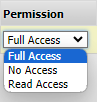
Permission
Choose whether to deny access (No Access) or grant access (Full Access or Read Access) to the Service and Item selected.
Site
Specify whether the users assigned to the role will have access to all sites or a single site. To specify all sites, a wild card character (*) can be used.

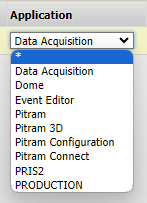
Application
Generally, the wild card is used * to select all applications.
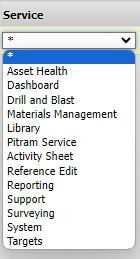
Service
Select a particular service or select all services (*) from the drop-down list.
Item
Select a particular item or select all items (*) of the selected service.
Shift Rosters
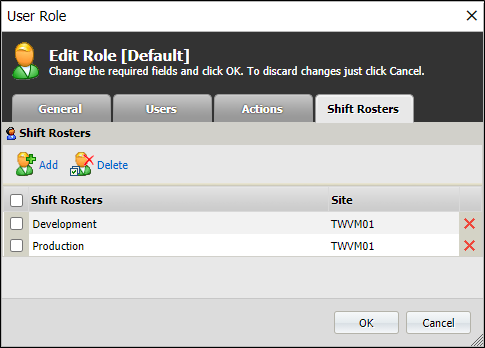
This tab allows you to associate the current role with one or more shift rosters. Click Add to select from a list of shift rosters.
Select the check boxes of the rosters to be removed, then click Delete.
Mine Regions
If Mine Regions have been configured, this tab allows you to associate the role with one or more Mine Regions.
OK
Finally, click OK to save the role definition.