

Manage Licence
On the Services ribbon: Select System | Administration | Manage Licence to display the details of the available licences for all Pitram Portal users.
Note: Only Administrators can log in to the Manage Licence page.

The Manage Licence page is displayed:
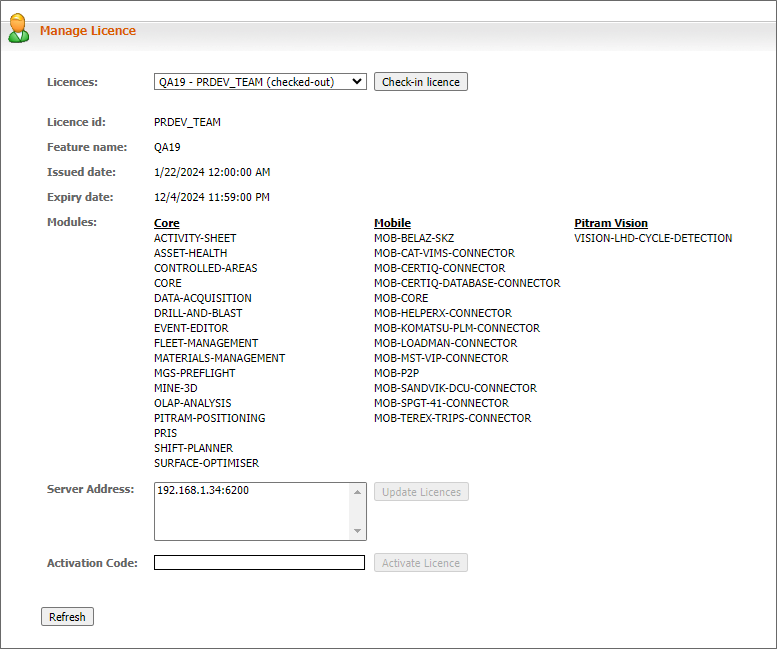
The details of the active licence are displayed by default. You can select any licence from the Pitram Licence Server to display.
Licences
The Licences drop down contains a list of all the available licences for Micromine Pitram Portal users. If you select a licence from the drop down, the details for that licence will be displayed:
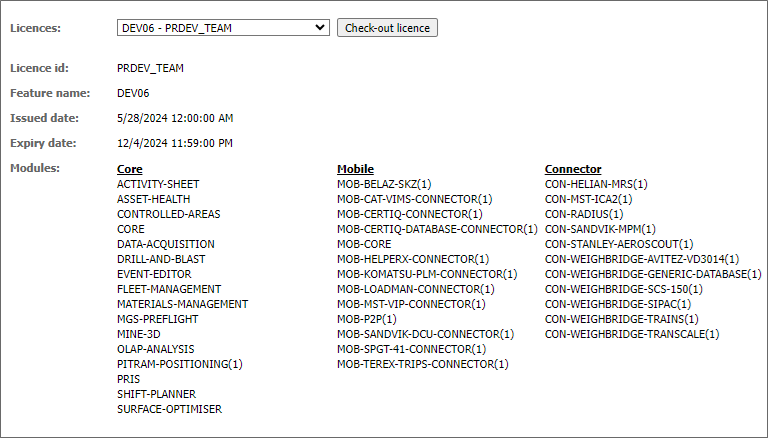
To utilise the selected licence, click the Check-out licence button. The licence is now active (if available) and the button changes to Check-in licence.
When a licence is checked out, you can return it to availability using the Check-in licence button.
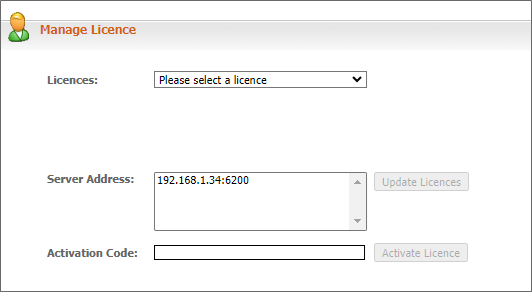
If you select Please select a licence from the drop down, no details will be displayed:
Licence ID
Displays the unique identifier for the selected licence.
Feature name
Displays the assigned feature name for the selected licence.
Issued / Expiry Date
Display the date on which the selected licence was issued and the date on which it expires.
Modules
Modules which are included with the selected licence are listed in columns under category headings.

For example, the Core category includes Activity Sheet, Asset Health and Data Acquisition. Major features such as Mobile connectors appear under a Mobile category while the licence for the Connectors themselves have their own Connector category.
Server Address
The IP address of the Pitram Licence Server where the licences for Micromine Pitram Portal are stored is displayed in the Server Address grid. This address is populated from the Network Licence Server addresses list in General Configuration. You can refresh the list of available licences on the listed server by clicking the Update Licences button.
Activation Code
To add a licence to the Pitram Licence Server, you can enter the Activation Code for the new licence in the field provided. This will add the licence and its details to the list of available licences. You can refresh the available licences using the Update Licences button.
Refresh
The Refresh button will update the details displayed in the Manage Licence page.