

Activity Sheet
On the Services ribbon, click Activity Sheet to store timesheet information in the Pitram database.

Timesheets detail the work undertaken by operators during a shift - such as where they were working and for how long, what equipment and consumables they used, the locations visited, the distance travelled or the amount of fuel consumed.
When you click Activity Sheet, the following screen is displayed.
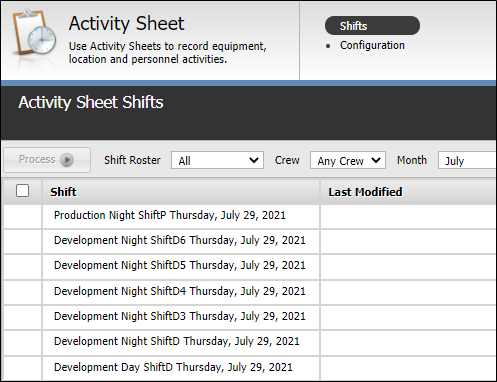
The Shifts option and the current shift is loaded by default:
When the Activity Sheets service window opens, those shifts are displayed that match the following settings in the Filter header:
The Shift Roster drop down is used to select the relevant shift roster to display. Shifts are configured using the Shift Planner.
The Crew drop down will filter the shift list by the selected crew.
Use the Month drop down to select the month of shifts to be displayed.
Select the Year to be displayed and processed from the drop down.
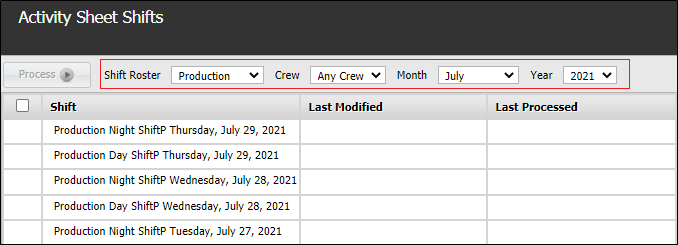
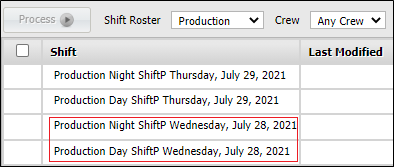
The selected period and filter determines which Day and Night shifts are displayed in the list of shifts. Shifts for the selected period are listed in reverse chronological order.
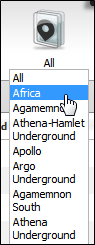
On the top right of the header, there is a Site selection tool which can be used to filter the records by site. It is set to All by default. You can select one item from the list to apply a filter that selects data from the selected mining region only. The list of sites displays only those sites that the user has permissions to alter.

On the far right of the header, there is a Mining Region selection tool which can be used to filter the records by site. You must select a site before you can select a mine region.
When you click on a particular shift, the timesheets applicable to that shift are displayed in the panel at the right.
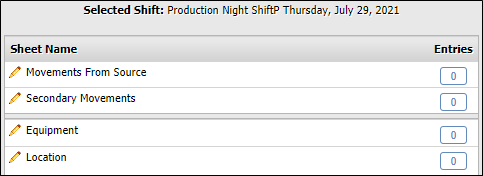
To edit or configure a sheet, click on the listing in the panel. The sheet is opened for editing.
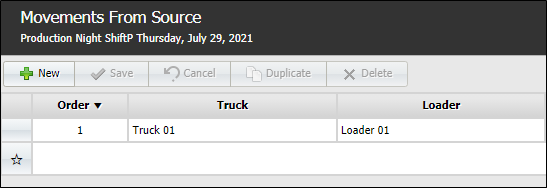
You can add an item to the sheet using the New button. This will add a line to the sheet and enable editing.
You can delete a line, where applicable, by selecting it by the box at the left and clicking Delete
When all of the timesheet details have been entered and saved, the selected shift can be processed to update the Reporting database.
The Process button will appear at the right of the shift in the list.

You can process multiple shifts by selecting them with the check box at the left and clicking the Process button in the toolbar above the Shift list.
When shifts have been processed, the Last Processed column will be updated with the date of processing.