

Duplicate a timesheet
Note: Person_3, a haul truck Operator, submitted timesheets for the Day shift of 16 June 2012. During the shift, Person_3 operated two different trucks. Person_3 was first allocated to Truck_1. When mechanical problems were experienced, Person3 was allocated to Truck_2. In both cases, Person_3 was operating at the same source and the same destination.
Person_3 was operating at the same source and the same destination, so the two events are very similar - except for the Equipment and Tonnage values.
In this activity you are going to learn how to:
- Enter and save the first record: Operating Truck_1.
- Duplicate the first record to create a second record.
- Edit the second record to make it a unique event: Operating Truck_2
Note: Equipment hours and SMU readings that may have previously been entered may not be duplicated. They must be entered individually for each record if such details are included on the submitted timesheets.
To duplicate a timesheet:
-
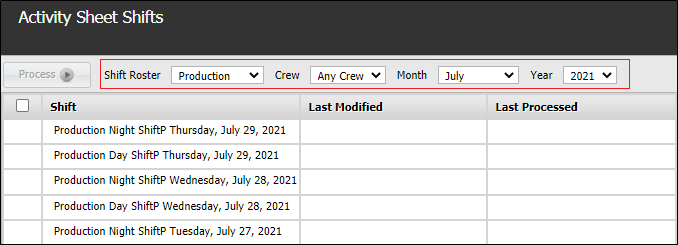
In the Activity Sheet service you need to have the Day shift for the 28 July 2021 displayed. This can be achieved by selecting Month = July and Year = 2021.
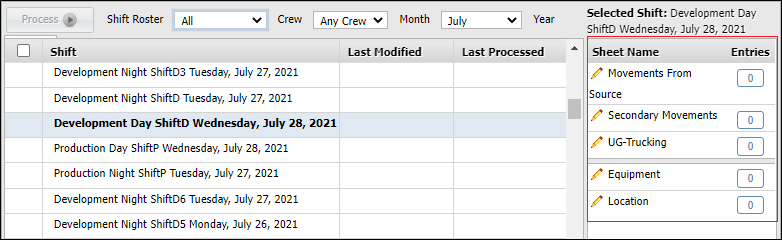
- Click on Night Shift Production Wednesday July 28, 2021. A number of different sheet types are displayed .
-
The timesheet to be entered is for an underground haul truck, so double-click on the UG-Trucking sheet.
The sheet opens.
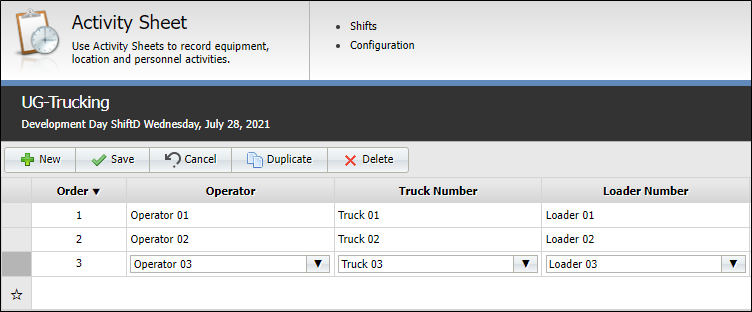
Note: The sheet types and the columns that appear in a sheet are customised and will differ at your site.
-
Click New . A new line in the sheet is created.
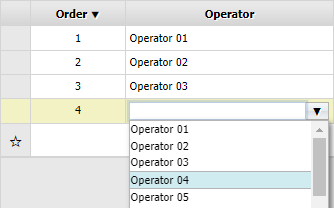
- Enter the following information:
Field Prefix Enter Operator Operator 04 Truck tru Truck 04 Loader loa Loader 04 Source sou Source Location 04 Destination des Stockpile 04 Material wa Waste Truck Dumps 3 Hours 1 -
Click Save. The new record appears at the bottom of the list.
- To create a duplicate record, do the following:
- Highlight the record to be copied.
- Click Duplicate Row.
- Make the required changes to the duplicated record - in this case the values for the Truck, Truck Dumps and Hours.
- Save the new record as a unique entry.
Note: A record cannot be saved unless it is unique.
- Click Duplicate. A new record, which is an exact copy of the highlighted record, is added below.
- Highlight the duplicated record and select Edit on the toolbar.
- Click Save. Two unique records will now be displayed.
- To enter status changes for the period that the Operator was working with Truck1, click the Equipment sheet at the bottom-left of the workspace.
- Click Please Select and select the Equipment Function Group.
- Select Hauling from the list.
- Select Truck 01 from the list of Equipment Units.
-
On the Equipment Status area, click Add to add the following status change:
Option Prefix Enter Time 06:10 AM Status sta StartUp - Click Save.
- Add the following status changes for Truck 01, then click Save, then Add to add another record.
Option Prefix Enter Time 06:32 AM Status op Operating Time 07:05 Status hy Hydraulics - Click Save.
- Click Close to close to close the Equipment sheet.
Some hours later, Person_3 was allocated to Truck_2 and continues for the rest of the shift with Truck_2. Because the only changes to the details of this record are for the Truck, the Truck Dumps and the Hours, you will duplicate the first entry in the Hauling - UG sheet for the selected shift.
Make the following changes to the duplicated record:
| Field | Prefix | Enter |
|---|---|---|
| Truck | tru | Truck 02 |
| Truck Dumps | 10 | |
| Hours | 4 |
Note: When you duplicate a record on a sheet, you must ensure that the equipment status changes and SMU details that have already been entered for the original record are not also duplicated. If changes have been made to any of the records for the selected shift, the shift must be reprocessed.