Library
On the Services ribbon, click Library to view reports and other documents without having access to the underlying data. The Library is also a source of historical data, providing snapshots of information for a specific time period.

If you have Administrator permissions, you can also import reports and documents or delete them from the library. See: Library File Types
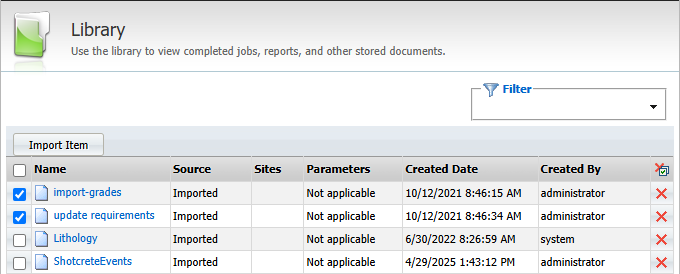
Import Item
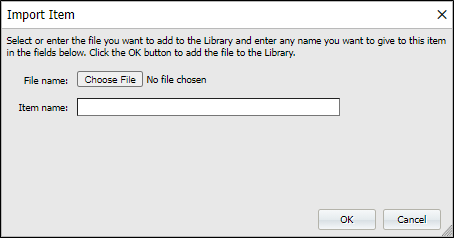
Click Import Item to add a report or another document file to the library.
An Import file dialog is displayed: Browse to locate the File name, enter the Item name, and then click OK:
The types of file that can be added to the library are configured as part of your Administration settings.
Table Filter
Click on the up/down arrow to expand or contract the Table Filter pane.
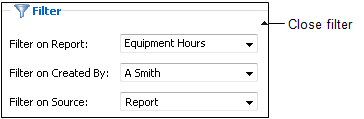
The list of library reports and documents can be filtered based upon the Report Name, the ID of the user the report was Created By , or by Source.
In addition to reports, other documents can be imported.
Item Name
Click on the Item Name to view the selected report or document.
When you view a report, the report is not run. Rather, the output generated for that report (at the date and time shown) is opened in a display window.
Delete
Click the Delete icon to remove the selected report or document from the library. Only a user with Administrator privileges can delete a report or a document from the library.
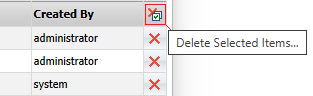
Alternatively, you can select the check box for multiple items you want to delete and click the Delete selected items... button at the top right of the grid.