Equipment Hours and SMU Readings
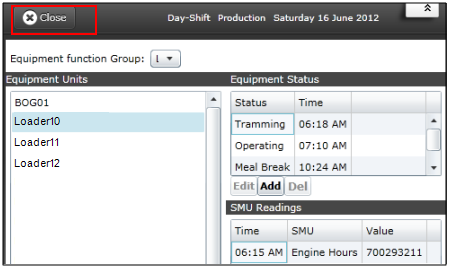
Previously you entered the timesheet details for Loader10, which included Operator name, equipment, location and number of loads completed for the shift. In this activity, you will enter details about equipment states assigned to Loader10 during the shift and any SMU (Standard Meter Units) readings. During the shift, the following details were recorded on the original timesheet for Loader 10 :
| Time | Value |
|---|---|
| Status | |
| 06:18 AM | Tramming |
|
07:10 AM |
Operating |
| 10:24 AM | Meal Break |
| 11:00 AM | Operating |
| SMU | |
| 06:15 AM | 700293211 |
To enter the Equipment hours and SMU readings, do the following:
- Set Month to July and the Year to 2021 so that the Day shift for the 28 July, 2021 is listed.
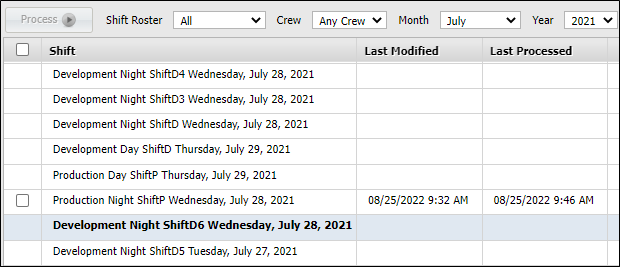
- Select Production Wednesday July 28, 2021 from the list of shifts.
The sheet types are shown at the right.
The Equipment sheet is the entry point for status changes and SMU details for the equipment, while the Location sheet records a collection of locations.
- Open the Equipment sheet.
The sheet will open with three main panels defined:
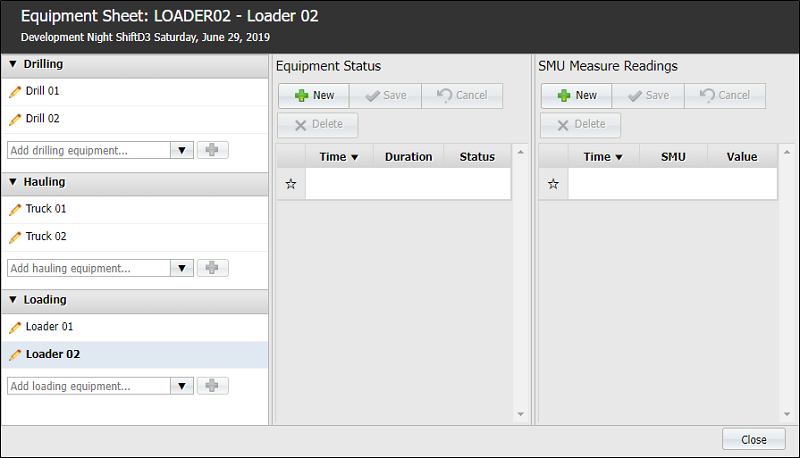
Equipment Units
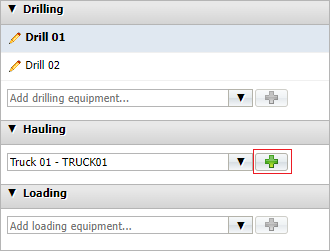
The Drilling, Hauling and Loading Equipment units are displayed in the first panel at the left. Use the drop down list to select the equipment unit and click Add.
Equipment Status
Enter any status changes that occurred during the shift.
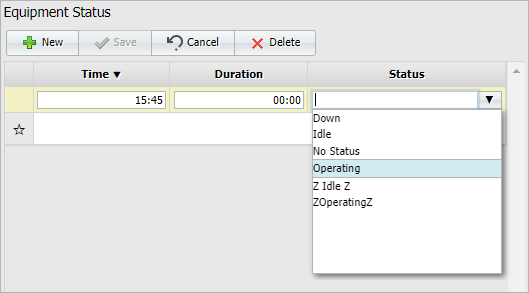
- Click Save. The new record will be listed in the Equipment Status area.
- Click New and enter the following values.
The list of states can be extensive, so finding a particular status within the list can be difficult. An efficient way to find a value in a drop-down list is to type in the prefix of the value you are searching for. This will create a subset the list and display all words in the list that have the same prefix
To edit the time, you can directly type the value in the field .
| Option | Prefix | Enter |
|---|---|---|
| Time | 07:10 AM | |
| Status | op | Operating |
- Click Save.
SMU Measure Readings
In the SMU Measure Readings panel at the right, you can enter the SMU readings for the equipment.
-
Click New to add a measure reading and select the measure from the drop down. .
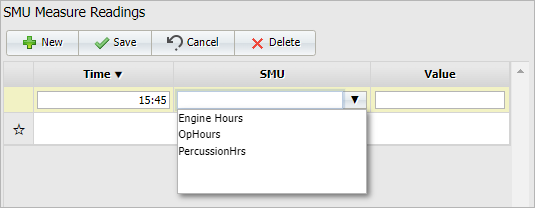
-
Enter the value for the selected measure in the field provided.
-
Click Save to retain the SMU measure reading.
-
You can click New to add another reading if required.
Validation
The System performs validation on entries to ensure that the Operating hours do not exceed the hours available in the shift. For example, if an entry is made for 14:00 PM instead of 02:00 AM, an error message is displayed as shown.
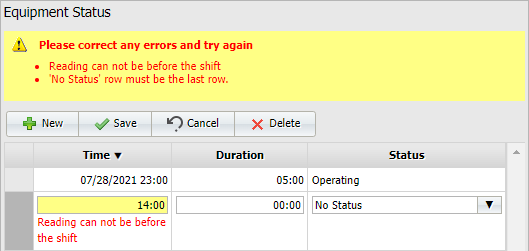
The system also checks that the SMU reading is greater than the previously entered value.
- Add the following status changes:
| 10:24 AM | Meal Break |
| 11:24 AM | Operating |
The incorrect time was entered for the last record - Operating at 11:24 AM instead of at 11:00 AM.
- Click on the record to make it active.
- Click Edit at the bottom of the Equipment Status area. The dialog opens.
- Make the following change:
| Option | New Value |
|---|---|
| Time | 11:00 AM |
- Click Save. You have finished adding the status changes for Loader_10 during the selected shift.
- Click Add To add the odometer reading, at the bottom of the SMU Reading area.
- Enter the following values:
- less than that entered at an earlier date or
- greater than that entered at a later date.
| Time | Type | Enter |
|---|---|---|
| Time | 06:15 AM | |
| SMU | en | Engine Hours |
| Value | 700293211 |
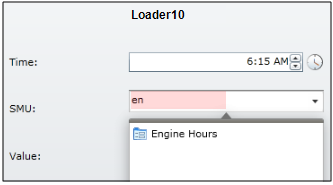
To perform validation on the SMU measure, a warning message is displayed if the SMU measure entered is either:
- Click
 to check the data.
- Click Save.
- Click Close on the current Equipment dialog, then click Back to finish.