

Manage User Messages
On the Services ribbon: Select System | Administration | Manage User Messages to configure system messages that will be displayed to the left of the log-inh screen when a user logs in.

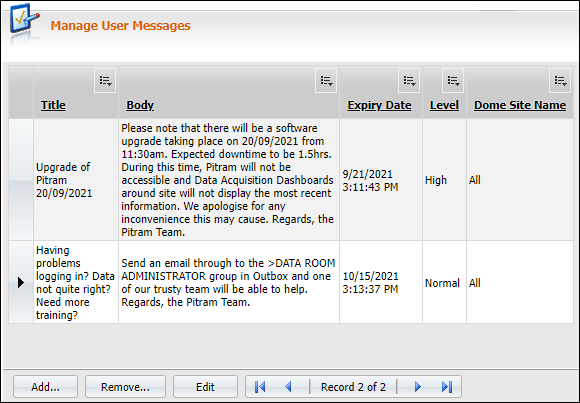
Working with user messages
To create a new message:
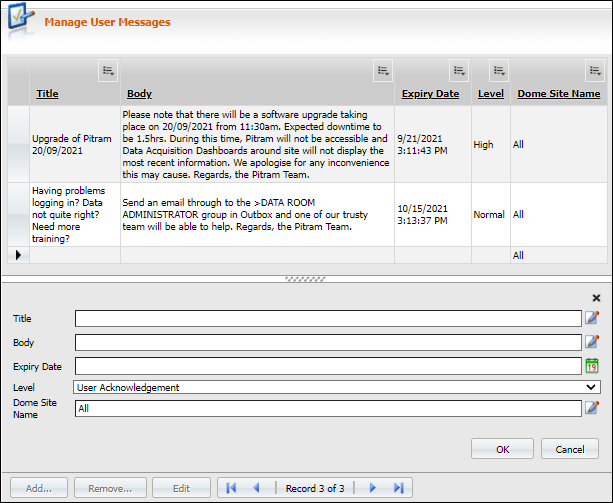
- Click the Add button on the left of the window footer (see above red box). The Manage User Messages form is displayed.
- The form allows you to enter or select from the following options:
- Title. Use the edit icons on the far-right to edit a entry.
- Body. Enter the content of the message.
- Expiry Date. Click on the calendar icon to specify the date that the message will be deleted.
- Level. Select from High, Normal or Low. Messages with a High level are printed in red to display their importance.
- Language. Enter the language used in the software.
- Pitram_Portal_SiteName. Specify a particular company site name, or select All.
- Click OK. The message will appear as listed for publication.
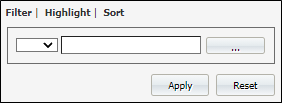
Use the filter, highlight and sort icon  on the far-right of each column header (see below) to change the display of the current messages list.
The message will be published to all logged on users until the expiry date.
Remove a message
- In the upper publication list, highlight the message to be removed.
- Click Remove.
- You will receive a
 confirmation message asking if you want to remove the message. Respond with Yes.
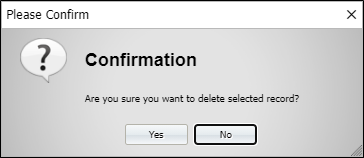
The message is deleted from the publication list.
Edit a message
- In the upper publication list, highlight the message to be edited.
- Click Edit on the window footer and add a message.
- Click OK.
The new, edited message is displayed in the publication list.