

Manage Commands
On the Services ribbon: Select System | Administration | Manage Commands to manage the commands that operate the sites and the services configured for the Pitram Portal system.

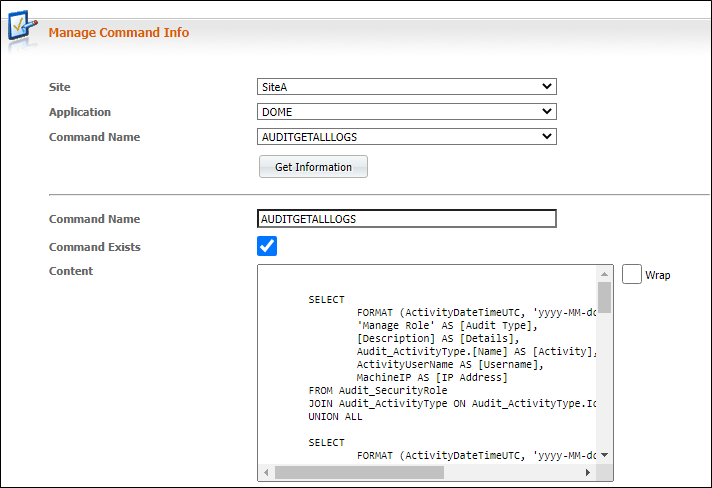
To select a command that is already defined:
Site
Pitram can be installed at multiple sites within the same organisation. Each of those sites may have different report requirements and may run different applications. Commands are used to define how the data used by an application is stored, processed, and retrieved for reporting.
Select the site for which you want to manage commands.
Application
Select a particular site-application combination to fully identify the system to which the commands will be applied.
Command Name
The commands configured for the particular site-application combination are listed in a drop-down list. By default, the command name will also appear in the Command Name input box below.
To create a new command, enter a Command Name in the input box.
Get Information button
When you select a site and an application and then select a command, the information associated with that command is displayed. Click this button to refresh the display with the latest information, obtained directly from the server.
To define a command
Tip: To define a command, it is simpler to make a copy of an existing command that is similar to one that you want to create and then edit it, rather than starting the command definition from new.
- Click System on the services toolbar.
- Select Manage Commands from the Administration pane.
- Select a Siteand Application from the drop-down lists.
- Enter the new Command Name .
Note: You cannot include any spaces in the Command Name, however you can use underscore characters between words to make the command name more legible.
- Enter the Content. Here you define the SQL or XML statements for a new or edited command.
- Click the Update Command button to save the new command.
Command Exists
The Command Exists check box is used to identify those commands that can be physically located and updated on the server machine. The ODBC commands used by Pitram Portal are stored as an 'assembly' which provides the mechanism by which data is accessed. Other command assemblies cannot be physically located on the server, or be updated.
Content
The SQL or XML statements that define the command, can be viewed, edited, or entered in the Content window.
Other options
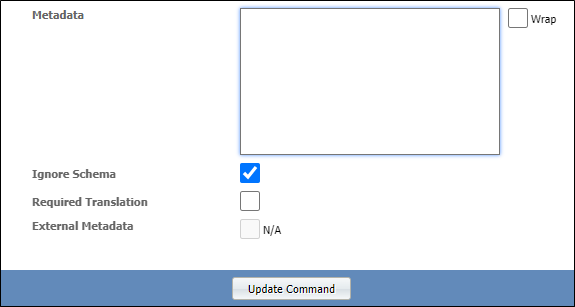
Metadata
XML metadata built-in as part of the command, can be viewed, edited, or entered in the Metadata window.
Wrap
Select the Wrap options at the right of the Content and Metadata windows to enable word-wrapping when the length of a command exceeds the display width of the window.
Note: When an SQL statement is wrapped automatically, the SQL statement may not compile correctly. Some SQL implementations may not permit a statement or clause to be split arbitrarily over more than one line.
Ignore Schema
In most cases, the schema definitions in a database must be read in order to determine the types of data to be retrieved for reporting. There may be instances however, when multiple tables are being accessed which have conflicting schema definitions. In such cases, you can tick the check box to ignore the schema definitions stored for those tables and allow Pitram Portal to determine data types using its own in-built logic.
The Ignore schema option may also need to be set in order to resolve a known issue when upgrading to MS SQL 2005 server. If the following error is reported for one or more existing commands, select the Ignore schema option and then click the Update Command button to write the modified command to the configuration folder on the server machine:
System.Data.ConstraintException: Failed to enable constraints. One or more rows contain values violating non-null, unique, or foreign-key constraintsat System.Data.DataSet.EnableConstraints()
As an alternative, the following line can be added into the body of the command:
<m_ignoreSchema>true</m_ignoreSchema>
Required Translation
Some commands are more complex than others in that additional translation of the data is required. This includes Tasks such as data type conversions or pivoting. When multiple detail records occur for one master record in a normalised database, a view can be created which 'pivots' the data into a flat view. Data can be flagged as required when you select this check box.
External Metadata
Metadata is largely used to define how data is handled in the data browser. To allow the same metadata definitions to be shared by multiple reporting objects, those metadata definitions can be stored externally as .XML files in the Configuration\Metadata folder on the site's server machine.
If a command has external metadata associated with it, the names of those files are listed in the Manage Commands window. To enable or disable metadata for a command, select or deselect the metadata check box options.
Update Command
Click this button to write a new command or a modified command to the configuration folder on the server machine.