

Take a sign out of storage
To take a sign out of storage:
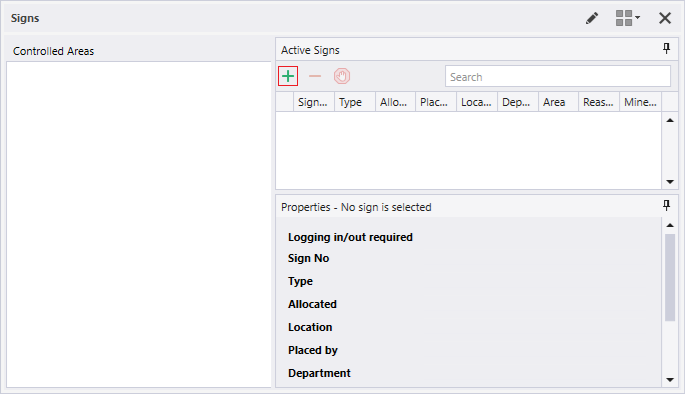
- Click on the Use Sign button in the Active Signs grid toolbar.
- Make the following selections in the Use Sign dialog:
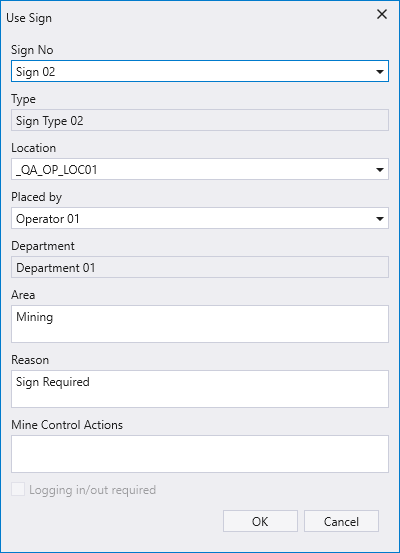
Sign No and Type
Select a sign number. When you select a sign, the sign type is displayed below it. Signs and sign types are configured in a the Pitram Portal reference group.
Location
Before you can make a sign active in a controlled area, you must associate the sign with a location.
Placed by
When a sign is used, someone will place it at the location it has been assigned to. Select the person who is responsible for positioning the sign.
Department
When you select the person who placed the sign, the department that person belongs to, if applicable, is displayed.
Area
Optionally, enter further information about the controlled area and the activities that will take place there.
Reason
Optionally, specify why the sign is to be placed at the assigned location.
- Click OK to take the sign out of storage. When you take a sign out of storage it is added to the Signs pane:

The Reason field can be edited after the sign has been created. All other properties in the Signs pane are read-only.