Create a sign controlled area
A sign controlled area is an area containing a sign to convey important information. A sign controlled are does not require a permit for entry. When creating a Controlled Are panel for a sign controlled area, you must select the Signed Controlled Areas option in the wizard.
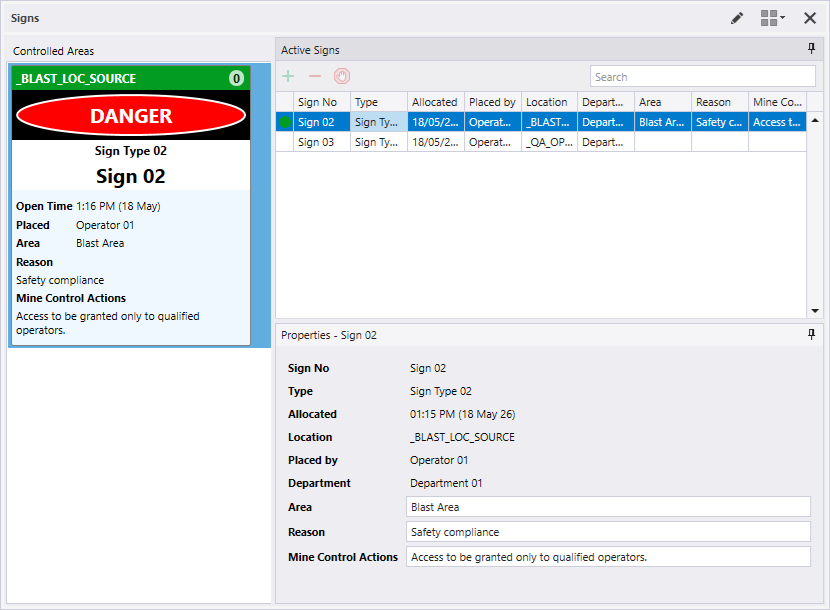
Note: Columns in the Active Signs grid can be sorted and/or filtered using the icons in the column header labels.
To create a signs controlled area, from a Signs Controlled Area panel,
-
Click the Use Sign button in the panel toolbar.
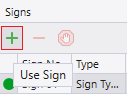
The Use Sign form opens.
-
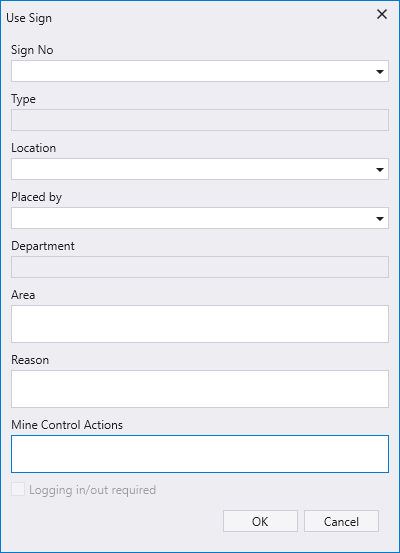
Select the Sign No. to be used for the controlled area from the drop down.
The Type field is automatically populated with the Sign Type for the selected sign configured in Reference Data.
-
Select the Location for the controlled are from the drop down.
-
Select the person who is responsible for placing the sign from the Placed by drop down.
The Department field is automatically populated with the department associated with the selected person configured in Reference Data.
-
Enter any relevant details on the area for the sign in the Area field.
-
Enter the reason for the controlled area sign in the Reason field.
Note: When the sign is created, if a user attempts to delete the Reason for a sign, a prompt will be displayed:
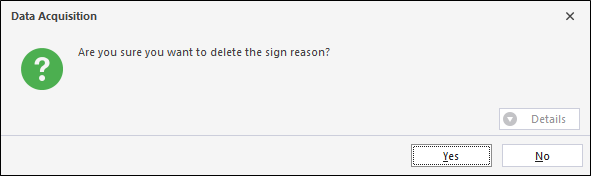
-
Enter any Control Room Operator actions required for granting permission to the area in the Mine Control Action field.
-
If enabled, you can select the Logging in/out required option to indicate to users that all personnel entering or exiting the controlled area have to be logged in or out when the sign is active.
This option is configured using the LoggingInOutRequiredEnabled option in the Reference Data for the Sign Type.
Note: Note: The Logging In/Out Required option is an indicator to users that logging is required for workflow purposes. It cannot be enforced or validated in any way.
-
Click OK to save the new sign.
To create the sign controlled area,
-
Drag a sign from the Signs pane and drop it onto the Controlled Area panel.
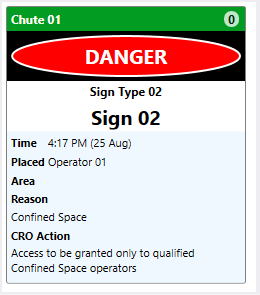
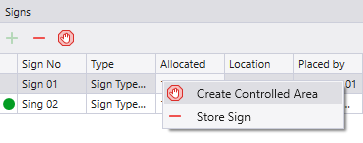
Alternatively, you can right-click on the sign and select Create Controlled Area.
When you create a sign controlled area, initially a green card caption is used to indicate that the sign is active in a controlled area.
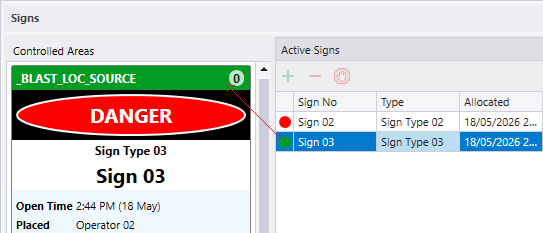
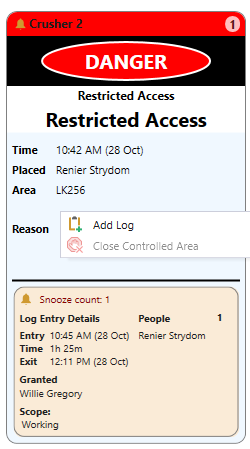
When people are assigned to work within or pass through) the sign controlled area, a red card caption is used to indicate that people are logged at that area.
Close a controlled area
You can only close a controlled area once all logs have been removed for that controlled area. Right-click on the controlled area and select Close Controlled Area.