

How do I start a shift?
Note: While you can manually start and end a shift in Data Acquisition, a shift does not depend on Data Acquisition in order to run. Shift start and end times can be configured automatically as part of the Pitram server configuration.
To manually start a shift:
- Select the File | Shift Start menu option.
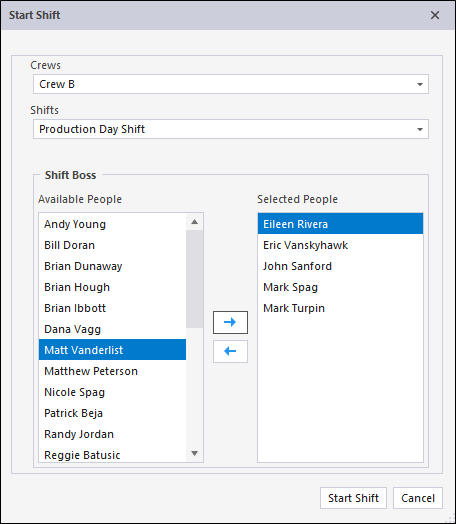
Crew
Select the crew that is assigned for the roster and the shift you select here.
Roster
Select a shift roster. Shift Rosters are configured as part of the
Shifts
Select the type of shift you want to start (typically Production Day and Night shifts, but you might also have Maintenance or Development shifts).
A confirmation message will be displayed before ending the shift.
Shift Boss
To designate personnel as shift bosses for the new shift, select them in the Available People pane and use the Right arrow to move them across to the Selected People pane. To change the Shift Boss selection, use the Left arrow to move them back again.
Start Shift
Finally click the Start Shift button to begin the shift in Data Acquisition.
The following events occur at shift start
- The status of all equipment is rolled over from the previous shift.
- An initial record is written to the event table to indicate that the shift has started.