Recording a measure against active equipment
Different types of measure may be entered against a unit of equipment.
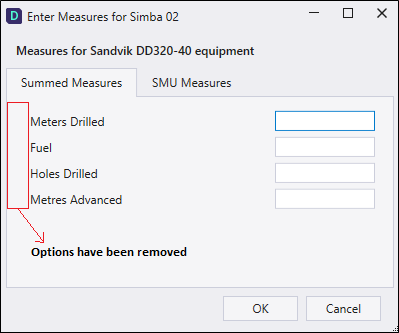
Summed measures are values entered directly via Data Acquisition. They relate to the quantity of consumables used (rock bolts, kilos of anfo etc.) or particular measures, such as truck loads, buckets etc.
SMU measures are meter readings such as engine hours or fuel. They are recorded against a particular piece of equipment. As meter readings they are continually getting larger. At some stage may need to be initialised when a meter is replaced. There is special functionality in PITRAM to cope with this.
Calculated measures are calculated at data entry time or when the shift is processed. Tonnes are calculated from truck dumps and bogger buckets at data entry time.
Values such as total metres drilled are calculated when the shift is processed. A Calculate Measures table in the Pitram database defines the calculations to be performed at the end of shift.
There are two ways to enter Summed measures:
- Right-click on the name of the equipment unit in the Equipment pane and select Enter Measures from the right-click menu.
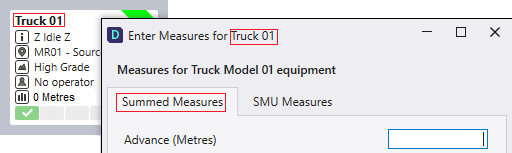
- When equipment units are displayed in a panel, the primary measure of an equipment unit - for example, the tonnes hauled by a truck - is shown as the last entry in the equipment pane. Simply click on the Measure entry to display the Enter Measures dialog:
Favourites
The Enter Measures dialog can be customised to include favourites that allow measures across different tabs to be selected as favourites and then grouped together on the same tab, thus providing greater user efficiency when a particular combination of measures on different tabs need to be entered frequently.
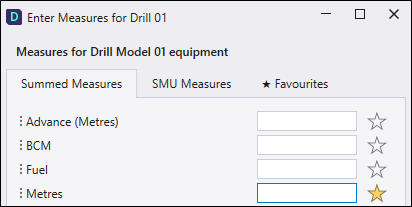
The Favourites tab is only visible when one or more measures have been chosen as a favourite. If favourites do exist, then the favourites tab will be selected by default whenever the dialog is opened.
Re-Order Fields
By default the measures on each tab are ordered by Description. However, it is possible for the user to drag and drop these Measure fields to define their order. When you hover the mouse over the handle to the left of the Measure name, a crosshair cursor appears:
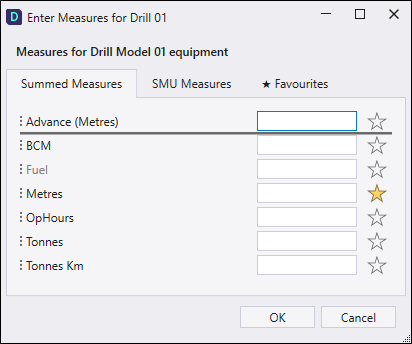
You can then click and drag the measure to a new position in the list of measures:
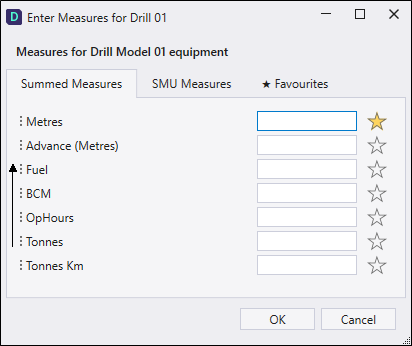
Measure field favourites and field ordering are saved locally in the machine folder (e.g. EnterMeasuresSettings_EquipmentHAULING.xml):
- EnterMeasuresSettings_Equipment_<Equipment.Model.Code>
- EnterMeasuresSettings_Location_[<Valid measure active list name>]
- EnterMeasuresSettings_Person
Lock Enter Measures dialog
The Administrator Options contain the Lock Enter Measures dialog option, which controls the behaviour of the Enter Measures dialog.
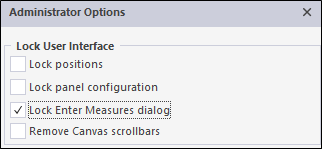
When this option is selected, measure fields cannot be selected as favourites. If favourites exist, the Favourites tab will still be shown, however new favourites cannot be added while the dialog is locked.
Similarly, you cannot use the mouse to reorder the measures while the dialog is locked.