

Mine Design
This
 Pit Design
Pit Design Stages
The Stage List tool has been added to the Mining | Pit Design (Dynamic) tab, in the Stage group to support the building pit design stages.

Staged pit designs within an ultimate pit design often have the same features. There will be common walls and ramps. Design stages can be linked together so that sections of walls and common features such as ramps can be adjusted, moved or removed and all subsequent designs are updated automatically.
The Stage List is used to create the required stages for your pit design. By switching to the relevant Active Stage, you can work on each configured stage while building the ultimate pit design.
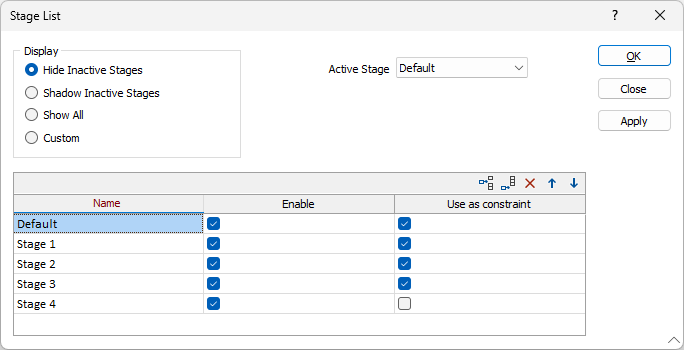
Display options determine which stage/s are displayed in the design, and you can add stages to be built, used as a constraint and/or displayed in a Custom display configuration.
A drop down menu in the new Stage ribbon is used to select the active pit design stage.
Stages functionality is enabled using the Enable stages option in the Setup form.
Click the screen above or use the link to see the new Pit Design Stages features in action.
For more information, see Stage List.
Generate Guides
The Generate Guides tool has been added to Pit Design (Dynamic) on the Mining | Pit Design (Dynamic) tab, in the Setup group

The Generate Guides tool automatically generates contours from a specified wireframe or block model file and creates editable user type constraints on the current active pit design.
Generated constraints saved in the pit design file are tagged with the specified wireframe type and name or block model name. This tag is updated when you edit the constraint.
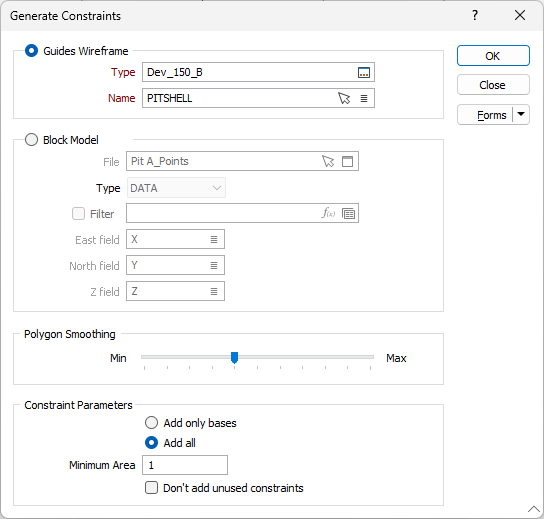
Repeating the tool process with the same guides will overwrite all unedited constraints generated previously (if present) to avoid producing copied or ambiguous constraints.
Click the screen above or use the link to see the new Generate Guides tool in action.
For more information, see Guides.
Add Flat Section to Road Segment
Support for specifying the location of a flat section has been added to various tools for adding roads on the Mining | Pit Design (Dynamic) tab, in the Pit Road group.
For example, Add Flat Section to Road Segment for Add Road now features the Add to options to specify the Start or End location for placement of the flat section on the new segment:
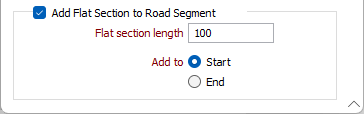
Other tools to include the new options are:
Previously, new sections were always added to the Start of the segment.
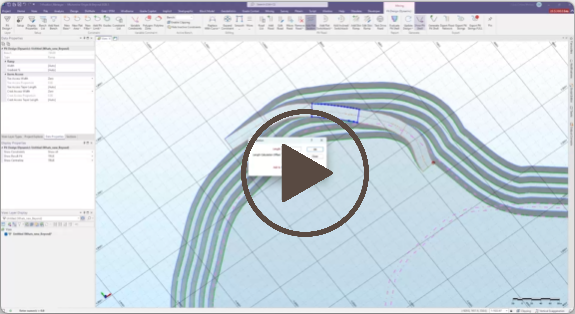
Click the screen above or the link to see the new Flat Section features in action.
For more information, see Add Road.
Evaluate Pit Shell
Improvements have been made to the Evaluate Pit Shell tool on the Mining | Pit Design (Dynamic) tab, in the Report group to support reporting by benches as well as calculation for Material Bins.
The Report by Benches option enable you to create or load a bench list for the Pit Evaluation report.
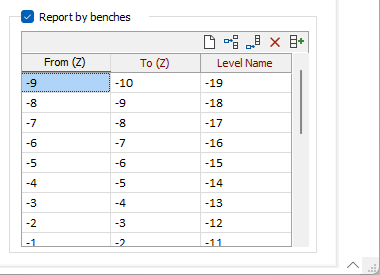
Benches can be automatically created using the options in the Autofill Depth Ranges form, or loaded from an existing pit design file:
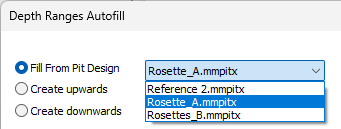
For information on the Report by benches option, see Evaluate Pit Shell.
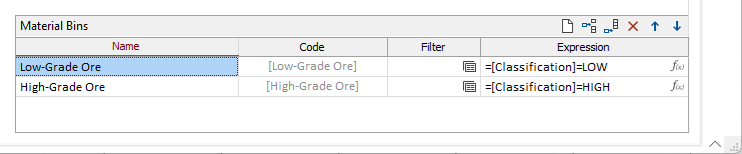
On the Block Model tab of the Evaluate Pit Shell form, Material extracted from the pit can be sent in material bins to processing facilities and stockpiles. The new Material Bins grid of the Block Model tab is used to set up the material bins to be calculated for the block model.
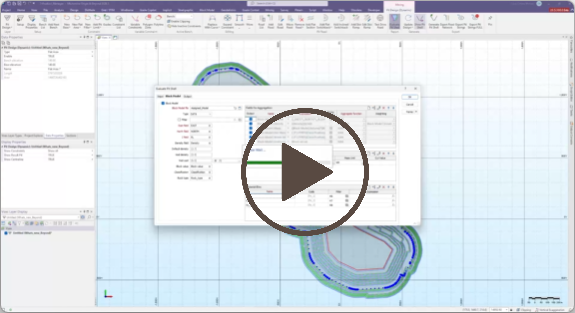
Click the screen above or use the link to see the new Evaluate Pit Shell features in action.
Bench List Autofill
Bench Pattern options have been added to the Bench List tool on the Mining | Pit Design (Dynamic) tab, in the Setup group to support the Autofill Bench List and Bench Pattern tools from the Bench Levels grid.
The Autofill Bench List form is used to automatically populate the Bench Levels grid based on a specified Start elevation and other pit parameters.
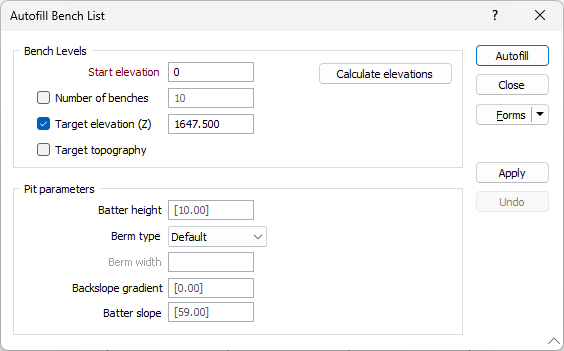
You can set the Pit Parameters and Bench Levels to calculate the benches for the design. A Guide wireframe or Block Model can also be used to calculate elevations, or you can select to use the wireframes from any configured Guides for the pit design.
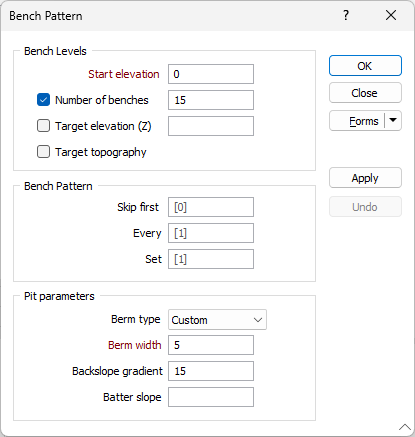
The Bench Pattern form is used to assign a bench pattern to the Bench Levels grid based on a specified Berm width and Start elevation and other parameters.
Click the screen above or use the link to see the new Bench List autofill features in action.
For more information, see Bench List.
Enable Pit Design Constraints
The Enabled option has been added to the Constraints List form on the Mining | Pit Design (Dynamic) tab, in the Setup group to specify a constraint will be used in the pit design build.
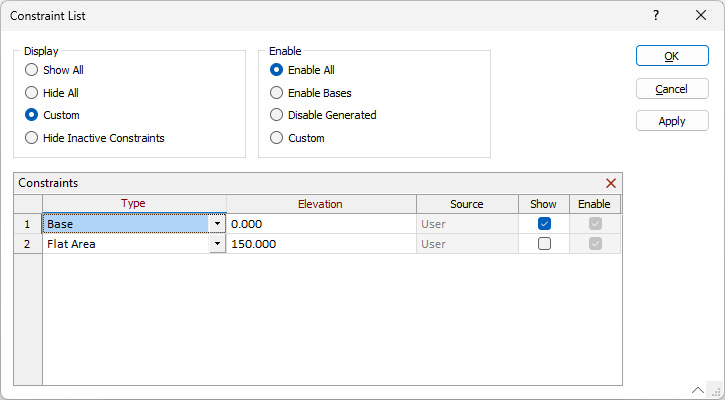
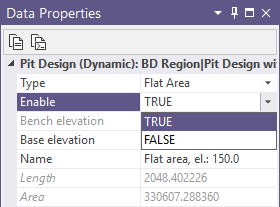
The Enable option can also be toggled between TRUE and FALSE using the drop down in the Data Properties pane for a selected constraint:
Click the screen above or use the link to see the new Constraints features in action.
For more information, see Constraint List.
Pit Design Display Properties
The Display Properties tool has been added to the Mining | Pit Design (Dynamic) tab, in the Setup group to provide set up and editing of the pit design display properties.
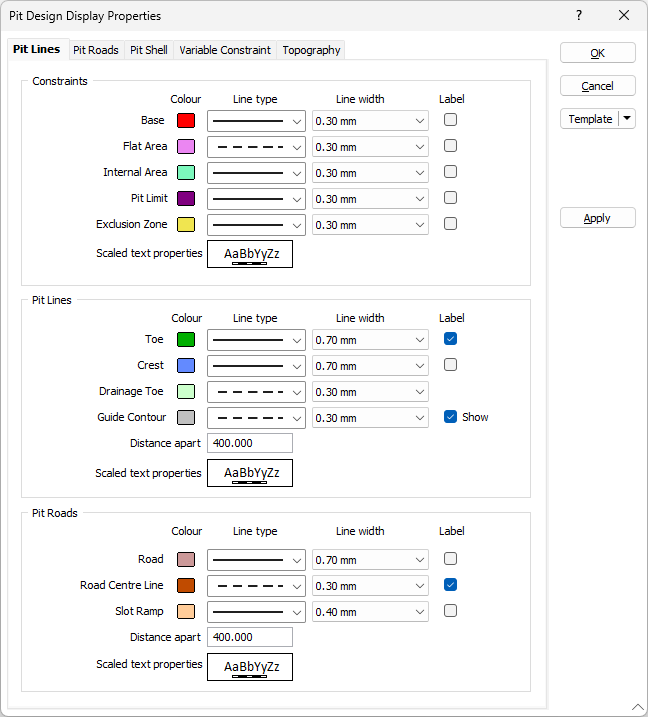
Options to specify display properties for Pit Lines, Pit Roads, Pit Shell, Variable Constraints and Topography are contained in the form for the new tool.
For more information, see Display Properties.
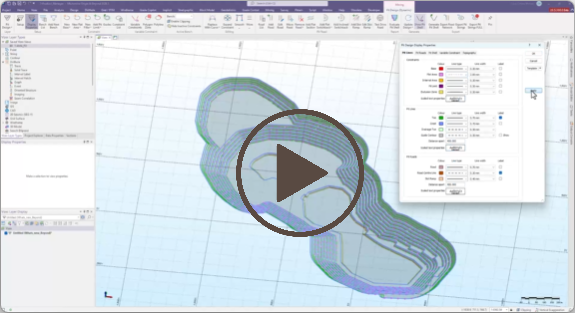
Click the screen above or use the link to see the new Display Properties in action.
Expand Constraint Area Options
Options have been added to the Expand Constraint tool on the Mining | Pit Design (Dynamic) tab, in the Editing group to allow new methods of expanding a selected constraint (or partial constraint).
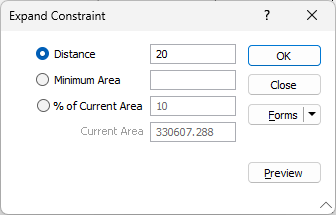
The new methods for expanding constraints are as follows:
-
Minimum Area - expand the selected constraint by a calculated minimum area.
-
% of Current Area - expand the constraint by a percentage of the current area.
The Current Area for the selected constraint is displayed in the Expand Constraint form.
For more information, see Expand Constraint.
Internal Constraints
Internal pillars can now be added to any flat surface in your pit/dump design rather than only designated flat areas.
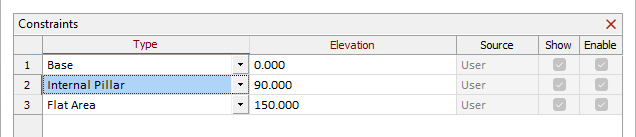
Previously, internal pit/pillar constraints could only be added to Pit Designs on areas explicitly designated as flat area constraints or pit bottoms. Flat surfaces can however be obtained by many other methods (wide berms, pits merge, variable constraints, etc.) and internal constraints can now be added to those and other flat surfaces. This enhancement reduces the number of necessary constraints for this feature by half.
All existing internal constraint functionality, for example in pit down and dump up mode, remains unchanged.
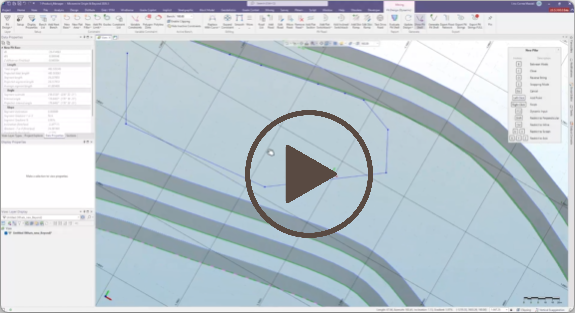
Click the link to see a video of the new Internal Pillars features in action.
For more information, see Add Pillar.
Pit Design from Pit Shells
The Generate from Pit Shells tool has been added to the Pit Design (Dynamic) button on the Mining tab, in the Mine Design group to enable the creation of a dynamic pit design from existing wireframes or a block model.
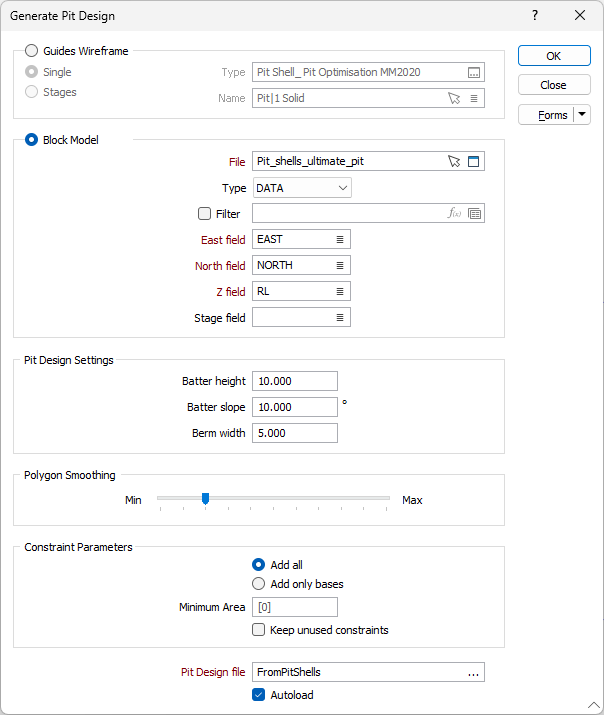
The Create from Pit Shells tool allows you to specify a block model and output a new pit design, pre-populated with the extracted data:
-
The block model is used to create the guides wireframe;
-
The Guides wireframe can be used to create the bench list (using extents and default bench height) and constraints;
-
Smoothing can be applied to polygons for the design;
-
Constraints can be used to build the approximated pit;
-
An optional Stage field can be used to output the design in various stages.
For more information, see Generate From Pit Shells.
Apply Display Properties
The Apply button has been added to the Pit Design (Dynamic) Display Properties form to support dynamic updates to your Pit Design display properties.
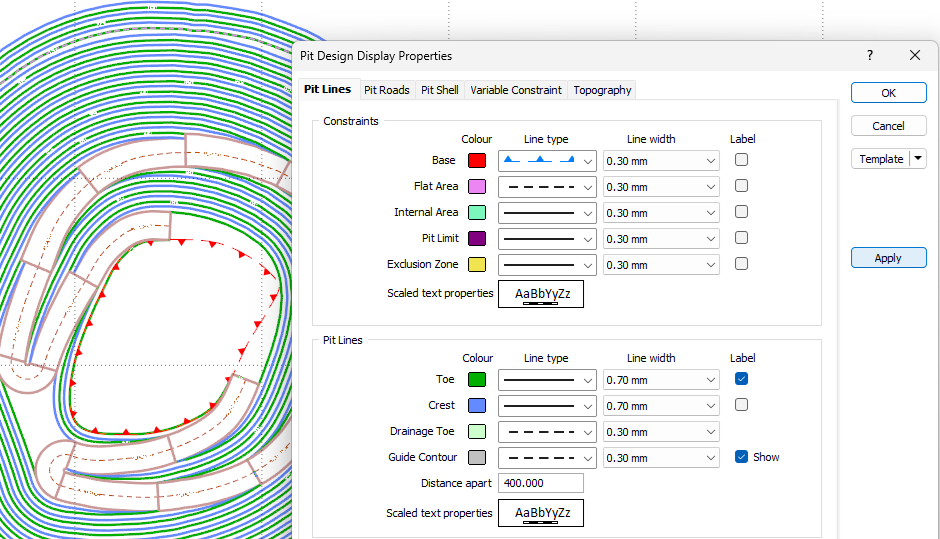
The Apply button on the right-hand side of the form will quickly visualise your settings without leaving the form. You can preview the settings you have configured and, if required, make changes before finalising.
Click the screen above or use the link to see the new Display Properties in action.
For more information, see Display Properties.