

Add Pillar

In Shrinking mode (Pit/Down, Dump/Up), a Pillar (internal) constraint will place the pit build area inside the constraint where it intersects with any pit lines. No constraint will occur if there is no intersection. In Expanding mode (Pit/Up, Dump/Down), constraints always expand the pit build area.
Note: It is not necessary for the Pit/Pillar constraint to be inside constraints explicitly designated as Flat Area or Base constraints. The application will not push for berm width inside the constraints (if it is relatively close), but will follow the constraints to fill it completely.
If not already selected, you will be prompted to select polygons to add as constraints.
Note: You can select multiple polygons using the CTRL + Click shortcut.
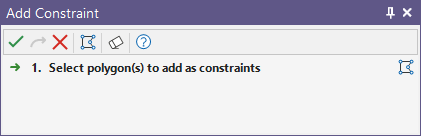
Alternatively, you can Digitise the required object/s using the button in the Selection Assistant toolbar. The Selection Assistant will close, providing access to the tools used to create the object.
Select the polygon/s for the constraint. Click Accept Selection. The constraint will be added to the design with the selected polygons.
Note: Pillars set above a bench will not influence the pit design, but if a pillar polygon is set below the bench in which it is supposed to be, the pit triangulation of the shell is impacted. For this reason, the application will check for and ignore an internal pillar/pit if it is located outside of the current level main boundary.