

Edit Road

If not already selected, you will be prompted to select a road to edit:
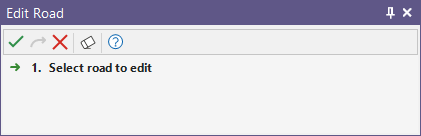
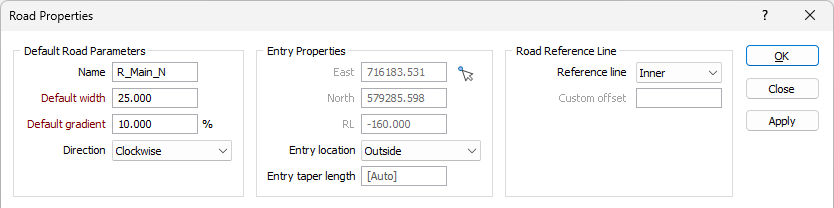
Select the road to edit and click the Accept Selection button to open the properties for the selected road - Road Properties for spiral ramps and general settings for Slot Ramps. For example, the Road Properties form:
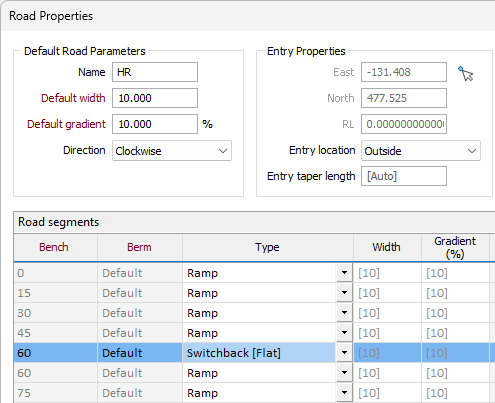
If a road segment was selected when the Edit Road tool was opened, the selected segment will be highlighted:
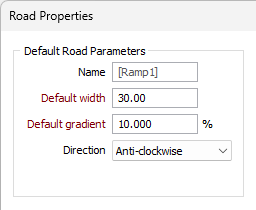
The Name, Default width, Default gradient and Direction values for the selected ramp can be modified using the fields in the Default Road Parameters section of the Road Properties form.
If you do not enter a Name value, an automatic, incremental name will be assigned and displayed in grey, within square brackets:
The Entry Properties details for the ramp are displayed and cannot be modified.
Use the Entry location drop down to select whether the entry for the road is inside or outside of the base (constrained) pit footprint.
This value can also be modified in the Data Properties pane for the selected Road:
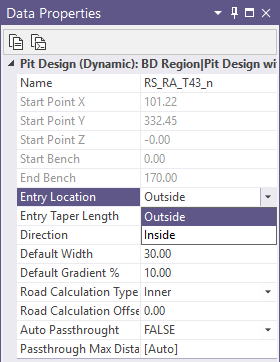
The Entry taper length field is used to enter a taper length for the entry of the road. The length of taper is the distance from the road crossing to the place where the taper starts. An appropriate taper length ensures a smooth taper back from the outside of the road entry to the original base.
A suitable taper length is automatically calculated based on the width of the road and displayed in grey within square brackets. However, if you want the berms to be tapered at a specific length, enter a value.
The Road Reference Line option is used to select the method of calculation for the length of the ramp - using the Inner, Centre, Outer road side, or a Custom road offset.
Select the Automatic Passthrough check box to enable automatic road passthrough where required.
The Automatic Passthrough option is required to pass through the constraints, when it is not obvious where the road should continue from (where to exit from a flat area).
If the option is set OFF, the end of the road (indicated in red) will be drawn where the standard pit projection road cannot continue. With the option set ON, if the pit projection cannot continue, the application will analyse the available flat space and will try to find the possible continuation point for the road according to its settings.
(Optionally) Specify a Max distance for the automatically created passthrough. The default value is [Auto] as the application automatically calculates the required passthrough distance.
As berms can sometimes not be altered by the constraints for a significant length, road exit points might be found at a large distance from the last segment; producing unexpected results. The Max distance value can be used to limit the exit search distance to ensure more accurate results.
The details of each bench for the ramp are displayed in the Road Segments grid. You can modify the ramp Type using the drop down for each bench, as well as edit the values for the Width, Gradient, Length, Curve Radius and Switchback angle fields, where valid.
For more information, see Road Properties.
Forms
Click the Forms button to select and open a saved form set, or if a form set has been loaded, save the current form set.