

Scheduling
This
 Schedule Definition
Autogenerate Schedule Attributes Flag
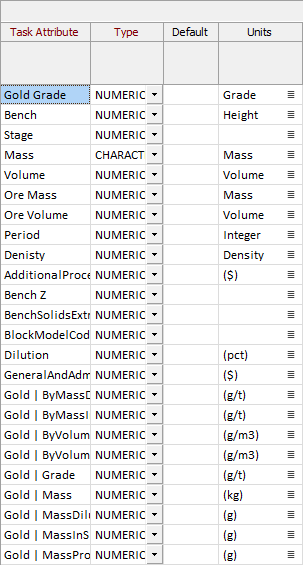
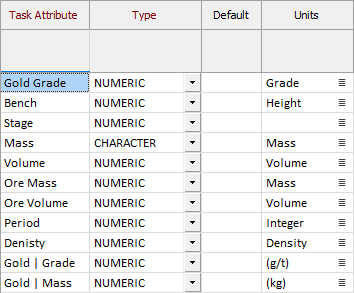
A 'flag' has been added to the Schedule Definition attributes to internally identify the attributes created with the Schedule Definition autogenerate operation.
Automatically generated attributes are flagged by the application and any previously autogenerated attributes not needed are removed from the schedule automatically when running autogenerate again.
|

|
|
For more information, see the example in Auto Generate Attributes.
Pit Wireframes
When you select Pit Wireframes as a Task Source on the Task Sources tab of the Schedule Definition form and then specify the mining blocks that will be used for scheduling, the way that Mining Block Attributes can be selected has been improved.
In the Attributes group box, when you populate the mining block attributes, an Autofill button can now be used to populate the grid with auto-generated hierarchical attributes:
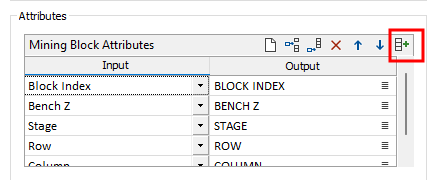
Autofill will add Mining Block Attribute rows for any rows that are missing and will also fill out default values for any rows that are present but which have blank Output attribute names. The metadata from each String or Numeric input wireframe attribute is applied to each output wireframe attribute accordingly. This flows through to any auto-generated schedule attributes.
A warning is also issued if duplicate mining block attribute inputs are specified.
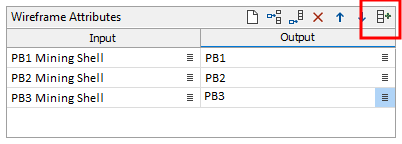
In the Attributes group box, when you populate pit solid wireframe attributes, an Autofill button can also be used to copy Input attribute names across to the Output column:
Block Model Material Bins
The Material Bins tab has been added to the Reference Block Models form for Schedule Definition on the Scheduling | Schedule tab, in the Add Tasks group. The new tab contains the Material Bins definition grid which is used to define the material bins for schedule definition.
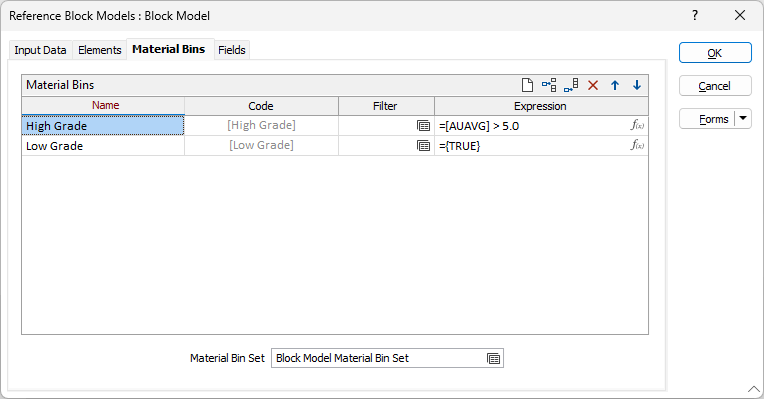
Optionally, you can specify the material bins for which attributes are to be calculated using the Material Bin Set option. Material bin block classification evaluates the filters (or expressions) for each bin from the top-down until one evaluates to true.
Additionally, the attributes defined by a reference block model now include a total tonnage (Mass) attribute for each material bin, and for each element in each bin there are Grade and Mass (i.e. metal mass) attributes.
Previously, the Material Bin Set option appeared on the Elements tab and Reference Block Models did not support Material Bins.
For more information, see Material Bins
Auto-confirm Mode
The Auto-confirm mode option has been added to a new Settings tab for Schedule Definition on the Scheduling | Schedule tab, in the Add Tasks group to enable the schedule creation to run to completion without users needing to attend to confirmation prompts.
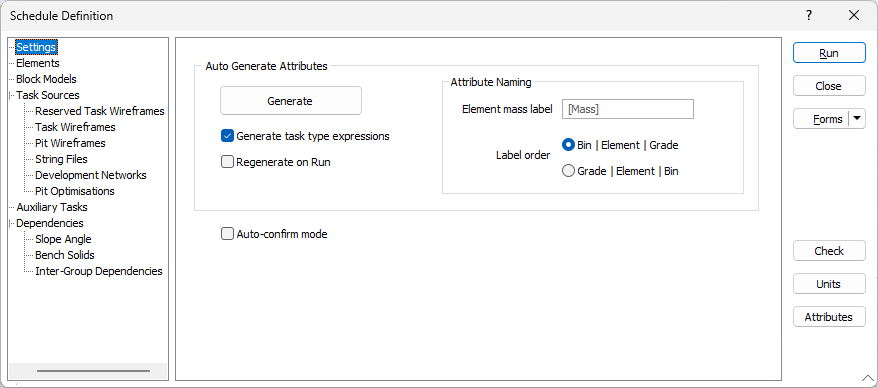
Because the schedule definition steps are based on stand-alone interactive scheduler commands, some steps will present a confirmation dialog when a possible problem is encountered. When building large schedules, users may want to have it run to completion without attending to confirmation prompts.
When Auto-confirm mode is enabled, any confirmation dialogs encountered during the main Run operation are not displayed and instead the default option is chosen (according to the same defaults chosen when running in Macro mode).
The new Settings tab also contains the Auto Generate Attributes and Attribute Naming options.
For more information, see Settings.