

Settings
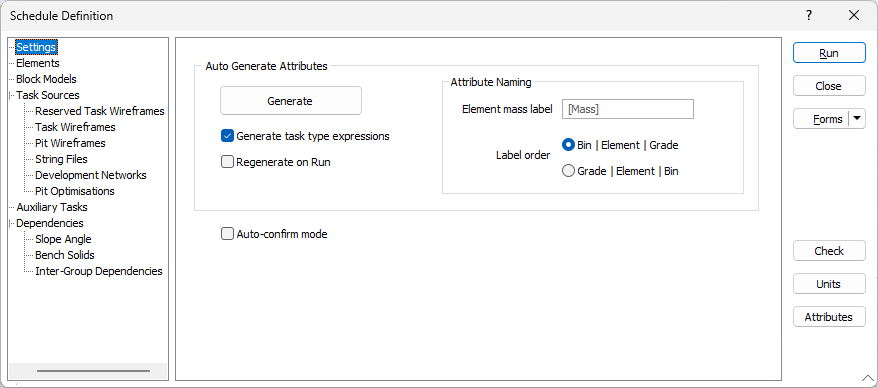
On the Settings tab of the Schedule Definition form, you can configure the generation and naming of attributes as well as select a label order.
Auto Generate Attributes
Click the Generate button to auto-generate attributes whenever an attribute re-build is required. Individual task-types can then be edited to turn off any attributes that aren’t needed.
A schedule attribute is auto-generated for every wireframe attribute defined by every task source.
Each task source defines a set of wireframe attributes which can be used as variables in task attribute expressions. These include reserving fields defined by the task source’s nominated reference block model, such as mass, density, and element grades and masses. Some tasks sources also define their own specific wireframe attributes. For example, the Pit Wireframes task source can define BENCH NAME, BLOCK_INDEX, and BENCH_Z.
Auto-generated attributes have names based on the task source wireframe name, with underscores being replaced by pipe characters. For example, “Gold_Grade” becomes “Gold | Grade”.
Automatically generated attributes are flagged by the application and any previously autogenerated attributes not needed are removed from the schedule automatically.
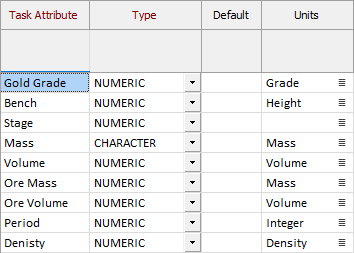
For example, with a schedule containing only the default attributes plus a user-created attribute (such as Gold Grade), the attributes list appears as follows:
If, for example, a pit optimisation task source autogenerate function is performed, the attribute list expands to all the attributes defined by the elements, block model, and task source:
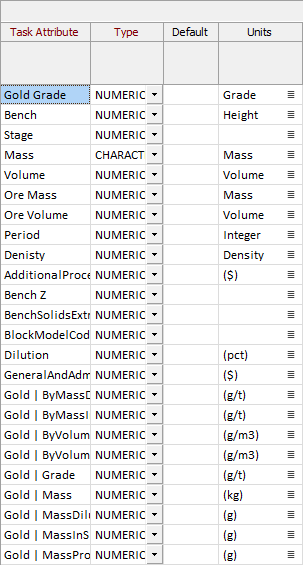
If the Pit Optimisation task source is then filtered out in the schedule definition (by clearing its check box) and attributes are auto-generated again, the list will appear as follows:
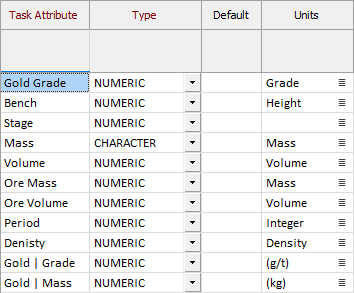
This is because all the attributes defined by the Pit Optimisation task source are removed. Gold | Grade and Gold | Mass remain, because they are defined by the elements grid (not the block model or task source). If you delete the Gold element as well, and repeat the auto-generate function, the list will return to the original example.
Note that the user-define Gold Grade task attribute will remain, because it is not auto-generated.
Generate task type expressions
When this check box is selected, task type attribute expression configuration is performed after attribute auto-generation, either via the Auto Generate Attributes button or via the Re-generate on Run setting (see below).
For each task type used by each task source, each auto-generated schedule attribute is assigned to take the value of the wireframe attribute it was generated from. For example, an auto-generated attribute “Gold | Grade” is assigned the expression “{Gold_Grade}”.
In addition to setting up expressions for auto-generated attributes, some of the default attributes built into every task type are assigned appropriate expressions where possible. These are:
| Schedule Attribute | Expression |
|---|---|
| Bench | {Bench_Name} |
| Index | {Block_Index} |
| Level | {Bench_Z} |
Re-generate on Run
This option is off by default. If this check box is selected, task attributes will be auto-generated when the schedule definition is run.
Attribute Naming
Use the Attribute Naming options to specify a mass label name for the element and select a label order.
Element mass label
Enter the name for the Element mass label. The default value is Mass.
Label order
Select whether the order of labels should be Bin | Element | Grade or Grade | Element | Bin.
Auto-confirm mode
Because the schedule definition steps are based on stand-alone interactive scheduler commands, some steps will present a confirmation dialog when a possible problem is encountered.
For example, if the vertical dependency building command cannot determine a block dimension it will use a user-defined value, but only after confirmation.
When building large schedules, users may want to have it run to completion without attending to confirmation prompts. Selecting Auto-confirm mode will support this requirement.
When Auto-confirm mode is enabled, any confirmation dialogs encountered during the main Run operation are not displayed and instead the default option is chosen (according to the same defaults chosen when running in Macro mode). This includes:
-
Attribute validation issue messages during task creation.
For example, undefined output result of task expression evaluation, which can be caused by undefined input attributes.
-
Tunnel building issues.
Including a self-intersecting tunnel, or a tunnel block being entirely swallowed by another.
-
Slope vertical dependency block size issues.
May include either falling back to supplied dimension when a dimension cannot be estimated, or conflicting estimated and supplied dimensions.
Confirmation or error dialogs occurring during the initial schedule definition checking phase (when using the Check button and at the beginning of a Run) are not affected by auto-confirm mode.
Warnings at this stage should be fixed by the user and not hidden; auto-confirm mode only applies once the long-running schedule definition processing operations have begun (e.g. task geometry construction, reserving, task creation, dependency building).
Check
The Check button on the form is used to run validation on the configured form without actually running the Schedule Definition.
Note that some validation checks can only be performed on "Run".
Units
Click the Units button on the right-hand side of the form to configure the units that can be assigned to attributes of the schedule. See: Units.
Attributes
Click the Attributes button to configure the attributes that can be assigned to tasks, via their task types, in the current schedule.
This is equivalent to using the Schedule | Attributes | Task Attributes option, see Task Attributes.