

Workflow Setup
Process Workflows provide the capability to perform repeatable actions across design and scheduling workflows. The steps in a process workflow can be manually configured, recorded, scripted, or any combination of the three.
To open a Process Workflow, in the Project Explorer, right-click on the name of a Process Workflow and select Open from the context menu.
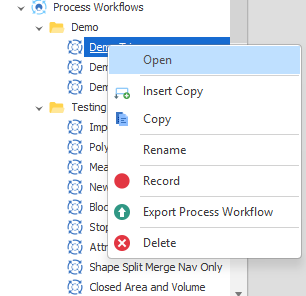
Alternatively, double-click on the name of the Process Workflow you want to open.
To create a Process Workflow, in the Project Explorer, right-click on the Process Workflows node and select Add > New Process Workflow.
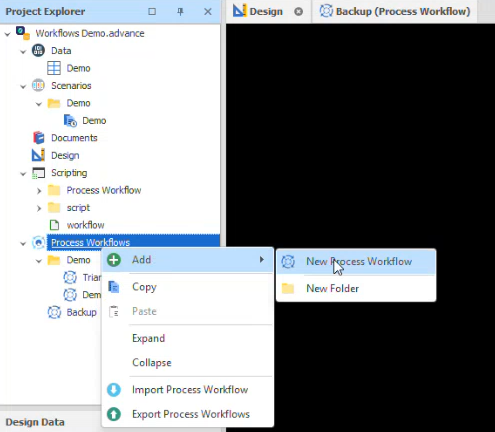
A New Process Workflow tabbed window is opened to the right of the Project Explorer.
When you open a new or an existing workflow:
-
A Navigation pane is shown to the left of the Process Workflow window.
-
A Properties pane is shown to the right of the Navigation pane.
-
A Workflow Runner dock panel can be opened to the right of the Properties pane (when you select that tab).
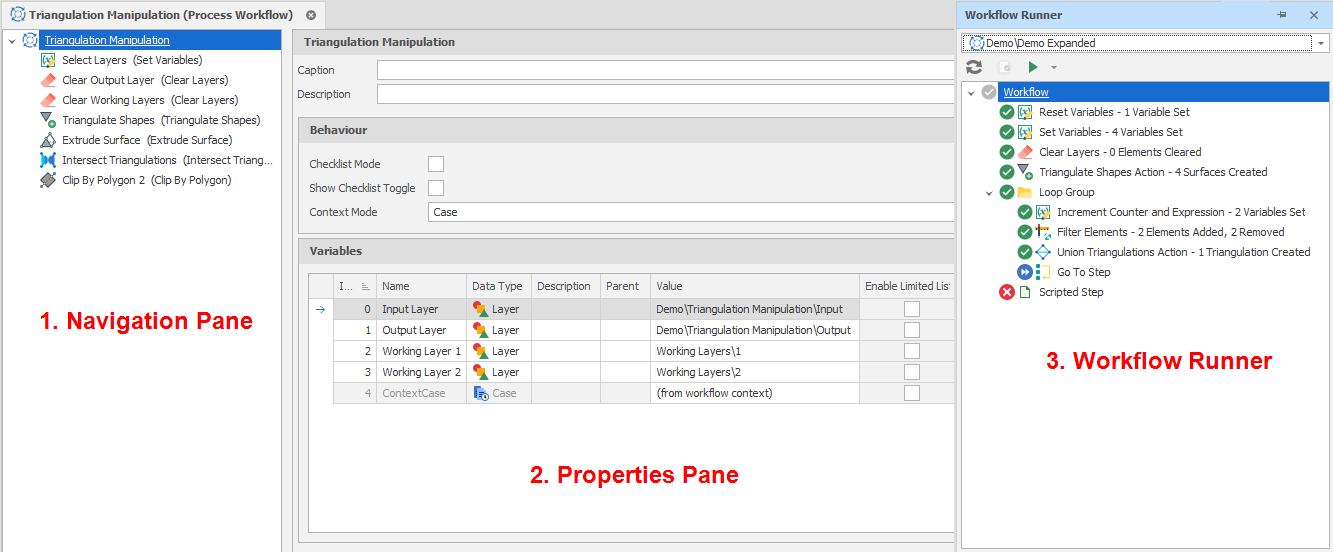
Process Workflow Setup
In the Project Explorer, you can click on the default workflow name to Rename it. You can also select from the following options on the right-click menu:
| Open | Open the Workflow Setup window. | |

|
Insert Copy | Insert a copy of the workflow directly below the currently selected workflow. |
  |
Copy/Paste | Copy/Paste the workflow to another folder. |
| Rename | Rename the workflow. | |

|
Record | As an alternative to manually adding steps to the workflow, you can record them. See: Record Steps |
| Export Process Workflow | Export the workflow to a Process Workflow File (*..pwf). See: Export Process Workflows | |

|
Delete | Delete the workflow. |
Navigation Pane
When you open a Process Workflow, the Workflow is selected in the Navigation pane to the left of the Workflow Setup window.
Properties
The Properties of the workflow are displayed to the right of the navigation pane:
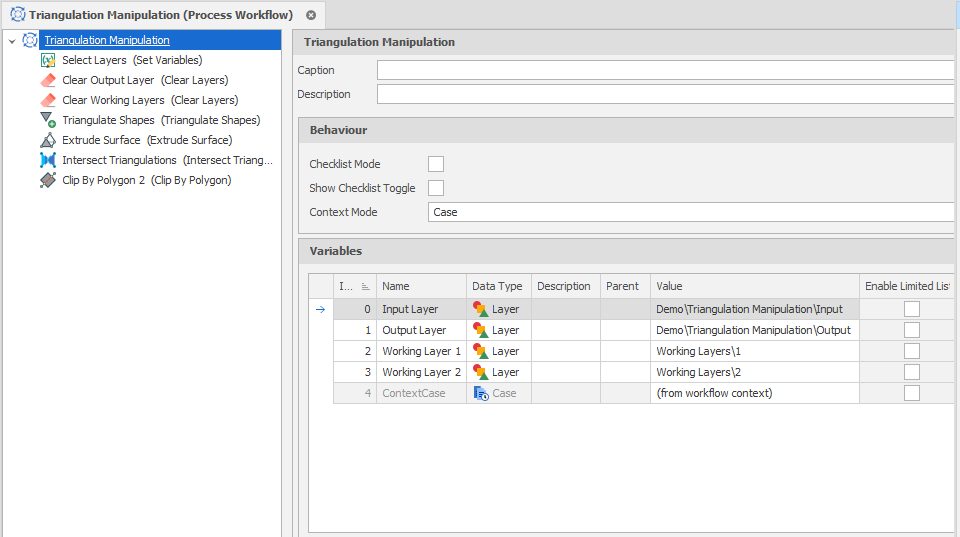
Process Workflow Properties
Properties
Caption
(Optional) Enter a Caption. The Caption replaces the display text for a given workflow item in the Workflow Runner.
Description
(Optional) Enter a Description that summarizes the purpose of the steps within in it.
Behaviour
The behaviour of a workflow is determined by the Context in which it is run (if any) and whether it is run in Checklist Mode.
Checklist Mode
Select the check box to activate Checklist Mode in the Workflow Runner.
Checklist mode can be used to forfeit the progression logic of a workflow for more freedom. When this mode is enabled, steps may be run in any order and be checked/unchecked manually.
This mode may be useful when a workflow's steps are not directly related or when a prescribed order is not essential.
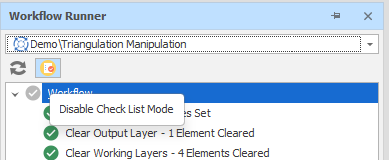
Show Checklist Toggle
Select the check box to show a Checklist Mode toggle button on the toolbar of the Workflow Runner. This allows Checklist Mode to be toggled on and off without opening the properties of the workflow.
Context Mode
Choose a (None, Case, Data Table) workflow context.
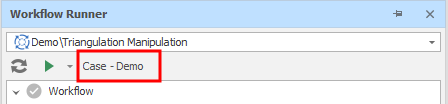
Some workflows will have a context based on the last focused tab in their project. Whether a workflow uses a context is up to the implementer. The context gives the implementer access to the Case or Data Table which the user is currently/was most recently looking at.
This can be useful when a workflow’s process revolves around a specific Case or Data Table. This means multiple workflows can be progressed independently (one per case or table).
If a workflow is context-based, its context is indicated by a label below the workflow selection drop-down in the Workflow Runner and the state of the workflow will be saved per context.
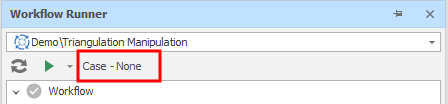
If the Context Mode is set to "Case" and there is no active Case/Scenario, this is indicated by a "Case - None" label.
Variables
Values
Select a (Boolean, Colour, Date Time, Double, Integer, Plane, Point 3D, Text) Values variable type. You can then specify a value of the specified type.
Variables are referenced in the Options of the Properties of a workflow step. You can also add a special "Set Variables" step. The step which will either prompt for one or more of the variables values you have added or set those values directly.
For more information, see: Set Variables

|
Add Variable | Add a variable to the list. |
|
|
Remove | Remove the selected variable(s). |


|
Move Up/Down | Click on the arrows to move the selected variable(s) up or down in the list. |
Design
Select an (Attribute, Attributes, Block Model, Block Models, Colour Set, Design Surface, Grid, Grids, Layer, Layers, Projection Sequence, Stratigraphy, Triangulation, Triangulations) Design variable type.
Data
Select a (Field, Fields, Range, Table, Tables) Data variable type.
Scenario
Select a (Case, Cases, Development Network Layer, Development Network Layers, Network Layer, Network Layers) Scenario variable type.