

Record Steps
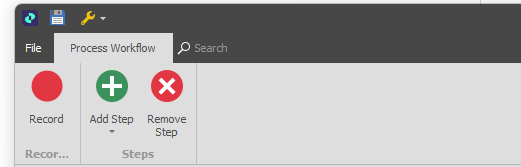
As an alternative to manually adding steps to a workflow, you can record them. Click Record on the Process Workflow toolbar to begin a recording session.
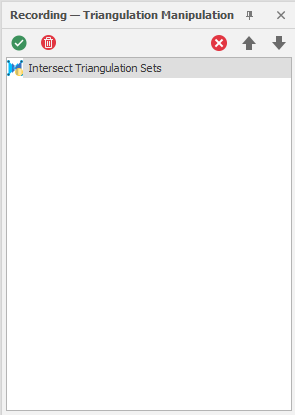
A Recording panel is shown at the right of the screen.
As you interact with the application, the actions you run are added in the Recording panel.
|
Stop & Add Steps |
Click this button to Stop recording and Close the Recording panel. The recorded steps are added to the Workflow Setup. The options selected during the recorded actions are added to the Options group in the properties of each step. In the Workflow Runner, if the workflow you recorded steps for is already active, click the Refresh button and the added steps will appear.
The options of each step appear in the Step Options panel. |
| Discard Recording | Click this button to Cancel the recording and close the Recording panel. |
