

Add Steps
A Process Workflow represents a process containing multiple steps. Each step represents an action that needs to be taken in the overall process.
To add a Step to a Process Workflow:
-
Right-click on the name of the Workflow or the name of a Group or Step in the Process Workflow Navigation pane.
-
Select Add Step from the right-click menu.

This will add the step to the bottom of the Workflow Setup navigation tree, add the step to the Group, or add the step below the current Step, respectively.
Alternatively, on the Workflows ribbon, select an option from the Add Step drop-down menu.
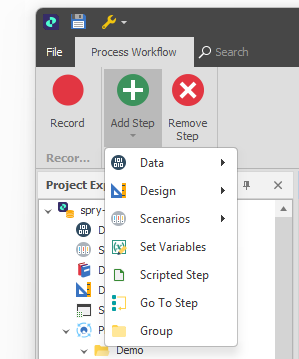
Add Step ribbon menu
Adding a workflow step uses the same selection categories that are available in a Design, Data Table and Case/Scenario context.
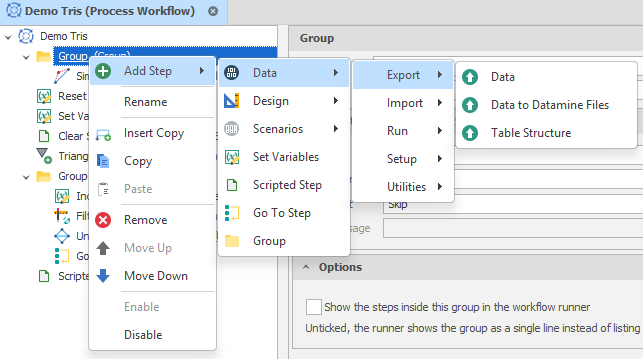
Add Step > Data menu
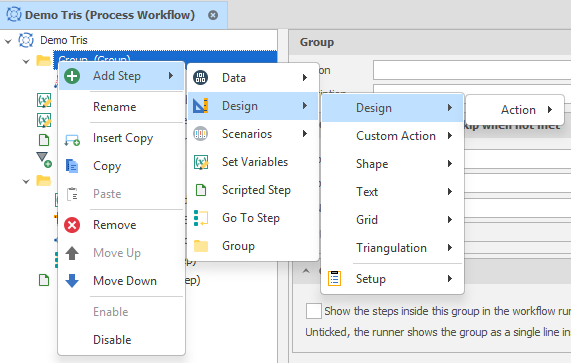
Add Step > Design menu
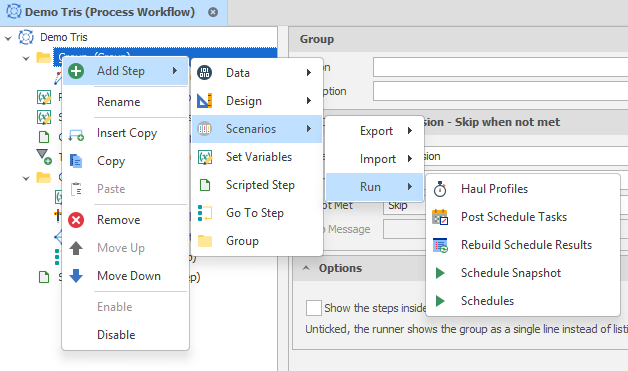
Add Step > Scenarios menu
As an alternative to manually adding steps to a workflow, you can record them. Click Record on the Process Workflow toolbar to begin a recording session.
Set Variables
Variables are referenced in the Options of the Properties of a workflow step. You can also add a special "Set Variables" step. The step which will either prompt for one or more of the variables values you have added or set those values directly.
For more information, see: Set Variables
Scripted Step
Select Add Step > Scripted Step to add a script-based step to the workflow.
A scripted step is an action or a group of actions configured using a script. When exporting workflows, if one or more workflow steps are scripted, you can select an option to include the setup scripts associated with those steps in the export.
For more information, see: Scripted Steps
Go To Step
Select Add Step > Go To Step to add a special “Go To” step to the workflow. For more information, see: Go To Step
Group
Select Add Step > Group to add a Group to the workflow.
Groups allow related steps to be managed as one unit. The visibility of the steps in a group can also be hidden to reduce clutter in the Runner.
For more information, see: Add Groups
Search
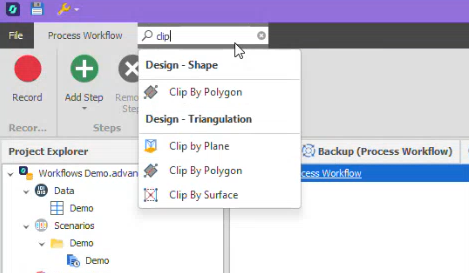
You can use the Search input box above the Process Workflow ribbon to search for an action you want to add to the workflow as a step.
As you begin typing, actions that match the text you have typed are listed for easy selection.
Properties
When you add a step (via the context menus, using the Search box, or by Recording), it is added as a selected step underneath the workflow you selected in the navigation pane.
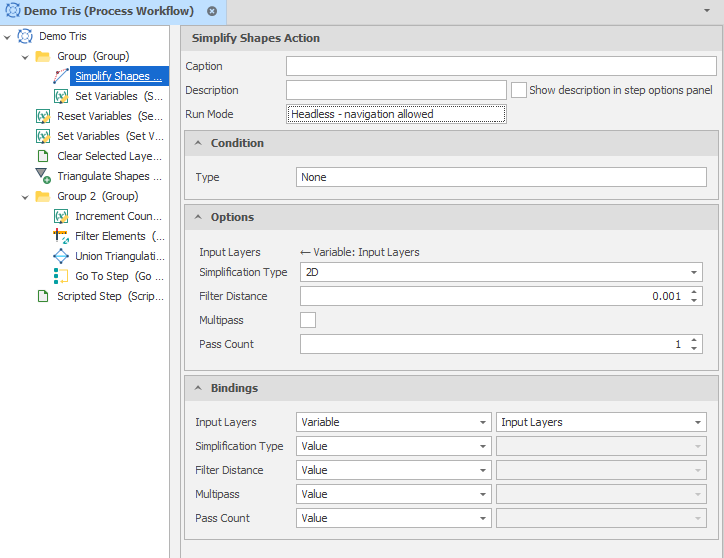
The Properties of the Step are displayed to the right of the navigation pane.
Step Properties
Note that properties may be different for special-purpose steps.
Caption
(Optional) Enter a Caption. The Caption replaces the display text for a given step in the Workflow Runner.
Description
(Optional) Enter a description that summarises the action performed by the step.
When running a step, the description is shown together with a completion message
This appears on the row and, if an error occurred, in the Error List.
Show description in step options panel
Select this option to show the Description in the Step Options dock panel (when this step is selected in the Workflow Runner panel).

Run Mode
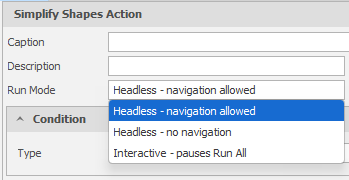
Many (but not all) steps can be run in different ways. Choose a run mode:
| Headless - navigation allowed | Run the step via Step Options or run in Interactive mode. |
| Headless - no navigation | Run the step via Step Options. There is no action to navigate to - or navigation to the associated action is disallowed. |
| Interactive | Run the step by opening and interacting with the associated action. Pauses Run All until complete. |
Condition -
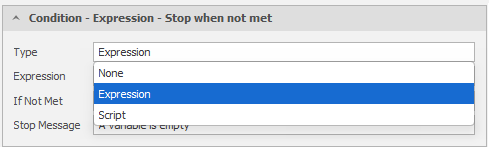
Type
Select a (None, Expression, Script) Condition Type.
Condition - Expression - Stop/Skip when not met
When the Condition Type is Expression, click to use the drop-down to build a filter expression in the Expression Editor. Filter Expressions evaluate and return a Boolean (True or False) value.
If the expression returns a False value, the condition is NOT MET.
Condition - Script - Stop/Skip when not met
When the Condition Type is Script, click to use the drop-down to select a Script Method.
Stop Message
When the condition is NOT MET and you have chosen to Stop running the workflow, the message that is displayed to the user should indicate the reason why the workflow was stopped (based on the condition set).
Options
When viewing the properties of a step, the options shown in the Options group correspond to the settings and selections required to perform that action normally.
When the step is selected in the Workflow Runner, the same options are available in the Workflow Step Options dock panel.
Options bound to variables can only be modified in the properties of the step.
Bindings
In the Bindings group, the Step Options are repeated and are, by default, set to use the "Value" that is set in the Options group. Alternatively, use the drop down to bind a "Variable" to each option. You can then select the variable in an input box to the right of the binding option.
When you run the Process Workflow, each process will interrogate the variables you have set in the properties (step options) of the workflow and use those values.
Variables are referenced in the Options of the Properties of a workflow step. You can also add a special "Set Variables" step. The step which will either prompt for one or more of the variables values you have added or set those values directly.
For more information, see: Set Variables
Remove Step
To remove a step (or group) selected in the Navigation pane, click Remove Step on the Process Workflow ribbon.
Alternatively, press the Delete key or right-click on the step (or group) and select Remove from the right-click menu. You will prompted to confirm (or Cancel) the removal.
The following options are also available on the right-click menu:
|
|
Add Step | Add a step below the current step. |
| Rename | Rename the selected step. | |

|
Insert Copy | Insert a copy of the step directly below the currently selected step. |


|
Copy/Paste | Copy/Paste the selected step into the same or a different workflow. |

|
Remove | Remove the selected step(s) from the workflow. |


|
Move Up/Down | Click on the arrows to move the selected step(s) up or down in the list. |
| Enable/Disable | Enable or Disable the step. If a step is disabled it will be skipped when the workflow is run. |