Workflow Runner
 Conceptual
A Process Workflow represents a process containing multiple steps. Each step represents an action that needs to be taken in the overall process.
Steps are ordered and executed as a list in the Workflow Runner dock panel. Steps may be grouped into folders like a node tree, but only leaf nodes (steps) are executed. Grouping may be useful for conveying the intent of a group of steps and an explanation is provided for each group in the Workflow Runner.
A workflow can be progressed by running one step at a time or by attempting to run all steps in succession. Successfully running a step will change its state from incomplete to complete. When an error is encountered it is shown and will prevent the workflow from progressing.
A workflow can act as a reference for a user to check where they are up to in a given process.
A workflow may be used for the auditing of a process to check that all steps have been completed and validated.
A workflow may be used to guide a user around the program using navigation. Each step will have a navigation action which focuses on a specific part of the user interface.
Checklist mode can be used to forfeit the progression logic of a workflow for more freedom. When this mode is enabled, steps may be run in any order and be checked/unchecked manually.
This mode may be useful when a workflow's steps are not directly related or when a prescribed order is not essential.
Workflows can be created, modified, and configured using scripts. When scripted workflows are included in a process workflow, the scripts that created the workflows are included in any export/import.
A Process Workflow represents a process containing multiple steps. Each step represents an action that needs to be taken in the overall process.
Steps are ordered and executed as a list in the Workflow Runner dock panel. Steps may be grouped into folders like a node tree, but only leaf nodes (steps) are executed. Grouping may be useful for conveying the intent of a group of steps and an explanation is provided for each group in the Workflow Runner.
Selecting a Workflow
Use the drop-down to select a Process Workflow.
You can also load a Scripted Workflow by selecting a script under the Scripts node.
For an overview of how to create workflows or workflow steps through scripting, including animated examples and sample code, see: Workflows Scripting
Workflow Context
Some workflows will have a context based on the last focused tab in their project. Whether a workflow uses a context is up to the implementer. The context gives the implementer access to the Case or Data Table which the user is currently/was most recently looking at.
This can be useful when a workflow’s process revolves around a specific Case or Data Table. This means multiple workflows can be progressed independently (one per case or table).
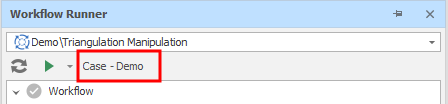
If a workflow is context-based, its context is indicated by a label below the workflow selection drop-down in the Workflow Runner and the state of the workflow will be saved per context.
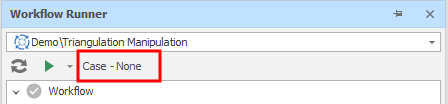
If the Context Mode is set to "Case" and there is no active Case/Scenario, this is indicated by a "Case - None" label.
Refreshing the Workflow (F7)
Click the Refresh button (F7) to propagate any changes made to the Workflow Setup to the Workflow Runner and the Workflow Step Options dock panels.
If there are no changes that affect the workflow, the Refresh button is disabled (greyed-out).

Note: If the workflow has Scripted Steps and those scripts are changed while the workflow is open in the Workflow Runner, the Refresh button is activated.
Interacting with the Workflow
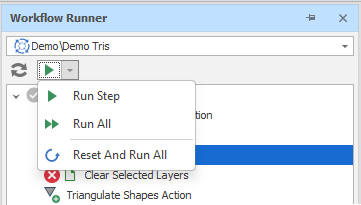
Select an option from the Run drop-down menu on the local toolbar:
Run
Select Run from the Run button drop-down menu (or right-click in the node tree and select Run Step) to run the current step of the workflow.
Run Step will execute the step and a success/failure value will be returned. If the execution is a success, then the step will be ticked and the workflow will move onto the next step (unless the current step is the last step, in which case it will just run that step.
If errors occur when running a step, the icon will change to a cross and the error message will be shown in the Errors dock panel under the Workflow tab.
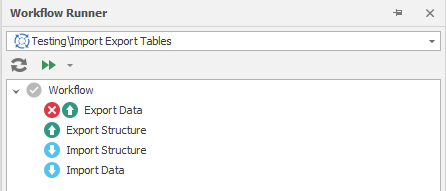
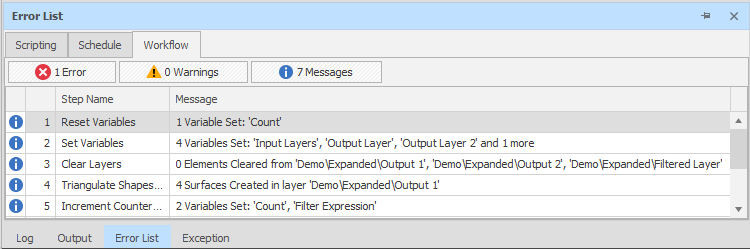
This is the same with warnings, except that warnings will not prevent the workflow from progressing.
Note: The following RUN commands are unavailable when Checklist Mode is enabled.
Reset and Run All
This action rewinds to the first step in the workflow, clears the per-step run state, and runs the whole setup. If an error occurs the workflow will stop at the erroneous step.
Run All / Run Group
This action runs all steps in the workflow, starting from the current step and onwards until the last step. If an error occurs the workflow will stop at the erroneous step.
If you have right-clicked on a Group node, this action runs all steps in the group, starting from the current step in the group and onwards until the last step in the group.
You can also use the node tree right-click menu, to interact with the workflow:
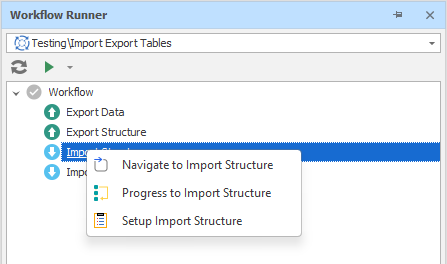
Navigate To
This action calls the Navigate to Action on the workflow step. Each step can have a unique Navigate to Action which will take the user to a specific place in the user interface.
Executed via the right-click menu or by double-clicking the node.
Progress To
Note: This command is unavailable when Checklist Mode is enabled.
This action will attempt to advance the workflow to the selected step by running all previous steps that have not yet been run. It functions like Run All except it stops at the selected step instead of the last step.
Reset To
Note: This command is unavailable when Checklist Mode is enabled.
When you right-click on a step that is previous to the current step, this action will reset all steps between the selected (right-click) step and the current step.
If you have right-clicked on a Group node, this action will apply to the first node in the group, changing it back to its uncompleted state. Doing this with Checklist mode disabled, will reset all steps in the group that come after the first step and change the selected step to the first step in the group.
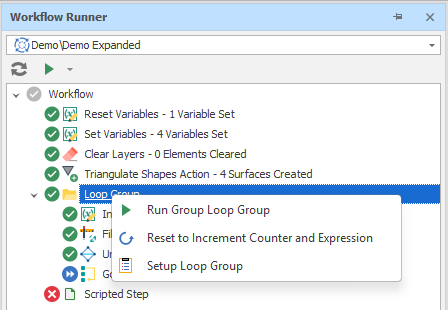
Reset
This action will reset the current node, changing it back to its uncompleted state.
Doing this with Checklist mode enabled will only reset the current step.
Doing this with Checklist mode disabled, will reset all steps that come after the selected step and change the selected step to the current step.
If you have right-clicked on a Group node, this will reset all steps that come after the selected step in the group and change the selected step to the first step in the group.
Setup (Workflow/Step/Group)
This action will open the Properties of the Workflow, Step or Group in the Workflow Setup.
Checklist Mode
Checklist mode can be used to forfeit the progression logic of a workflow for more freedom. When this mode is enabled, steps may be run in any order and be checked/unchecked manually.
This mode may be useful when a workflow's steps are not directly related or when a prescribed order is not essential.
Checking/Unchecking a node is done by clicking the node check mark icon:
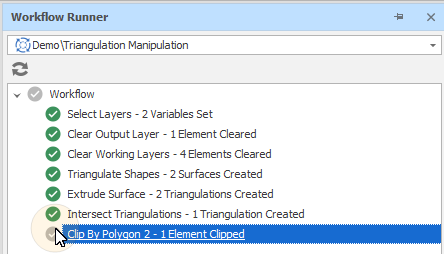
You can also Check/Uncheck via the right-click context menu:
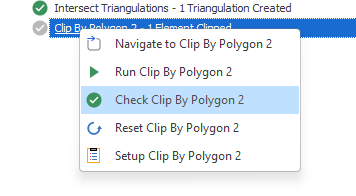
Checking folder nodes will toggle all steps in the folder.
Checklist Toggle
If a Show Checklist Toggle check box option has been selected in the properties of the workflow, a Checklist Mode toggle button is shown on the toolbar of the Workflow Runner.
This allows Checklist Mode to be toggled on and off without opening the properties of the workflow.
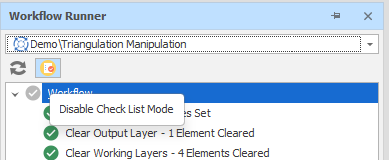
When you hover the mouse over a step, its Run Mode is shown, together with a Description (if it was set as part of the Properties of the step).
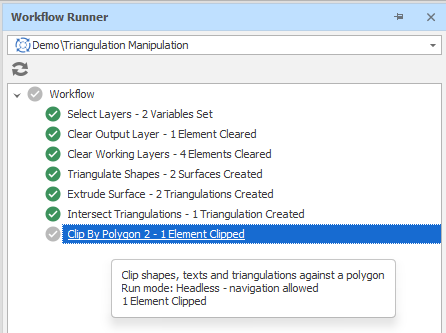
Step Options
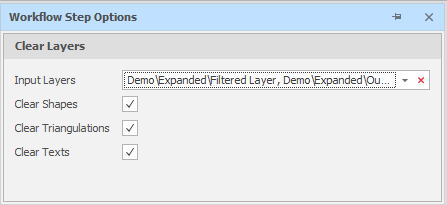
When a step is selected in the Workflow Runner, a Step Options dock panel is shown alongside the Runner dock panel. These correspond to the Options available when viewing the properties of the Step.
If options are bound to variables, this is indicated in the panel and you cannot edit them directly.
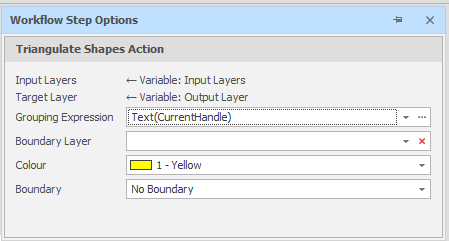
If options are bound to values, you can edit them here.