

Getting Started
In order to get started with Micromine Spry version 2027.0, you will need to download and install the software, system components and utilities.
 Downloads
To download the Micromine Spry software and the Licence Administrator, visit the Micromine Downloads page:
Double click the downloaded Setup (.exe) file to install the software.
Licensing
When you click the File tab to open the Backstage menu and select Licensing, click Change Licence to choose between Micromine Cloud Licensing Services (MCLS) and Legacy Cloud Licensing Services:
Micromine
A Micromine Cloud Licence is a network-style licence hosted in the cloud on Nexus. Micromine Nexus is a web-based, enterprise-level file management solution which seamlessly integrates with Micromine applications and Open API applications to provide secure data storage, file versioning and access control, plus flexible tools to facilitate the governance of corporate-wide business processes.
To configure a licence from the Micromine Cloud Licensing Service (MCLS):
-
(A) If a valid legacy or Micromine licence is NOT detected, when the application starts, a Licensing splash screen will display an error message indicating that a licence has either not been found or is not valid.
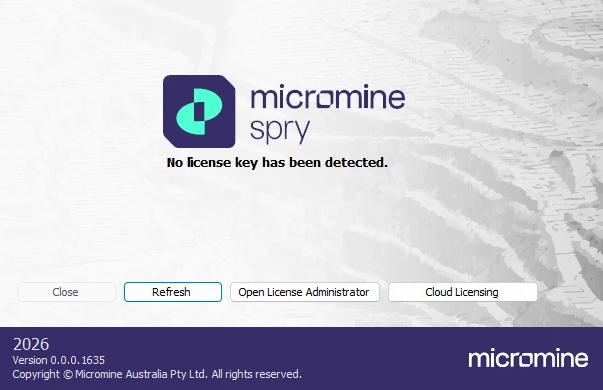
Click the Cloud Licensing button. See Step 2.
-
(B). Alternatively, if a valid Legacy or Micromine licence has been detected and the application is already open, click File to open the Backstage menu and select Licensing > Change Licence.
-
In the Licence Options dialog, select Micromine from the Licensing System drop-down.
To view and access available cloud licences for Spry, you must sign in with your Micromine ID. If you are not Signed in, click the Sign In button to sign in to Nexus. For further information on signing in, see: Nexus Home
Once signed-in, if cloud licences are available and you have the necessary permissions, you can manage those licences. (If there are no cloud licences available you will need to request one from your licence administrator.)
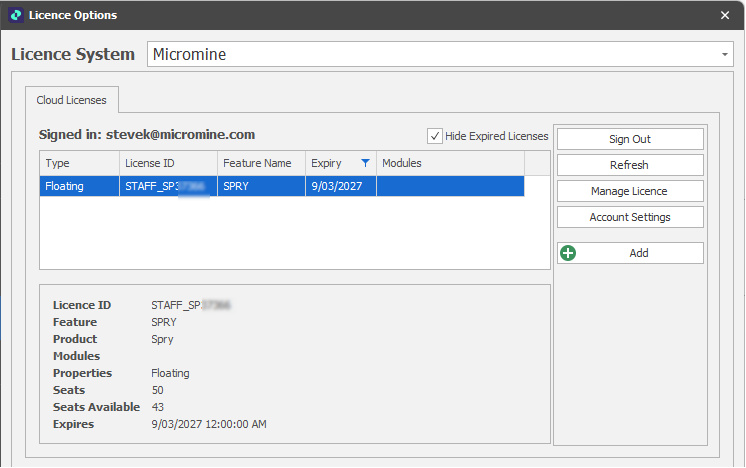
By default, expired licences are not shown in the grid and the Hide expired licences is selected. Deselect this check box if you want to see expired licences.
-
Click in the grid to select a licence and then click the Add button to add the selected licence to the Licence Configuration pane in the lower half of the Cloud Licences tab.
There may be a pool of licences and modules that you are able to choose from when working in the application. Each combination of licence and modules is known as a configuration.
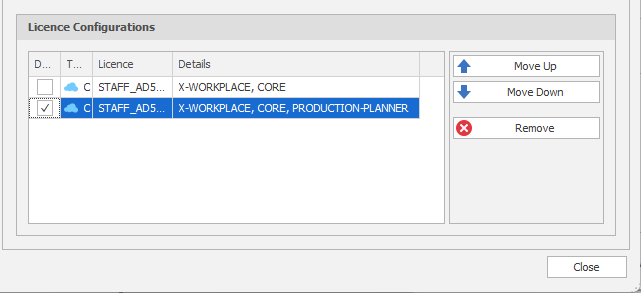
If you want the application to automatically activate a particular licence configuration when it starts up, select the Default check box next to the name of that configuration:
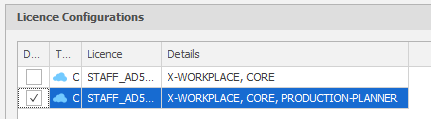
Optionally, click the Move Up and Move Down arrows to adjust the order of the licence configurations.
If your current licence is no longer available or is no longer valid, this is the order of precedence the application will use when attempting to activate an alternative licence.
-
If not already selected, click to Select the licence you want to activate in order to use the application (this will typically, be your "Default" licence) and then click Close to close the Licence Options dialog.
-
(A) If a valid legacy or Micromine licence was NOT previously active, see Step 1 (A), click the Refresh button .
If the chosen licence is valid, the licence is checked-out and the application will start-up.
(B) Alternatively, if a valid legacy or Micromine licence was previously active and the application is currently open, see Step 1 (B), you will be prompted to restart the application in order for the licensing changes you have made to be applied.
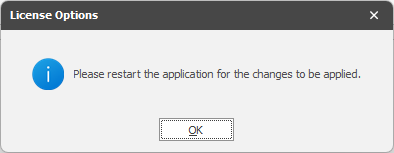
Click OK and Restart the application.
Once your licence is active, you can do the following:
Manage Licence
Click Manage Licences to open the Nexus Home - Manage Licences page.

This option is also available on the Backstage > Licensing page when a Micromine cloud licence is active.
Account Settings
Click Account Settings to open the Nexus Home - User Profile page.
For information on the technical requirements for Cloud Licensing, see: Technical Requirements
For answers to a number of frequently asked questions, see: Cloud Licensing: FAQs
For more information, see: Licensing Options
Legacy
In order to run the application with your legacy (Licence Adminstrator) licence, you will need a HASP USB (Dongle) Licence or a Cloud (Network) Licence. For more information, see: