Spry Assistant
Open the Spry Assistant to use AI to analyse and edit your project/model.
The Assistant is docked on the right edge of the application window. Click on the tab to open the panel.
Use the options on the View Settings page of the Micromine Spry Settings window, to toggle the display of (Project Explorer, Assistant, Design Data, Scripts, Preview, Properties, etc) dock panels on and off.
Note that the Assistant can only be accessed when you are logged in with a Micromine ID on Cloud Licensing.
You can download a copy of the Micromine Artificial Intelligence Transparency Statement from the link.
When you open the Assistant for the first time in a session, it is opened in Ask Mode. Depending on the context, an introduction appears, describing what the Assistant can do (for example, read the Case structure, validate, write, schedule and verify source paths).
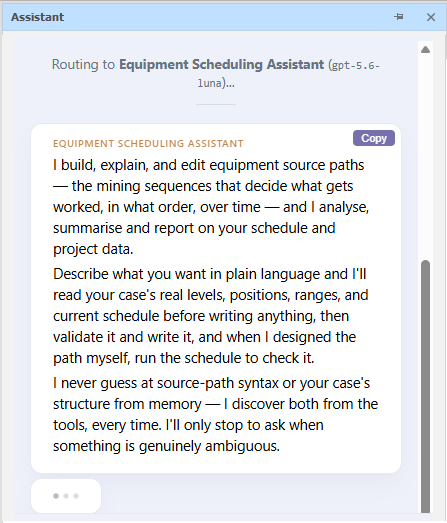
In Ask Mode, enter a question or a request for information and click Send.
If you want to go further than just asking questions, you can direct the Assistant to make changes to the project/model by switching to Edit Mode.
Ask Mode vs Edit Mode
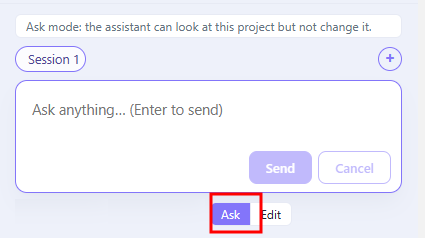
Use the Toggle to switch between Ask Mode and Edit Mode.
In Ask Mode, the Assistant can look at your project but cannot change it. In Edit Mode, the Assistant can change it.
Not happy with the result of any edits? Simply ask the Assistant to Revert what it did.
Sessions
You can edit your project/model in different sessions.
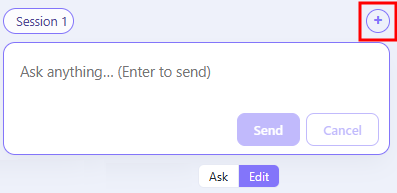
Click the Plus icon to begin a New Session. By default, a new session is opened in Ask Mode.
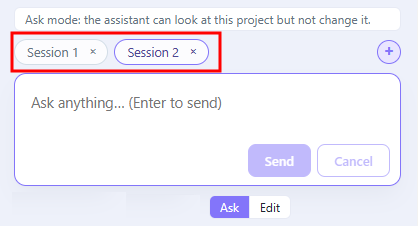
You can then use the buttons above the Input box to switch between sessions or click the Delete icons to delete them.
You might want to use the Copy buttons to copy the questions and responses for that session before deleting.