Help Assistant
Use the Micromine Help Assistant to help answer any questions you have related to Spry.
Click the Help Assistant icon on the title bar to open the Help Assistant Window on Nexus:
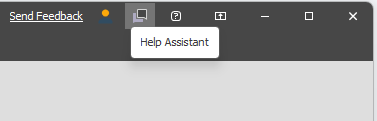
Note that the Assistant can only be accessed when you are logged in with a Micromine ID on Cloud Licensing.
You can download a copy of the Micromine Artificial Intelligence Transparency Statement from the link.
In the Help Assistant Window, enter a question or a request for information and click Send.
The time it takes to get a response will depend on the complexity and the scope of the question. As a general rule, be specific and focus on one feature of the software.
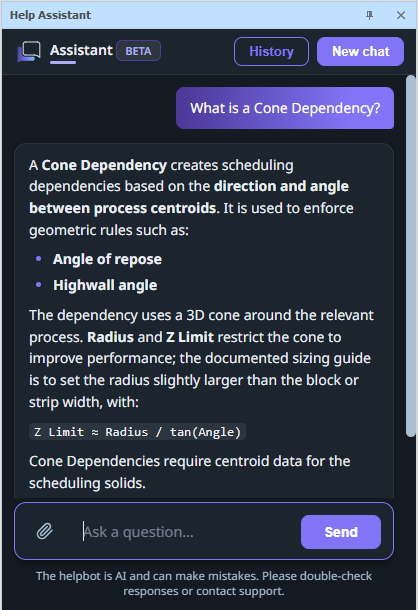
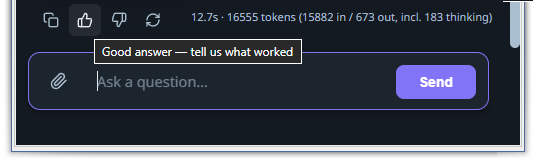
Note that you can select text and right-click to Copy the text of a response. You can also click on the Copy and Feedback icons directly below the response:

|
Copy this answer to the clipboard. |
  |
Use the Thumbs Up and Thumbs Down icons to provide feedback to help improve the knowledge base. |
|
|
|

|
Not happy with this answer? Ask again for a new one. |
History
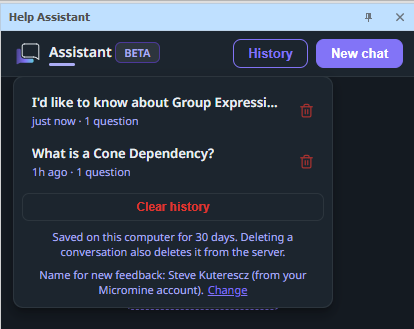
Click History to see your recent conversations. Options to delete individual chats or clear the entire history are provided.
New Chat
Click New Chat to start a new chat. You can go back to an earlier chat by clicking on the History button.
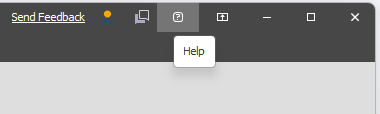
To go directly to the Spry online help, click the Help icon on the title bar: