

Workflows Scripting
This topic describes how to create or modify a workflow through scripting. The major features that can be added to a workflow are listed together with sample code that can be used to get started. The examples provided are a mixture of screenshots and code snippets.
Required using directives
Apart from a built-in alias for Range (PrecisionMining.Spry.Data.Range), scripts are compiled with no implicit using directives, so every script file has to declare the namespaces it uses.
A new C# script already starts with a Using Directives region that covers everything in this document, so if you create your scripts from the Scripts panel you do not need to add anything. If you start from an empty file, or have trimmed that region, make sure these are present:
using System;
using System.Linq;
using System.Windows.Forms; // MessageBox, Keys
using PrecisionMining.Common.Design; // ActionCompletionResult, ActionCompletionStatus, ActionResults
using PrecisionMining.Common.UI; // MainDockPanel
using PrecisionMining.Common.Util; // Error
using PrecisionMining.Spry; // Project
using PrecisionMining.Spry.Data; // Table
using PrecisionMining.Spry.Design; // Actions, Layer
using PrecisionMining.Spry.Scenarios; // Case
using PrecisionMining.Spry.Scripting; // CustomDesignAction, CustomDesignOverlay and their attributes
using PrecisionMining.Spry.UI.Scripting; // Navigation
using PrecisionMining.Spry.Util.OptionsForm; // OptionsForm
using PrecisionMining.Spry.Workflows; // IWorkflow, IWorkflowStep, variables, options, Process Workflow types
Creating a Workflow Script
The easiest way to create a new workflow is to create a new script in an active project and change the automatically generated class and method into a workflow entry method. As an example, create a new script called My Workflows, and rename the class to MyWorkflows and the method to MyWorkflow as seen in the screenshot below.
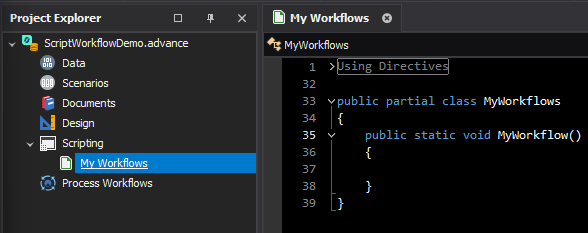
The script will now be a standard scripting entry point. It is visible in the Scripts dock panel, but running it does nothing since there is no code.
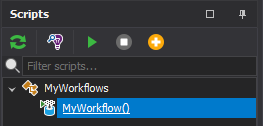
To convert this script into a workflow script we need to give the MyWorkflow method an IWorkflow parameter. We will call the parameter workflow for simplicity.
public static void MyWorkflow(IWorkflow workflow)
A method is a workflow entry point when it is public, static, not generic, returns void, and has exactly one parameter whose type is IWorkflow, ICaseWorkflow or ITableWorkflow (see Context Workflows below). The class it is in must also be public, as the generated class is. A method that returns a value is still listed in the source picker, but selecting it fails with "Could not find User Workflow Script …".
Once we have added the IWorkflow parameter, we recompile the scripts (for example by pressing F7) and notice two things. Firstly, MyWorkflow is no longer listed in the Scripts dock panel, and secondly, it is now listed under Scripts in the source picker at the top of the Workflow Runner dock panel.
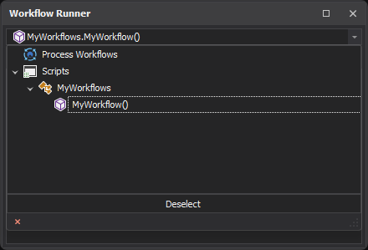
Selecting the workflow script builds the workflow in the Workflow Runner, but the script currently does nothing so we only see the root node, called "Workflow". The quickest way to make sure that our workflow script is working is to give our workflow a name.
If the scripts do not compile when the workflow is built, the Workflow Runner reports, in a message box titled Run, "The workflow has been configured to use a script to set up the Workflow Steps, however the User Scripts contain errors - please ensure the scripting code can be compiled." If the workflow method itself throws an exception, the exception is reported like any other script exception and the workflow is not set up.
Naming a Workflow
To name a workflow, set the Caption property of the workflow parameter inside the MyWorkflow method. We are going to give the workflow the name My Workflow to keep the theme with the method. If the caption is left empty, the root node is called "Workflow".
public static void MyWorkflow(IWorkflow workflow)
{
workflow.Caption = "My Workflow";
}
After this change, recompile the scripts and select MyWorkflow in the Workflow Runner's source picker; the root node is now called My Workflow.
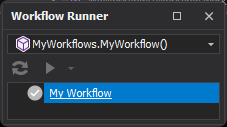
From now on we will assume that workflow refers to the parameter in the snippet above, and for conciseness we won't show the MyWorkflow method. Any change made to the workflow script should be followed by recompiling the scripts (F7) to see it reflected in the Workflow Runner.
Pressing F7 (the default shortcut for refreshing scripts), or clicking the Refresh icon at the top of the Workflow Runner (tooltip "Refresh Workflow (F7)"), recompiles the scripts if they have changed and rebuilds the workflow in one go. The Refresh icon is only enabled when the scripts have changed since the workflow was last built.