Building the Step List
This topic describes how to add steps to MyWorkflow and arranges them with captions, descriptions, folders and groups.
Add a Workflow Step
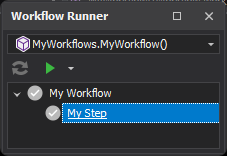
The most important part of a workflow is its steps; adding steps is necessary to do anything productive. Adding a step is simple: call workflow.Add().
workflow.Add("My Step");
This adds a single step called My Step to the root node of the workflow.
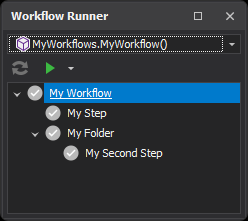
Steps can also be added into folders by passing a folder path to Add(). Nested folders are separated with \ or /.
workflow.Add("My Second Step", "My Folder");
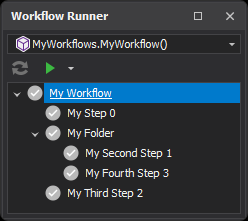
This adds a folder to the workflow tree called My Folder with a step called My Second Step inside it.
When using Add(), steps are appended to the end of the workflow, or to the end of the folder if one is given. If we add a third step without a folder path and a fourth step with the same folder path as before, the last step in the workflow is the third step and the last step in the folder is the fourth step.
workflow.Add("My Third Step");workflow.Add("My Fourth Step", "My Folder");
Add the above code to the workflow script below the previous code. The order matters.
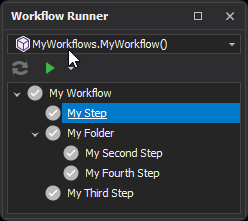
As seen above, be aware of which steps are added first, since order often matters. For execution, the workflow steps are stored in a flat list whose first index is zero. A step's index (its StepIndex) indicates its order in the tree and its order of execution, counting only steps, not folders. In the above example the indexes are as shown below.
When writing a fully scripted workflow like the example above, it is recommended to only use the Add() method for adding steps. It is by far the simplest and most robust way to add steps without having to think about indexes.
Step Captions
Sometimes a step needs a more descriptive name than the naming rules allow. A step name can only contain letters, numbers, spaces and underscores, and must start with a letter, a number or an underscore. For example, if you want brackets in the name of a step:
var myStep = workflow.Add("My Step (more description)");
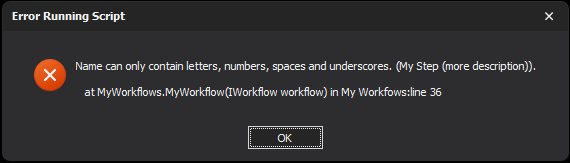
You would be met with an error, "Name can only contain letters, numbers, spaces and underscores. (My Step (more description))."
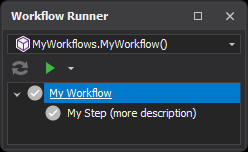
In cases like this, create the step with a caption. A caption is display text, and it can contain any characters you like. Use workflow.CreateStep(), which takes a name and a caption. In MyWorkflow, replace the first line, workflow.Add("My Step");, with these two lines, so My Step keeps its place at the top of the workflow:
var myStep = workflow.CreateStep("My Step", "My Step (more description)");workflow.Add(myStep);
Remember to add the step to the workflow with Add(), otherwise it is not part of the workflow. The step now appears in the tree with its caption as the display text.
A step's Caption is read-only on IWorkflowStep, so CreateStep() is the only way for a script to give a step a caption.
Remember that a caption is only the display text. To find a step by name, use its Name, or its FullName when it is in a folder (for example My Folder\My Fourth Step). Examples where this applies are workflow.Remove(fullName) and workflow.MoveToStep(fullName).
Descriptions
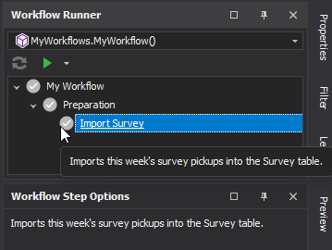
A workflow, a step and a group (see Groups below) can each have a description. A description is shown as a tooltip when the user hovers the row in the Workflow Runner. Set ShowDescription to true to also show it in the Workflow Step Options dock panel when the row is selected.
Add the following to the end of MyWorkflow. It gives the workflow a description, and adds a step with a description in a new folder:
workflow.Description = "Checks the survey and publishes the schedule.";
var import = workflow.Add("Import Survey", "Preparation");import.Description = "Imports this week's survey pickups into the Survey table.";
import.ShowDescription = true;
Insert and Remove Steps
While it won't often happen with a workflow written from scratch, a workflow assembled by shared helper methods may need extra steps in the middle. This can be done with workflow.Insert(). For example, to add a new step to MyWorkflow before My Folder but after the first step, use the index of the step it should take the place of. The index can be anything from 0 to the number of steps (which appends); anything else throws "Index is out of range of step list."
workflow.Insert("My Inserted Step", 1);
Add the above line to the end of the MyWorkflow method and notice the inserted step is added below the first step and above the folder.
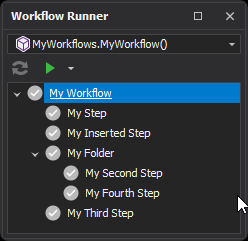
In a workflow that already has steps, for example one built by a shared helper, you may also want to remove steps that are not needed for a specific process. Call workflow.Remove() with the full name of the step to remove; it returns false if there is no such step. The full name excludes the root node but includes any folders that parent the step. workflow.RemoveAt(index) removes a step by index instead.
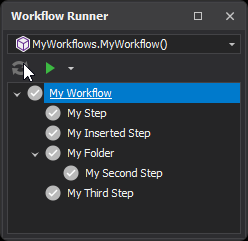
To remove the fourth step, for example, add the following line to the end of MyWorkflow.
workflow.Remove("My Folder\\My Fourth Step");
Groups
A folder becomes a group when you call workflow.Group() with its folder path. A group is a block of steps the Workflow Runner shows, and can run, as a unit: a group has the Run Group and Reset to items on its right-click menu (in Checklist Mode, see Checklist Mode below, it has Check/Uncheck instead), while a plain folder has no menu.
To try a group on its own, replace the steps in MyWorkflow (everything after the Caption line) with the following:
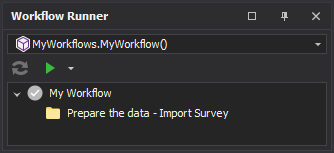
workflow.Add("Import Survey", "Preparation");workflow.Add("Check Survey", "Preparation");var prep = workflow.Group("Preparation");prep.Caption = "Prepare the data";
prep.Description = "Brings in and checks this week's survey.";
prep.ShowChildStepsInRunner = false;
Caption is the group's display text (it falls back to the folder's name when empty). With ShowChildStepsInRunner = false, the Workflow Runner hides the group's steps and shows the group as a single line; the steps are still real steps and still run, and while the run is on one of them the line names it (with "(waiting for input)" when that step is waiting for the user). A group can also have a run condition; see Step Conditions below. The workflow root cannot be a group: an empty folder path throws an error.