

Saving State
This part saves a workflow's progress with the project, and decides which steps are restored when the workflow is rebuilt.
Restoring Workflow State
Depending on the process the workflow implements, it can be useful to restore the workflow's previous state after a different workflow is selected, or after the project is closed and reopened. Restoring state can range from very simple to very complex, depending on the workflow.
To start, we restore the state of a simple workflow using workflow.RestoreValues(). This method takes a text key, which is used as the unique identifier for saving the workflow's state in the project. Nothing is saved for a scripted workflow unless it calls RestoreValues() with a key.
Make sure that every workflow in the project has a unique key when using RestoreValues(). Otherwise workflows may not save or restore correctly. Avoid the key AdvanceWorkflow, which the built-in Advance Workflow uses.
The following code demonstrates how calling RestoreValues(string key) saves the state of the workflow's steps. Replace the whole MyWorkflow method with it.
public static void MyWorkflow(IWorkflow workflow)
{
workflow.Caption = "My Workflow";
workflow.RestoreValues("MyWorkflow");
workflow.Add("Step 1");
workflow.Add("Step 2");
workflow.Add("Step 3");
}
The workflow's state is now saved: which steps have been run, skipped or ticked, the values of the step options (see Step Options), the values of the variables the script declares (see Workflow Variables), and whether the workflow is in Checklist Mode (see Checklist Mode below). It is even restored after closing and reopening the project. Errors and warnings on each step, and any completion text, are saved too.
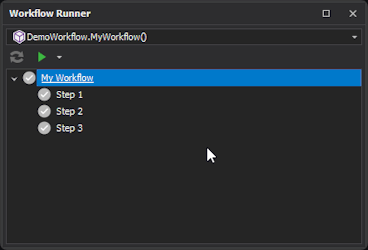
Sometimes you need to store more than the steps' state to restore a workflow properly. For example, a step asks the user to select a design layer, and that layer must be restored before the next step can run. The example below is a new workflow: add the GetLayerNameWorkflow method to the MyWorkflows class and select it in the Workflow Runner's source picker. Its Select Layer step sets UseTaskManager = false so that it runs on the UI thread; UseTaskManager is explained in Using Existing Tools below.
public static void GetLayerNameWorkflow(IWorkflow workflow)
{
// Declare a layer variable
Layer layer = null;
// Name the process
workflow.Caption = "Get Layer Name";
// Declare restore values key (this does not work as expected)
workflow.RestoreValues("GetLayerNameWorkflow");
// Select Layer Step - an OptionsForm works from any step; running it on the UI thread just keeps it out of the task manager
var selectLayerStep = workflow.Add("Select Layer");
selectLayerStep.UseTaskManager = false;
selectLayerStep.OnExecute += (s, e) =>
{
// Create UI for selecting a layer
var optionsForm = OptionsForm.Create("Select Layer");
var layerSelect = optionsForm.Options.AddLayerSelect("Layer");
// Assign existing layer if relevant
layerSelect.Value = layer;
// Show UI
optionsForm.ShowDialog();
// Set layer value and report error or success
layer = layerSelect.Value;
if (layer == null)
selectLayerStep.AddErrors("Please select a layer.");
else
e.Success = true;
};
// Output Layer Step
var outputLayerStep = workflow.Add("Output Layer Name");
outputLayerStep.OnExecute += (s, e) =>
{
// Write the layer name to Output console
Console.WriteLine(string.Format("Layer Name: {0}", layer.FullName));
// Always succeeds
e.Success = true;
};
}
The above code does not work as intended. After reopening the project the Select Layer step is restored as complete, but layer is null, so the Output Layer Name step throws an exception. Read on to fix it.
In this case, use the RestoreValues(string key, Func<string> serialise, Action<string> deserialise) method. As well as storing the steps' state, it calls your serialise delegate every time the workflow's state changes (a step is run, checked or reset), and the text it returns is saved with the project. It calls your deserialise delegate each time the workflow is built, but only once something has been saved under the key, so give your variables sensible starting values in the workflow method. This lets you save any data you like, as long as it can be turned into text.
The code below shows how the workflow above can also restore the layer.
// Declare restore values key and restore layer data
workflow.RestoreValues("GetLayerNameWorkflow",
() =>
{
// Save layer full name
if (layer == null)
return "";
return layer.FullName;
},
text =>
{
// Restore layer from full name
if (string.IsNullOrEmpty(text))
return;
var existingLayer = Project.ActiveProject.Design.LayerData.GetLayer(text);
if (existingLayer != null)
layer = existingLayer;
});
Replace the previous RestoreValues() call with the above snippet, and the layer is now restored when the workflow is reopened. If the workflow is on the Output Layer Name step, running it writes the selected layer's full name to the Output dock panel.
workflow.ClearSerialisedData() throws away the saved state of every workflow in the project, not just this one, including the run state of every Process Workflow and of the built-in Advance Workflow.
Initialising Steps
In certain situations you will want to decide whether a step should be restored to its previous state. Consider the previous snippet, where we saved the selected layer with RestoreValues. What if the layer was removed after the workflow was saved? We need a way to check whether the layer was restored, and only restore the Select Layer step if it was. This is where the OnInitialise event comes in.
OnInitialise is raised each time the workflow is built, after the saved state has been read back. It has a Success event argument just like OnExecute. Steps are initialised in order, and once one step does not come back complete, the steps after it are reset without their OnInitialise being raised (except in Checklist Mode, where every step is initialised). It can only veto a restore: a step that was saved as complete stays complete only if the handler sets e.Success = true, and a step that was not complete is never made complete by it. A step with no OnInitialise handler keeps whatever state was saved. For the missing layer, add the following line below the line where selectLayerStep is assigned.
// Only restore when layer is not missing
selectLayerStep.OnInitialise += (s, e) => e.Success = layer != null;
This stops the Select Layer step from being restored if the layer has been moved or removed. When a step fails to initialise, every step after it is reset as well, so the workflow carries on from the failed step as if the later steps had never been run. For example, if the Output Layer Name step had been completed but the layer was then removed, it is reset too.
That last point does not apply in Checklist Mode: there, a step that fails to initialise does not reset the steps after it.