Running Steps
This topic describes how to make steps perform some action when run: report errors, warnings and outcomes, pass values between steps with variables and options, and decide whether a step runs and where the run goes next.
Executing a Step
The workflow is getting a bit crowded and currently does nothing when run, so let's clear it and start adding steps that do something! Set the MyWorkflow method back to just the caption.
public static void MyWorkflow(IWorkflow workflow)
{workflow.Caption = "My Workflow";
}
Add a step called My Step, but this time assign the newly added step to a variable. We will call the variable myStep.
Now that we have a variable to work with, we can make the step do something when it is run. We will keep it simple and write to the Output console to make sure the step is working. To do this, subscribe to the step's OnExecute event. This event is raised when the step is run, and its event argument, WorkflowStepSuccessEventArgs, reports whether the run was successful through its Success property.
A step with no OnExecute handler always succeeds. Once you subscribe, e.Success starts as false, so you must set it to true to say the step succeeded; otherwise the step does not progress the workflow.
var myStep = workflow.Add("My Step");
myStep.OnExecute += (s, e) =>
{
Console.WriteLine("Hello world.");
e.Success = true;
};
After adding the above code, run My Step (Run › Run Step), check the Output dock panel for our Hello world. text, and notice that the step completed successfully and was ticked as a result.
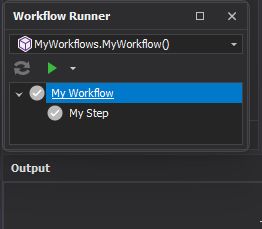
If the handler throws an exception, the step fails with the error "Workflow step 'My Step' failed: …" and the exception is reported like any other script exception.
More complicated execute actions can be moved to their own methods for convenience. The code below behaves exactly the same as the code above; it is a matter of preference. Replace MyWorkflow with it, as the next section builds on the MyStepExecuted method.
public static void MyWorkflow(IWorkflow workflow)
{
workflow.Caption = "My Workflow";
var myStep = workflow.Add("My Step");
myStep.OnExecute += MyStepExecuted;
}
private static void MyStepExecuted(object sender, WorkflowStepSuccessEventArgs e)
{
Console.WriteLine("Hello world.");
e.Success = true;
}
Adding Errors and Warnings to Steps
Sometimes a step cannot run successfully, and it is helpful to tell the user that the workflow cannot progress because there is a problem. For example, a step needs a text string from the user but there was a typo in the input. To add one or more errors to a step, use step.AddErrors().
To try it, change MyStepExecuted to the following.
private static void MyStepExecuted(object sender, WorkflowStepSuccessEventArgs e)
{
var step = (IWorkflowStep) sender;
step.AddErrors(new Error("Test Error"));
e.Success = false;
}
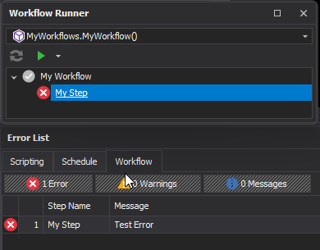
AddErrors() takes any number of Error objects; a plain string also works, because a string converts to an error. Each error is reported in the Error List dock panel, on the Workflow tab, alongside the step's name, and an error icon is shown on the step. Running the step again clears its previous errors first.
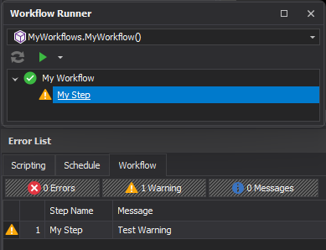
Sometimes you will want to report a warning instead of an error: there may be a potential problem, or the step can still progress despite the problem. In that case construct the Error with the Warning type and set e.Success to true. Replace the last two lines of MyStepExecuted with:
step.AddErrors(new Error("Test Warning", Error.ErrorType.Warning));
e.Success = true;
This displays a warning icon instead of an error icon, and the step completes successfully.
It is up to the workflow's author to decide the best way to validate their workflow and report errors and warnings to the user.
Completion Text
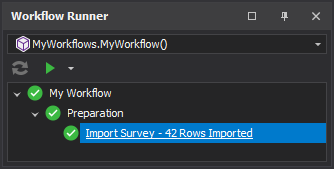
A step can say what it did. Subscribe to OnSuccess and set CompletionText (shown after the step's name in the Workflow Runner) and CompletionMessage (shown as an information row on the Error List's Workflow tab).
Replace the body of MyWorkflow (everything after the Caption line) with the following; the MyStepExecuted method is no longer used and can be deleted.
var rows = 0;
var step = workflow.Add("Import Survey", "Preparation");
step.OnExecute += (s, e) =>
{
rows = 42; // ...the real import goes here
e.Success = true;
};
// The short outcome on the runner row, and the fuller sentence for the Error List.
step.OnSuccess += (s, e) =>
{
e.CompletionText = rows + " Rows Imported";
e.CompletionMessage = rows + " Rows Imported into table 'Survey'";
};
OnSuccess is raised once for each successful run, after the step's status is set, including when the step is completed with MarkComplete() (see Using Existing Tools below). It is not raised for a run that failed, was cancelled or was skipped. Set both properties: an empty CompletionMessage shows no Error List row rather than falling back to the text. A handler that throws does not fail the step; it adds a warning instead. The text is saved with the workflow's state (see Restoring Workflow State below).
Workflow Variables
Variables are typed values that belong to the workflow, which every step can read and write, so one step can hand a result to a later one. Declare a variable with workflow.Variables.Add(name, kind).
Replace the steps in MyWorkflow (everything after the Caption line) with:
var passes = workflow.Variables.Add("Passes", WorkflowVariableKind.Integer);
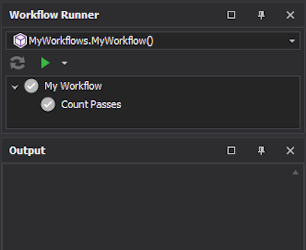
var count = workflow.Add("Count Passes");
count.OnExecute += (s, e) =>
{
passes.SetValue(passes.GetValue<int>() + 1);
Console.WriteLine("Passes: " + passes.Value);
e.Success = true;
};
Add() is declare-or-get: because the workflow method runs again on every rebuild, adding a variable that already exists with the same kind returns the existing one. Adding a name already used by a variable of a different kind throws an error, and the names ContextTable and ContextCase are reserved. workflow.Variables["Passes"] looks a variable up by name (not case-sensitive) and returns null if there is none; Contains(name) and Count are also available.
The kinds are Text, Double, Integer, Boolean, DateTime, Colour, Point3D, Layer, Layers, Table, Tables, Field, Fields, Grid, Grids, Triangulation, Triangulations, Attribute, Attributes, Case, Cases, BlockModel, BlockModels, Stratigraphy, DesignSurface, Plane, ProjectionSequence, ColourSet, Range, NetworkLayer, NetworkLayers, DevelopmentNetworkLayer and DevelopmentNetworkLayers, plus the folder kinds LayerContainer, NetworkLayerContainer, DevelopmentNetworkLayerContainer, GridContainer, TriangulationContainer, BlockModelContainer and CaseContainer. The plural kinds hold several values. The development network kinds are available in Advance only.
|
Member |
Use |
|---|---|
|
Value / Values |
The current value, or values, as text (a layer, table or case by its full name). |
|
GetValue<T>() / GetValues<T>() |
The value converted to a type, for example GetValue<int>() or GetValue<bool>(). An empty variable reads as the type's default (0, false) or an empty string. |
|
SetValue(value) / SetValues(values…) |
Writes the value. SetValues with more than one value only works on a plural kind. |
|
Clear() |
Empties the variable. |
|
ValueChanged |
Raised when the value changes. |
Writes are checked, and a bad one throws an error rather than storing something a later step cannot use: a value of the wrong type, more than one value in a single-value variable, or a value outside the variable's limited list.
Lifetime. The variables a script declares are part of the workflow's setup, so they are declared afresh every time the workflow is rebuilt. Their values are saved with the workflow's state, so they survive a rebuild or a project reopen when the workflow uses RestoreValues (see Restoring Workflow State below); a saved value for a variable the script no longer declares is dropped.
Folders. Variables can be organised into folders. A variable in a folder is named by its full name, such as Geology\Depth. Passing a full name to Add() creates any folders it needs; GetOrCreateFolder(path) and GetFolder(path) return a folder, and Add(name, kind, folder) declares a variable inside one. Folders lists the top-level folders, AllFolders every folder, and each variable has a FullName and a Folder.
To try it, add these lines to MyWorkflow:
var depth = workflow.Variables.Add("Geology\\Depth", WorkflowVariableKind.Double);
var drilling = workflow.Variables.GetOrCreateFolder("Geology\\Drilling");
var holes = workflow.Variables.Add("Holes", WorkflowVariableKind.Integer, drilling);
Console.WriteLine(holes.FullName); // Geology\Drilling\Holes
Scripts can read, write and declare variables and create folders, but cannot remove or rename them.
Step Options
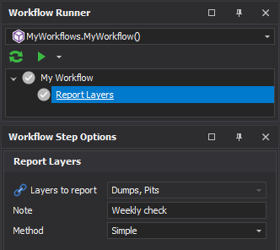
A step can declare options: typed values the user can see and edit in the Workflow Step Options dock panel when the step is selected. Declare them on step.Options while setting up the workflow, and read them when the step runs. When the workflow uses RestoreValues (see Restoring Workflow State below), the values the user enters are saved with it.
Replace the steps in MyWorkflow (everything after the Caption line) with:
var report = workflow.Add("Report Layers");
var layers = report.Options.AddLayerSelect("Layers", "Layers to report", multiSelect: true);
var note = report.Options.AddTextEdit("Note").SetValue("Weekly check");
var method = report.Options.AddComboBox("Method", "Method", "Simple", "Detailed").SetValue("Simple");
report.OnExecute += (s, e) =>
{
foreach (var layerName in layers.GetValues<string>())
Console.WriteLine(note.GetValue<string>() + " (" + method.Value + "): " + layerName);
e.Success = true;
};
There is an Add… method for each kind of option, for example AddTextEdit, AddMemoEdit, AddCheckBox, AddSpinEdit, AddSpinEditInteger, AddComboBox, AddCheckedListBox, AddRadioGroup, AddDateTime, AddPoint3DEdit, AddPlaneEdit, AddColourSelect, AddOpenFile, AddSaveFile, AddBrowseFolder, AddLayerSelect, AddTableSelect, AddFieldSelect, AddRangeSelect, AddCaseSelect, AddContainerFolderSelect, AddGridSelect, AddTriangulationSelect, AddBlockModelSelect and AddAttributeSelect.
Add(name, kind, label) declares any kind by its WorkflowStepOptionKind. An option's name must be unique within its step; the label defaults to the name.
The setters return the option, so they can be chained: SetValue, SetValues, SetItems, SetLabel, SetReadOnly, SetVisible, SetMultiSelect, SetContext, SetDisabled and SetHidden. Read a value with GetValue<T>()/GetValues<T>(), which follow a variable binding. Value/Values return the option's own stored text and ignore any binding. step.Options["Note"] finds an option by name.
|
Setting |
Effect in the Workflow Step Options panel |
|---|---|
|
SetReadOnly() |
Shown, but cannot be edited. |
|
SetVisible(false) |
Not part of the step at all: not shown, and not passed to a design action (see Running Design Actions with Step Options below). |
|
SetDisabled() |
Shown read-only, fixed to its value or its variable binding. Give the option a value or bind it first, otherwise this throws an error. |
|
SetHidden() |
Leaves a disabled option out of the panel altogether. Call SetDisabled() first, otherwise this throws an error. |
Binding an option to a variable. BindTo(variable) makes the option take the variable's current value when the step runs, instead of its own stored value, and the panel shows that value. The kinds must match: binding a layer variable to a table option, or a plural variable to a single-value option, throws an error straight away. BindTo(string) binds by the variable's full name, and passing null unbinds. A multi-select option can be bound to several variables at once with BindTo(IEnumerable<IWorkflowVariable>); it takes all their values together. BoundVariables lists the bindings. Read a bound option with GetValue<T>()/GetValues<T>(); Value/Values do not see the variable.
To bind the Report Layers step's Layers option to two variables, add these lines to the end of MyWorkflow:
var pits = workflow.Variables.Add("Pits", WorkflowVariableKind.Layers);
var dumps = workflow.Variables.Add("Dumps", WorkflowVariableKind.Layers);
report.Options["Layers"].BindTo(new[] { pits, dumps });
report.Options["Layers"].SetDisabled();
Step Conditions
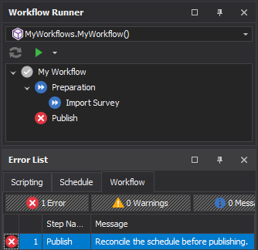
A step can have a run condition: a test that is checked immediately before the step runs. Set it with SetCondition(), giving the test and what to do when it is false:
|
WorkflowConditionFalseAction |
When the condition is false |
|---|---|
|
Skip |
The step is skipped (shown with a skip icon) and the workflow moves on to the next step. |
|
Stop |
The run stops on the step with an error. The error is your message, or "The run condition on step '…' was not met, so the workflow stopped." when you give none. |
Replace the steps in MyWorkflow (everything after the Caption line) with:
var import = workflow.Add("Import Survey", "Preparation");
// Skip the step when there is nothing to import.
import.SetCondition(s => Project.ActiveProject.Data.GetTable("Survey") != null,
WorkflowConditionFalseAction.Skip);
var reconciled = workflow.Variables.Add("Reconciled", WorkflowVariableKind.Boolean);
var publish = workflow.Add("Publish");
// ...or refuse to go on, with a message the user can act on.
publish.SetCondition(s => reconciled.GetValue<bool>(), WorkflowConditionFalseAction.Stop,
"Reconcile the schedule before publishing.");
A condition that throws an exception fails the step with "Workflow step '…': its run condition could not be evaluated - …"; it is never treated as true or false. Passing null as the test removes the condition. A condition can read the project and the workflow's variables, but not whether another step has run.
A group's condition (IWorkflowGroup.SetCondition) works the same way, but is checked once, with the group's first step, when the workflow reaches the group; its verdict covers every step in the group.
To give the Preparation folder from the snippet above a group condition, add:
var prep = workflow.Group("Preparation");
prep.SetCondition(s => Project.ActiveProject.Data.GetTable("Survey") != null,
WorkflowConditionFalseAction.Skip);
Jumping with GoToStep
A step can send the run somewhere else by calling workflow.GoToStep() from its OnExecute event. This does exactly what a Go To Step step does in a Process Workflow (see Building Process Workflows from a Script below). The jump happens after the handler returns, and only if the step succeeded, so set e.Success = true.
Replace the steps in MyWorkflow (everything after the Caption line) with:
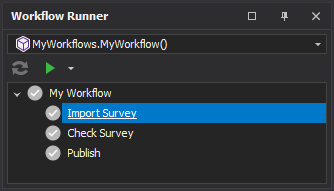
var importSurvey = workflow.Add("Import Survey");
var check = workflow.Add("Check Survey");
check.OnExecute += (s, e) =>
{
var survey = Project.ActiveProject.Data.GetTable("Survey");
if (survey == null)
workflow.GoToStep(importSurvey); // Loop back and do the import again.
e.Success = true;
};
workflow.Add("Publish");-
Jumping backwards resets the target step and every step up to and including the jumping step; later steps are left alone.
-
Jumping forwards marks the steps in between as skipped.
-
A run (one Run All, or single Run clicks until the workflow is reset or rebuilt) may jump backwards at most 100 times. After that the jumping step fails with "Workflow step '…': it has jumped backwards 100 times in this run, which is the limit - the workflow is looping." followed by advice about its run condition. Give a looping step a condition that becomes false when the loop should end.
-
A step cannot jump to itself, or to a step of another workflow; both throw an error, which fails the step.
-
A step that jumps can only do so when the run is on it. Running it out of order (for example from Checklist Mode, see Checklist Mode below) fails it with "Workflow step '…' redirects the workflow, so it only works when the run is on it - it cannot be run out of order."
Called outside a running step, GoToStep() moves the workflow straight away from its current step, by the same rules, and a backwards move counts towards the 100-jump limit. Anything that would fail the step inside a run throws an error instead, including going to the current step or calling it on a workflow with no current step.
IWorkflow has other ways to move the workflow's position. They take an index into the flat list of steps, which changes whenever steps are added, removed or reordered, so prefer GoToStep().
|
Method |
What it does |
|---|---|
|
MoveToStep(fullName) / MoveToStep(step) / MoveToIndex(index) |
Puts the run on that step. Moving backwards resets the steps from the target to where the run was; moving forwards marks the steps passed over as skipped. Steps beyond are left alone. |
|
ProgressToIndex(index) |
Runs steps forwards until the run has passed index, stopping early if a step fails or a condition stops the run. |
|
RegressToIndex(index) |
Moves the run back to index, resetting that step and every step after it. |