Building Process Workflows
This topic describes how to create and change Process Workflows from a script and write script methods that Process Workflow steps using Run Conditions.
The workflows that are built in the Process Workflow editor and listed under Process Workflows in the Project Explorer, can all be created and modified using scripts.
They are reached from Project.ActiveProject.ProcessWorkflows.
|
Member |
Use |
|---|---|
|
Items.Add(name) |
Creates a Process Workflow at the top level. |
|
Items, Folders, AllDefinitions, AllSubfolders |
The top-level workflows and folders, and every workflow and folder at any depth. |
|
GetDefinition(fullName) |
Finds a Process Workflow by full name, or null. |
|
ContainsName(name) |
Whether a top-level Process Workflow or folder already has that name. |
A ProcessWorkflow has the same settings as the editor's root: Caption, Description, ShowDescription, ChecklistMode, ShowChecklistToggle, ContextType (WorkflowContextType.None, Case or Table), FixedContextCase / FixedContextTable, and Variables. Its steps are built from these classes:
|
Class |
Editor equivalent |
|---|---|
|
CatalogueDefinitionStep(typeKey) |
Any step from the Add Step menu that runs a tool (design action, data tool, scenario tool). |
|
GroupStep(name) |
Group. ShowChildStepsInRunner is "Show the steps inside this group in the workflow runner". |
|
ScriptedStep(name) |
Scripted Step. SetupScript is its Setup Script. |
|
GoToStep(name) |
Go To Step. TargetStep is its target. |
|
SetVariablesStep(name) |
Set Variables. |
Every step has Name (unique among its siblings; an invalid or clashing name throws), Caption, Description, ShowDescription, Enabled and Condition. Add steps with AddStep(step, parent) (parent is a group, or null for the top level) or InsertStep(step, index, parent), and use RemoveStep, MoveStep, AllSteps(), ContainsStepName and GetUniqueStepName.
Tool steps: type keys, options and outputs
A tool step is created from its step type key. CatalogueDefinitionStep.AvailableStepTypeKeys lists every key this product offers; any other key throws.
foreach (var key in CatalogueDefinitionStep.AvailableStepTypeKeys)
Console.WriteLine(key);
The step type key is not the action name used by GoToAction and Actions.Run. For example, the Triangulate Shapes step's type key is TriangulateShapesAction, while its action name is TriangulateShapes.
A tool step's Options are fixed by its type: you can set their values and bindings, but Add, Remove and Clear throw. To find the option names, list them:
foreach (var option in new CatalogueDefinitionStep("TriangulateShapesAction").Options)Console.WriteLine(option.Name + " - " + option.Label);
A tool step's Outputs are the results it can write into a variable; SetOutputVariable(output, variable) connects one (the variable must be one of the same Process Workflow's and of a compatible kind), and GetOutputVariable(output) reads it back. GetBoundVariable(option) returns the variable an option is bound to.
PreferredRunMode sets the step's Run Mode; AvailableRunModes lists the modes its type allows, and setting any other mode throws. null uses the type's own mode.
|
ProcessWorkflowStepRunMode |
Run Mode in the editor |
|---|---|
|
Hybrid |
"Headless - navigation allowed" |
|
Headless |
"Headless - no navigation" |
|
NavigationOnly |
"Interactive - pauses Run All" |
A worked example
The script below builds the Demo Workflow. It uses most of the features of a Process Workflow:
-
variables, with one option bound to several of them;
-
Set Variables steps that set values, work out expressions and ask the user;
-
options that are fixed and hidden from the person running the workflow;
-
a script run condition and an expression run condition;
-
a group, and a Go To Step loop.
The workflow:
-
Asks for the layers to use.
-
Clears the output layers.
-
Triangulates the input shapes.
-
Then loops twice. Each pass filters the triangulations by their Grouping attribute (first "A", then "B") and unions the result into a second output layer.
To try it, the project needs:
-
design layers Tri 1 and Tri 2 holding closed shapes;
-
a text attribute Grouping, set to "A" on the shapes in Tri 1 and "B" on the shapes in Tri 2;
-
empty design layers Output 1, Output 2 and Filtered Layer.
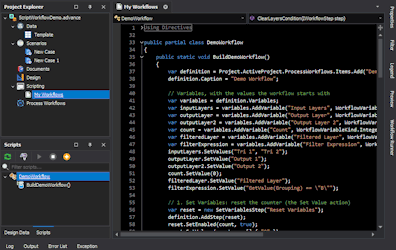
Run the script like any other script (for example from the Scripts dock panel).
public partial class DemoWorkflow
{
public static void BuildDemoWorkflow()
{
var definition = Project.ActiveProject.ProcessWorkflows.Items.Add("Demo Workflow");
definition.Caption = "Demo Workflow";
// Variables, with the values the workflow starts with
var variables = definition.Variables;
var inputLayers = variables.AddVariable("Input Layers", WorkflowVariableKind.Layers);
var outputLayer = variables.AddVariable("Output Layer", WorkflowVariableKind.Layer);
var outputLayer2 = variables.AddVariable("Output Layer 2", WorkflowVariableKind.Layer);
var count = variables.AddVariable("Count", WorkflowVariableKind.Integer);
var filteredLayer = variables.AddVariable("Filtered Layer", WorkflowVariableKind.Layer);
var filterExpression = variables.AddVariable("Filter Expression", WorkflowVariableKind.Text);
inputLayers.SetValues("Tri 1", "Tri 2");
outputLayer.SetValue("Output 1");
outputLayer2.SetValue("Output 2");
count.SetValue(0);
filteredLayer.SetValue("Filtered Layer");
filterExpression.SetValue("GetValue(Grouping) == \"B\"");
// 1. Set Variables: reset the counter (the Set Value action)
var reset = new SetVariablesStep("Reset Variables");
definition.AddStep(reset);
reset.SetEnabled(count, true);
reset.SetValues(count, new[] { "0" });
// 2. Set Variables: ask the user for the layers (the Prompt action)
var ask = new SetVariablesStep("Set Variables");
definition.AddStep(ask);
ask.PromptMode = SetVariablesPromptMode.Dialog;
ask.SetPrompt(inputLayers, true);
ask.SetPrompt(outputLayer, true);
ask.SetPrompt(outputLayer2, true);
ask.SetPrompt(filteredLayer, true);
// 3. Clear Layers: one option bound to three variables, the rest fixed and hidden,
// and a script run condition (see "Script Conditions for Process Workflow Steps")
var clear = new CatalogueDefinitionStep("ClearLayers");
definition.AddStep(clear);
clear.Options["InputLayers"].BindTo(new IWorkflowVariable[] { outputLayer, outputLayer2, filteredLayer });
foreach (var name in new[] { "ClearLayersShapes", "ClearLayersTriangulations", "ClearLayersTexts" })
clear.Options[name].SetValue(true).SetDisabled().SetHidden();
clear.Condition = new WorkflowConditionDefinition(WorkflowConditionKind.Script,
"DemoWorkflow.ClearLayersCondition()", WorkflowConditionFalseAction.Stop);
// 4. Triangulate Shapes: one triangulation per shape, into the Output Layer
var triangulate = new CatalogueDefinitionStep("TriangulateShapesAction");
definition.AddStep(triangulate);
triangulate.Options["InputLayers"].BindTo(inputLayers);
triangulate.Options["TargetLayer"].BindTo(outputLayer);
triangulate.Options["GroupingExpression"].SetValue("Text(CurrentHandle)");
// 5. A group that stops the run if any layer variable is empty
var loop = new GroupStep("Loop Group");
definition.AddStep(loop);
loop.Condition = new WorkflowConditionDefinition(WorkflowConditionKind.Expression,
"!IsEmpty(InputLayers) & !IsEmpty(OutputLayer) & !IsEmpty(OutputLayer2)",
WorkflowConditionFalseAction.Stop, "A variable is empty");
// 5a. Set Variables with expressions: count the pass and choose the filter
var increment = new SetVariablesStep("Increment Counter and Expression");
definition.AddStep(increment, loop);
increment.SetEnabled(count, true);
increment.SetUseExpression(count, true);
increment.SetExpression(count, "GetValue(Count) + 1");
increment.SetEnabled(filterExpression, true);
increment.SetUseExpression(filterExpression, true);
increment.SetExpression(filterExpression,
@"if(GetValue(Count) < 1, ""GetValue(Grouping) == \u0022A\u0022"", ""GetValue(Grouping) == \u0022B\u0022"")");
// 5b. Filter Elements: the filter expression comes from a Text variable
var filter = new CatalogueDefinitionStep("FilterElementsAction");
definition.AddStep(filter, loop);
filter.Options["InputLayers"].BindTo(outputLayer);
filter.Options["FilterExpression"].BindTo(filterExpression);
filter.Options["TargetLayer"].BindTo(filteredLayer);
filter.Options["ReplaceOutputContents"].SetValue(true);
// 5c. Union Triangulations into the second output layer
var union = new CatalogueDefinitionStep("UnionTriangulationsAction");
definition.AddStep(union, loop);
union.Options["InputLayers"].BindTo(filteredLayer);
union.Options["TargetLayer"].BindTo(outputLayer2);
// 5d. Go To Step: go round again while Count is 1 or less
var goTo = new GoToStep("Go To Step");
definition.AddStep(goTo, loop);
goTo.TargetStep = increment;
goTo.Condition = new WorkflowConditionDefinition(WorkflowConditionKind.Expression,
"GetValue(Count) <= 1", WorkflowConditionFalseAction.Skip);
}
public static bool ClearLayersCondition(IWorkflowStep step)
{
var variables = step.Workflow.Variables;
return variables["Output Layer"].GetValue<Layer>() != null
&& variables["Output Layer 2"].GetValue<Layer>() != null
&& variables["Filtered Layer"].GetValue<Layer>() != null;
}
}
What you'll see: "Demo Workflow" appears under Process Workflows in the Project Explorer and in the Workflow Runner's source picker. When it is run with Run All:
-
Reset Variables sets Count to 0.
-
Set Variables opens a dialog that asks for the four layer variables, already filled in with their current values.
-
Clear Layers runs only if ClearLayersCondition returns true (all three output layers exist); otherwise the run stops on it. It empties the three output layers.
-
Triangulate Shapes triangulates the shapes in Tri 1 and Tri 2 into Output 1, one triangulation per shape.
-
Loop Group checks that none of its three layer variables is empty, otherwise the run stops with "A variable is empty". Its steps then run twice:
-
First pass. Increment Counter and Expression sets Count to 1 and Filter Expression to GetValue(Grouping) == "A". Filter Elements copies the "A" triangulations into Filtered Layer, Union Triangulations unions them into Output 2, and Go To Step jumps back, because Count is 1.
-
Second pass. Count becomes 2 and the filter becomes "B". Go To Step's condition is now false, so it is skipped and the workflow finishes.
Union Triangulations adds its result to Output 2 rather than replacing what is there, so after the run Output 2 holds the union of the "A" triangulations and the union of the "B" triangulations. Clear Layers empties it again at the start of the next run.
-
The filter is "A" on the first pass even though Count has just become 1. A Set Variables step works out every value from the variables as they were before the step ran, and only then writes them. So the Filter Expression row still sees Count as 0.
Apart from two step names ("Triangulate Shapes" and "Union Triangulations", where the exported workflow has "… Action") and the Caption, the script rebuilds the exported Demo Workflow: a new tool step is named after its step type.
Save the project to keep the Process Workflow.
Notes on the example:
-
Variables. A variable's name can contain spaces ("Input Layers"). In an expression it is written without them (InputLayers), as in Loop Group's condition.
-
Binding options.
-
BindTo takes a variable object. An option that takes a list, such as Input Layers, can be bound to several variables at once by passing a list; it then uses all their values together.
-
SetDisabled() makes an option read-only for the person running the workflow, and SetHidden() also hides it. SetDisabled() throws unless the option has a value or a binding, and SetHidden() throws unless the option is disabled.
-
-
Set Variables rows. Each row is set per variable:
-
SetEnabled(variable, true) plus SetValues is the Set Value action.
-
SetPrompt(variable, true) is the Prompt action.
-
SetUseExpression and SetExpression work out the value from an expression.
-
PromptMode chooses SetVariablesPromptMode.Dialog or OptionsPanel, and Targets lists the rows.
-
-
Conditions. WorkflowConditionDefinition(kind, source, falseAction = Skip, message = "") is fixed once created; to change a step's condition, assign a new one. WorkflowConditionKind is one of:
-
None;
-
Expression: the source is an expression, as typed in the editor's Expression box;
-
Script: the source is a method name, as the editor stores it, for example DemoWorkflow.ClearLayersCondition(). The method name works with or without the brackets.
-
-
Go To Step. The target must be in the same Process Workflow, and both steps must already be added before TargetStep is set, as in the example. The target must be a step, not a group; to jump to a group, target its first step.
-
Running the script twice. Items.Add throws an error if a Process Workflow or folder of that name already exists, so running BuildDemoWorkflow twice fails. Check first with Project.ActiveProject.ProcessWorkflows.ContainsName("Demo Workflow"), which also catches a folder of that name.
-
Scripted steps. The Demo Workflow has none, but a Scripted Step is added in the same way:
-
var report = new ScriptedStep("Report");
-
report.SetupScript = "DemoWorkflow.ReportStep";
definition.AddStep(report);
-
SetupScript names a public static void method with one IWorkflowStep parameter.
-
That method runs every time the workflow is built, and wires up the step with the same API as the rest of this document (OnExecute, Options, OnSuccess, SetCondition, UseTaskManager and so on).
-
If the method cannot be found, the step shows "Could not find workflow step script '…' (expected a method with a single IWorkflowStep parameter)."
-
Inside it, step.Workflow.Variables are the Process Workflow's own variables. Variables a scripted step declares itself are not saved into the Process Workflow, and cannot be bound to a tool step's options.
-
-
Fixing the workflow to one case. Set ContextType = WorkflowContextType.Case and then FixedContextCase. Setting it on a workflow of another context type throws.
-
Variable folders. GetOrCreateFolder(path) returns a folder, and AddVariable(folder, name, kind) declares a variable in it.
-
var layersFolder = definition.Variables.GetOrCreateFolder("Layers");
-
var outputs = definition.Variables.AddVariable(layersFolder, "Outputs", WorkflowVariableKind.Layers);
clear.Options["InputLayers"].BindTo(outputs); // replaces any existing binding
What scripts cannot do
-
The open editor does not update. A Process Workflow that is open in the Process Workflow editor does not show changes made by a script; close and reopen it to see them. Press F7 in the Workflow Runner to rebuild a selected Process Workflow from the changed definition.
-
Select or run a Process Workflow. There is no scripting API to choose the Workflow Runner's workflow or to run it; the user does that in the Workflow Runner.
-
Change a tool step's set of options. Only values and bindings can be set.
-
Bind to a script-declared variable. Options, outputs and Set Variables rows of a Process Workflow can only use the Process Workflow's own variables.
-
Rename or remove the context variable. ContextCase and ContextTable are created and named by the workflow's ContextType.
Script Conditions for Process Workflow Steps
Any step of a Process Workflow, including a group, can have a run condition written as a script method. The method must be public static bool with one IWorkflowStep parameter, and return true when the step should run.
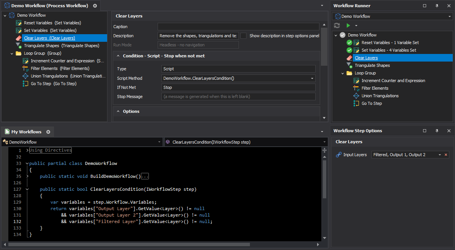
The ClearLayersCondition method in the worked example above is one. It lets the Clear Layers step run only when all three of the layers it clears exist:
public static bool ClearLayersCondition(IWorkflowStep step)
{
var variables = step.Workflow.Variables;
return variables["Output Layer"].GetValue<Layer>() != null
&& variables["Output Layer 2"].GetValue<Layer>() != null
&& variables["Filtered Layer"].GetValue<Layer>() != null;
}
step.Workflow.Variables are the Process Workflow's own variables, looked up by name. GetValue<Layer>() gives the layer the variable names, or null if no layer of that name exists. (A variable's Value is its value as text, and is "" rather than null when it is empty, so a test of Value != null would always be true.) Clear Layers' condition is set to Stop, so if the method returns false (one of the layers does not exist) the run stops on Clear Layers with "The run condition on step 'Clear Layers' was not met, so the workflow stopped."
To set it up in the Process Workflow editor:
-
Select the step and open its Condition settings.
-
Set Type to Script.
-
Choose the method in Script Method. It shows "<No Script Method Selected>" until one is chosen.
-
Set If Not Met to Skip or Stop.
-
Stop Message (enabled only when If Not Met is Stop) is the message shown for a stop. If you leave it empty, it shows "(a message is generated when this is left blank)".
From a script, assign a WorkflowConditionDefinition with WorkflowConditionKind.Script, as the worked example does for Clear Layers.
The method is called immediately before the step runs, with the step itself. For a group, step is the step inside the group that the run is about to enter. The method can read the project and the workflow's variables.
-
If the method throws, the step fails rather than being skipped or run.
-
If the scripts do not compile, the Workflow Runner refuses to build the workflow. It shows, in a message box titled Run: "The workflow uses scripting (a scripted step, or a script run condition), however the User Scripts contain errors - please ensure the scripting code can be compiled."