

Using the Program's Tools
This part takes the user from a step to the program's dock panels, dialogs and design actions, and lets those tools decide when the step is complete.
Navigating To UI
One of the key features of workflows is letting the user navigate to the parts of the program that relate to each step. Consider the Output Layer Name step from Restoring Workflow State. It may help new users, or users who haven't used the panel in a while, to quickly find the Output dock panel where the step writes its output. This can be done with the OnNavigateTo event.
OnNavigateTo is raised when a step is double-clicked in the Workflow Runner, or when its right-click menu item Navigate to step name is chosen. The menu item uses the step's name, not its caption. Pairing OnNavigateTo with the methods of the Navigation class lets you take the user to a particular part of the UI. In this example we use Navigation.GoToDockPanel(MainDockPanel dockPanel, bool pinDockPanel). Add the following line below the line where outputLayerStep is assigned.
outputLayerStep.OnNavigateTo += (s, e) => Navigation.GoToDockPanel(MainDockPanel.Output, true);Navigating to the Output Layer Name step now shows the Output dock panel and pins it (so it doesn't disappear when it loses focus).
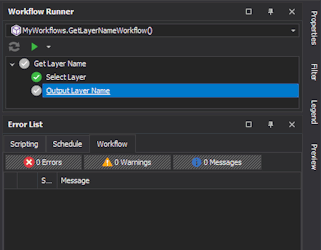
OnNavigateTo runs on the UI thread of the application, so it can use any of the Navigation methods.
The Navigation methods switch to the UI thread themselves, so they can be called from anywhere. However, almost all of the dialogs in Navigation.Dialogs refuse to open while a task list is running. They do nothing, and if you passed an onCompleted callback (explained in the next section) it receives NotLaunched with the message "A task list is already running." To use them from a step's OnExecute event, read Using Existing Tools.
Using Existing Tools
Sometimes a workflow should link existing tools together in a specific order. In that case, call the Navigation methods from a step's OnExecute event, so that running the step opens the tool and progresses the workflow in the same action, rather than relying on OnNavigateTo and then running the step separately. To do so, we need the UseTaskManager property of IWorkflowStep.
UseTaskManager is true by default. It decides whether the step runs in the task manager. When it is true, the step can show progress and be cancelled through the task manager. When it is false, the step runs on the UI thread with no task list running, so the Navigation dialogs and design actions can be opened from OnExecute. A dialog refuses to open while a task list is running, so a step that opens one must set UseTaskManager = false.
The tool should also decide whether the step succeeded. Most Navigation.Dialogs methods take an optional onCompleted callback, which is called with an ActionCompletionResult saying how the dialog ended. Complete the step from the callback with MarkComplete(), or fail it with MarkError(), and leave e.Success as false in the handler. This is the same pattern as for design actions (see Running Design Actions, Custom Design Actions and Overlays).
Below is an example that uses Navigation.Dialogs.TableCentroidCalculator to fill in centroids on a data table, and skips the calculator if every node already has one. It is another new workflow: add the CalculateCentroids method to the MyWorkflows class and select it in the source picker.
public static void CalculateCentroids(IWorkflow w)
{
var calculateCentroids = w.Add("Calculate Centroids");
calculateCentroids.UseTaskManager = false;
calculateCentroids.OnExecute += (s, e) =>
{
var table = Project.ActiveProject.Data.GetTableOrThrow("Template");
var centroid = table.Schema.GetFieldOrThrow("My Centroid");
if (table.Nodes.Leaves.All(x => x.Data[centroid] != null))
{
e.Success = true; // nothing to do
return;
}
Navigation.Dialogs.TableCentroidCalculator(table, result =>
{
if (result.Completed)
calculateCentroids.MarkComplete();
else if (result.Status != ActionCompletionStatus.Closed)
calculateCentroids.MarkError(new[] { new Error(result.Message ?? "The Centroid Calculator did not complete.") });
// Closed: the user cancelled, so the step stays unticked and can be run again.
});
// e.Success stays false: the calculator's result completes the step.
};
var restart = w.Add("Restart");
restart.UseTaskManager = false; // shows a message box
restart.OnExecute += (s, e) =>
{
var table = Project.ActiveProject.Data.GetTableOrThrow("Template");
var centroid = table.Schema.GetFieldOrThrow("My Centroid");
MessageBox.Show(string.Format("The {0} field will be cleared for all nodes and the workflow will restart.", centroid.FullName));
foreach (var node in table.Nodes.Leaves)
node.Data[centroid] = null;
// Send the run back to the first step (see "Jumping with GoToStep").
w.GoToStep(calculateCentroids);
e.Success = true;
};
}
The calculator reports how it ended:
|
result.Status |
When |
What the example does |
|---|---|---|
|
Success |
The centroids were calculated (result.Completed is true). |
Ticks the step and moves the workflow on. |
|
Closed |
The user cancelled the wizard, or stopped a run part-way (centroids already written are kept). |
Nothing: the step stays unticked, with no error. |
|
NotLaunched |
The calculator could not open: the table has no solid field (result.Message is "The table has no solid fields."), a task list is running ("A task list is already running."), the table is null ("No table was supplied.") or it has no tree node ("The table has no tree node."). |
Fails the step with the message, which is listed in the Error List › Workflow tab. |
|
Error |
The calculator's run threw an unexpected error (result.Message is null). Errors on individual nodes do not count: they are listed in the calculator's own error dialog and the result is still Success. |
Fails the step. |
The Centroid Calculator is modal, so TableCentroidCalculator returns only when the user closes it, and onCompleted is called before OnExecute returns. Completing a step from inside its own OnExecute is supported: the step keeps the result MarkComplete() gave it, and the handler's e.Success = false does not undo it. For the example to work, the "Template" table needs a solid field and "My Centroid" must be a Point3D field.
During Run All, a step with UseTaskManager = false is run on the UI thread. When it succeeds, or is completed with MarkComplete(), the run carries on to the next step. When it is left unticked (the wizard was cancelled) or fails, the run stops on it, and Run All can be pressed again to retry it. In this example Run All loops: Restart sends the run back to Calculate Centroids, which opens the calculator again. Cancel the calculator to end the run.
Running Design Actions, Custom Design Actions and Overlays
A workflow step can open a design action, a custom design action or a custom overlay, and be ticked when the user has finished with it. Whether it succeeded is decided by the action:
-
A built-in design action reports success when it has done its work.
-
A custom design action or overlay reports it by calling ReportSuccess().
The step receives the outcome through the onCompleted callback of Navigation.GoToAction() or Navigation.GoToOverlay(), and then completes itself with MarkComplete() or MarkError(), as in Using Existing Tools.
The two methods are:
public static void GoToAction(string name, Case @case = null, int mode = -1,
IWorkflowStepOptions options = null, Action<ActionCompletionResult> onCompleted = null)
public static void GoToOverlay(string name, Case @case = null, int mode = -1,
Action<ActionCompletionResult> onCompleted = null)
-
Built-in design actions:
-
name is written in PascalCase with no spaces (for example UnionPolygons) and is not case-sensitive.
-
Navigation.GetActionNames() returns the name of every built-in action. For an action with several modes it also lists the modes, as "Name (Modes: 0 - …, 1 - …)"; pass the mode's number as mode.
-
options fills in the action's panel from the step's options (see Running Design Actions with Step Options).
-
-
Custom design actions:
-
name is the name you gave the CustomDesignAction. It does include spaces and, unlike built-in names, it is case-sensitive.
-
Custom actions are not filled in from options.
-
-
Overlays: use GoToOverlay. For a custom overlay, pass the name you gave the CustomDesignOverlay (case-sensitive). For a built-in overlay, Navigation.GetOverlayNames() lists the names; custom overlays are not in that list.
-
@case chooses the case whose design view the action opens in:
-
Navigation.GetNavigationCase(workflow) gives the workflow's own case for a case workflow. Otherwise it gives the case of the last case window the user activated this session, or null if they last used the project Design window or have opened none.
-
When @case is null, the project's Design window is used.
-
The example below opens a built-in action, a custom action and a custom overlay from three steps. Each step is ticked only when its action reports success. It is a separate class with its own workflow entry point, CreateWorkflow, rather than part of MyWorkflow.
public partial class RunActionsInWorkflows
{
public static void CreateWorkflow(IWorkflow w)
{
var unionPolygons = w.Add("Union Polygons");
unionPolygons.UseTaskManager = false;
unionPolygons.OnExecute += (s, e) =>
Navigation.GoToAction("UnionPolygons", Navigation.GetNavigationCase(w),
onCompleted: result => Complete(unionPolygons, result));
var customAction = w.Add("Custom Action");
customAction.UseTaskManager = false;
customAction.OnExecute += (s, e) =>
Navigation.GoToAction("My Custom Action", Navigation.GetNavigationCase(w),
onCompleted: result => Complete(customAction, result));
var customOverlay = w.Add("Custom Overlay");
customOverlay.UseTaskManager = false;
customOverlay.OnExecute += (s, e) =>
Navigation.GoToOverlay("My Custom Overlay", Navigation.GetNavigationCase(w),
onCompleted: result => Complete(customOverlay, result));
// e.Success stays false in each handler: the action's result completes the step.
}
// Ticks the step when the action reported success, and fails it on an error.
private static void Complete(IWorkflowStep step, ActionCompletionResult result)
{
if (result.Completed)
step.MarkComplete();
else if (result.Status == ActionCompletionStatus.Error || result.Status == ActionCompletionStatus.NotLaunched)
step.MarkError(string.IsNullOrEmpty(result.Message) ? null : new[] { new Error(result.Message) });
// Closed: the action ended without reporting success, so the step stays unticked.
}
[CustomDesignAction]
internal static CustomDesignAction MyCustomAction()
{
var cda = new CustomDesignAction("My Custom Action", "", "");
cda.ApplyAction += (s, e) =>
{
// ... do the action's work here ...
cda.ReportSuccess(); // the step that opened this action will be ticked
e.Completed = true; // end the action after this apply
};
return cda;
}
[CustomDesignOverlay]
internal static CustomDesignOverlay MyCustomOverlay()
{
var cdo = new CustomDesignOverlay("My Custom Overlay", "", "", Array.Empty<Keys>());
// Report success as the overlay closes: CloseAction runs just before it completes.
cdo.CloseAction += (s, e) => cdo.ReportSuccess();
return cdo;
}
}
The step is completed when the action or overlay ends, not at the moment ReportSuccess() is called:
-
In ApplyAction, setting e.Completed = true ends the action after that apply.
-
If you leave it false, the action stays open for another apply. It then ends when the user presses its Cancel button, closes the Design Action panel or presses Esc. These end it with Success if an earlier apply called ReportSuccess(), and with Closed if none did.
-
An overlay ends when the user cancels it from its menu or panel, or when its window is closed. CloseAction runs just before it ends, so calling ReportSuccess() there gives Success.
onCompleted then receives:
|
result.Status |
When |
What the example does |
|---|---|---|
|
Success |
The action or overlay ended after reporting success (result.Completed is true). |
Ticks the step and moves the workflow on. |
|
Closed |
It ended without reporting success, for example because the user pressed Cancel before any apply. |
Nothing: the step stays unticked and can be run again. |
|
Error |
The design panel cancelled the action: another action was started, the window was closed while it was running, or the script threw an exception. This happens even if ReportSuccess() was called. An overlay almost never ends this way: closing the window completes it, so it ends as Success or Closed. |
Fails the step. |
|
NotLaunched |
The action or overlay could not be opened. For an unknown name, result.Message says "No design action named '…' is available. …" (GoToAction) or "No design overlay named '…' is available. …" (GoToOverlay). In the other cases (no design view available, or the panel refused to start it) result.Message is null. |
Fails the step with the message. |
ReportSuccess() is also what a Custom Design Action or Custom Design Overlay step in a Process Workflow waits for, and, when the user runs the custom action or overlay themselves while a recording is active, what lets the recording capture it as a step. A run that a workflow opened, or one opened with onCompleted, is never recorded. A custom action that never calls it can still be opened from a workflow, but its step is never ticked. See Process Workflows Step Reference.
During Run All, each of these steps ends the run, because its handler returns before the user has finished. When the action ends after reporting success, the step is ticked and the workflow moves to the next step, but the run does not resume by itself: press Run All again to continue.
If you only want a step to take the user to an action, without the action completing the step, call GoToAction or GoToOverlay from the step's OnNavigateTo event instead (see Navigating To UI). The user then opens the action with Navigate to or a double-click, and ticks the step by running it (give it no OnExecute handler, or one that sets e.Success = true).
To fill in a built-in action's panel from the step's options, or to run it with no UI at all, see Running Design Actions with Step Options.
Running Design Actions with Step Options
A step's options (see Step Options) can supply a built-in design action's settings, in two ways: the action's dock panel can be filled in from them when it opens, or the action can be run straight away with no UI. In both cases the step's option names must match the action's own option names. For Simplify Shapes these are InputLayers, Type, FilterDistance, Multipass and PassCount. Custom design actions cannot be driven by options.
Filling in the action's dock panel
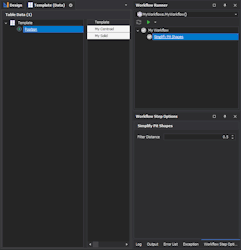
For a built-in design action, GoToAction can fill in the action's dock panel from the step's options: pass options: step.Options. Only the settings the dock panel shows are filled in: Simplify Shapes works on the shapes the user selects, so its panel takes Type, FilterDistance, Multipass and PassCount from the step, and InputLayers is only used by a headless run (see Running the action without UI below). Custom design actions are never filled in from options.
To try it, go back to MyWorkflow: copy the Complete helper from the previous section into the MyWorkflows class, and replace the steps in MyWorkflow (everything after the Caption line) with the following.
var simplify = workflow.Add("Simplify Pit Shapes");
simplify.UseTaskManager = false;
simplify.Options.AddSpinEdit("FilterDistance", "Filter Distance").SetValue(0.5);
simplify.OnExecute += (s, e) =>
{
Navigation.GoToAction("SimplifyShapes", Navigation.GetNavigationCase(workflow),
options: simplify.Options,
onCompleted: result => Complete(simplify, result)); // Complete: the helper from the previous section
// e.Success stays false: the step is completed by the action, not by this handler.
};
Running the action without UI
Actions.Run() runs a design action straight away, with no UI, using the step's options as the action's settings. The step completes like any other step, by setting e.Success. The method is:
public static ActionResults Run(string actionName, IWorkflowStepOptions options, ProgressOptions progressOptions = null)
Replace the steps in MyWorkflow (everything after the Caption line) with:
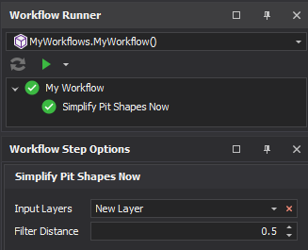
var simplifyNow = workflow.Add("Simplify Pit Shapes Now");
simplifyNow.Options.AddLayerSelect("InputLayers", "Input Layers", multiSelect: true);
simplifyNow.Options.AddSpinEdit("FilterDistance", "Filter Distance").SetValue(0.5);
simplifyNow.OnExecute += (s, e) =>
{
var results = Actions.Run("SimplifyShapes", simplifyNow.Options);
if (results.HasErrors())
simplifyNow.AddErrors(results.Errors.ToArray());
e.Success = results.Success;
};
Only the actions that can be added as steps to a Process Workflow can be run this way, and only those with a headless path. Data problems (an unknown name, a missing or wrong-typed option, a binding that cannot be resolved) are returned as errors on the result rather than thrown. An exception raised by the action itself is not caught. Examples: an unknown name gives "No design action named '…' supports workflow options. Supported actions: …" (listing every supported name), and an action that can only run interactively gives "Design action '…' can only run interactively (it has no headless run path)." The action name is the same one GoToAction uses and is not case-sensitive.
Running a Custom Design Action from a Process Workflow scripted step
You can take the integration of custom design actions into a Process Workflow even further by allowing Process Workflow Variables to be used as inputs into the CDA options panel. This allows full control over how values are passed and can seemlessly integrate a CDA into an existing Process Workflow.