

Workflow Types
This topic describes Context Workflows, which keep a separate workflow for each Case or Data Table, and Checklist Mode, in which steps can be run in any order.
Context Workflows
Sometimes a workflow's process is strongly related to a case or a data table. In these scenarios you may want a separate workflow instance for each case or table. We will call the case or table the context from now on. A handy way of having a distinct workflow instance for each context is to use the context most recently focused in the UI, so the workflow always matches the context the user is working on, similar to how the Filter and Legend dock panels follow the focused case.
To have a distinct workflow per context, implement the workflow as a context workflow. There are two types of context workflow, ICaseWorkflow and ITableWorkflow. A context workflow switches to the matching workflow instance when a new context of its type is focused in the program UI.
We will use an ICaseWorkflow to illustrate the features of context workflows. To create a context workflow, or change an existing workflow into one, change the IWorkflow parameter of the entry point method to ICaseWorkflow or ITableWorkflow. Add this new entry point, MyCaseWorkflow, to your script:
public static void MyCaseWorkflow(ICaseWorkflow workflow)
{
workflow.Caption = "My Case Workflow";
}
Give it a step by adding workflow.Add("Step"); below the Caption line. When MyCaseWorkflow is selected in the Workflow Runner and no case has been focused, you will notice two things.
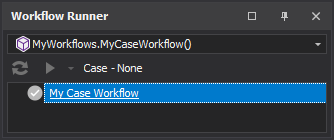
Firstly, there is a label under the source picker that reads "Case - None". It tells the user that the workflow expects a case but none is in context. Secondly, the workflow has no steps and its Run button is disabled. The workflow method still runs, so the root node shows its caption, but without a context the steps it creates are discarded. This means you can always assume a context is present when the user is interacting with the steps.
The method does run before the context is checked, so while it runs workflow.Case (or workflow.Table) can be null; use it inside the step events rather than directly in the method, or check for null first.
Next, open a case form in your current project.
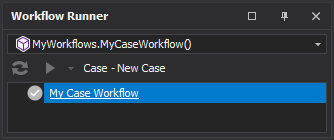
The context label now names the case and the workflow has its steps, which shows it has been built for the focused context.
Changing the focused case updates the Workflow Runner to that case's workflow. To see this, add RestoreValues(string key) to the workflow and progress it, and notice that each case keeps its own state. The state is saved under your key combined with the context's full name.
workflow.RestoreValues("MyCaseWorkflow");
workflow.Add("Step"); // Blank step to show progression
Add the RestoreValues line above the Step line you added earlier, so MyCaseWorkflow contains the snippet above, and notice the different state for each case.

The main benefit of a context workflow is that the context is available from the workflow object. For example, the code below uses ICaseWorkflow.Case to write the case's name to the Output dock panel. Add it to the end of MyCaseWorkflow.
var caseNameStep = workflow.Add("Output Case Name");
caseNameStep.OnExecute += (s, e) => Console.WriteLine(string.Format("Case Name: {0}", workflow.Case.FullName));
The result is the case's full name written to the Output dock panel. This OnExecute handler does not set e.Success, so it does not progress the workflow.
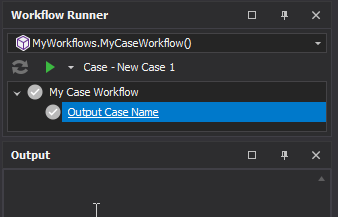
The same can be done with the ITableWorkflow.Table property.
Case and Table can also be assigned. Assigning a case fixes the workflow to that case: it then works on it whatever window is focused, and the label reads "Case - name (fixed)". Assigning null removes the fix again. Because the workflow method runs before the context is checked, it can assign the context itself, as in this version of MyCaseWorkflow:
public static void MyCaseWorkflow(ICaseWorkflow workflow)
{
workflow.Caption = "My Case Workflow";
workflow.Case = Project.ActiveProject.Scenarios.GetCase("New Case");
workflow.RestoreValues("MyCaseWorkflow");
workflow.Add("Step");
}
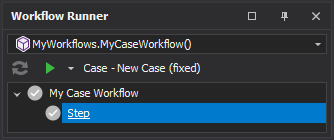
If "New Case" does not exist, GetCase returns null, and assigning null just removes the fix, so the workflow follows the focused case again. If a fixed case is later deleted, the label reads "Case - 'New Case' not found".
Checklist Mode
Checklist Mode is a special mode in which steps can be run in any order and checked and unchecked manually. It is useful when steps are only weakly related and their order does not matter; for example, a workflow whose sole purpose is to navigate the user around the program.
In Checklist Mode there is no Run button. Steps are run by right-clicking them and choosing Run step; the same menu has Check step and Reset step. Steps are checked when they are run successfully, or by hand by clicking the tick icons of the steps or folders.
To enable Checklist Mode, set workflow.CheckListMode to true. The snippet below is another new entry point, MyCheckList; it creates a checklist with a couple of steps that take the user around the program.
public static void MyCheckList(IWorkflow workflow)
{
workflow.Caption = "My Checklist";
workflow.CheckListMode = true;
var designStep = workflow.Add("Go to Design");
designStep.OnNavigateTo += (s, e) => Navigation.GoToDesign();
var filterStep = workflow.Add("Go to Filter");
filterStep.OnNavigateTo += (s, e) => Navigation.GoToDockPanel(MainDockPanel.Filter, true);
}
Adding workflow.RestoreValues("MyCheckList"); to the above saves which steps are checked.
On rare occasions a workflow suits both a conventional and a checklist style. This is typically a long, interconnected workflow where a power user may want to skip steps to finish faster. Setting workflow.ShowCheckListMode to true shows a button in the Workflow Runner that lets the user switch between the two modes at will.
workflow.ShowCheckListMode = true;
ShowCheckListMode gives the user a powerful choice, but it makes the workflow harder to write, because the author has to consider both modes. Be aware of this, otherwise it can lead to unexpected behaviour.
Try adding the above line to the checklist workflow to see the Checklist Mode button appear. Its tooltip says what clicking it will do: "Enable Check List Mode" or "Disable Check List Mode".
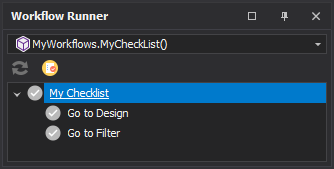
Whether the workflow is in Checklist Mode is only saved when ShowCheckListMode is true (and the workflow calls RestoreValues). Otherwise each rebuild starts in whatever mode the script sets. The checked state of each step is saved separately from its run state, so switching modes does not lose either.
In Checklist Mode, moving the workflow's position (for example with MoveToStep) never unticks a step; outside Checklist Mode, every step that is reset is also unticked.