

Add Groups
Groups allow related steps to be managed as one unit. The visibility of the steps in a group can also be hidden to reduce clutter in the Workflow Runner. Note that the hidden steps in a group will still run (unless disabled).
Groups are commonly used to loop steps, where the last step in the group loops back to the first step in the group using a Go To Step step.
To add a Group to a Process Workflow:
- Right-click on the name of the Workflow or the name of a Group or Step in the Process Workflow Navigation pane.
-
Select Add Step > Group from the right-click menu.

This will add the group (folder icon) to the bottom of the Workflow Setup navigation tree, nest the group under the existing Group, or add the group below the current Step, respectively.
Properties
Caption
(Optional) Enter a Caption. When running the steps in a group, the caption is shown together with a completion message.
This appears on the row and, if an error occurred, in the Error List.
Description
(Optional) Enter a short Description.
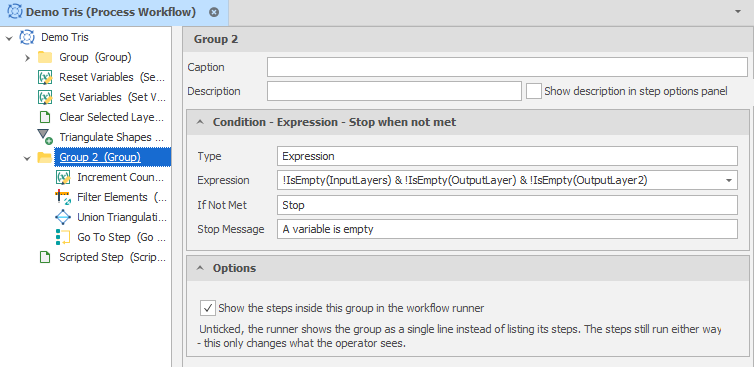
Group Properties
Show description in step options panel
Select this option to show the Description in the Step Options dock panel (when this step is selected in the Workflow Runner panel).

Condition -
Type
Select a (None, Expression, Script) Condition Type.
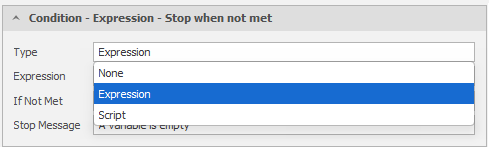
Condition - Expression - Stop/Skip when not met
When the Condition Type is Expression, click to use the drop-down to build a filter expression in the Expression Editor. Filter Expressions evaluate and return a Boolean (True or False) value.
If the expression returns a False value, the condition is NOT MET.
Condition - Script - Stop/Skip when not met
When the Condition Type is Script, click to use the drop-down to select a Script Method.
Stop Message
When the condition is NOT MET and you have chosen to Stop running the workflow, the message that is displayed to the user should indicate the reason why the workflow was stopped (based on the condition set).
Options
Show the steps inside this group in the Workflow Runner
By default, the steps within a group are shown in the Workflow Runner.
If this option is unticked, the group is shown as a single entry.
Note that selecting this check box only changes what is visible in the Runner. The steps in the group will still run.
Remove Group
To remove a step (or group) selected in the Navigation pane, click Remove Step on the Process Workflow ribbon.
Alternatively, press the Delete key or right-click on the step (or group) and select Remove from the right-click menu. You will prompted to confirm (or Cancel) the removal.
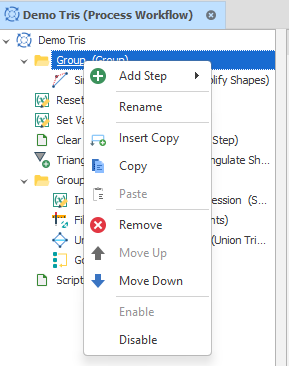
The following options are also available on the right-click menu:
|
|
Add Step | Add a step to the currently selected group. See: Add Steps |
| Rename | Rename the selected group. | |

|
Insert Copy | Insert a copy of the group directly below the currently selected group. |


|
Copy/Paste | Copy/Paste the selected group into the same or a different workflow. |

|
Remove | Remove the selected group(s) from the Navigation Pane. |


|
Move Up/Down | Click on the arrows to move the selected group(s) up or down in the list. |
| Enable/Disable | Enable or Disable the group. If a group is disabled the steps in that group will be skipped when the workflow is run. |