

Project Explorer
The Project Explorer is a tree interface (expandable, collapsible) to keep track of the most commonly edited components of a Gantt Scheduler project.
By default, it is docked to the left hand side of the main window once a project has been opened.
User Interface
-
Project Name
-
Views
-
Pivot Tables
-
Schedule
-
Equipment
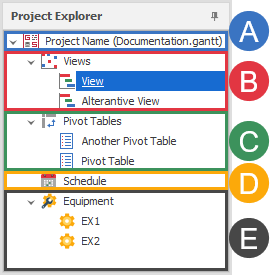
Project Name
Double-click the Project Name or the GanttSchedulerProject icon to launch the Project popup:

Views
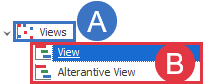
Each Gantt Scheduler Project will have one or more Gantt Charts or Views and the Views section organises them.
-
Views
-
Individual view(s)
Right-click Views to see the right-click menu:
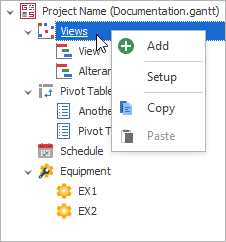
Add: Creates a new View and sets the focus for naming the View in the tree.
Setup: Opens the Views Setup popup. See: View Settings
Copy: Copies all Views to the clipboard as XML format.
Paste: Pastes Views on the clipboard to the Views list.
Individual View(s)
Right-click an individual View to see the right-click menu:
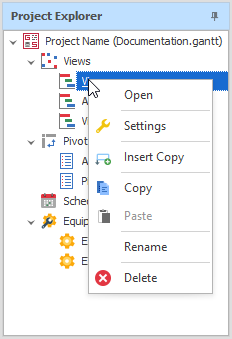
Open : Opens the View in the most recently focused Dock Panel
Settings: Opens the Views Setup popup and focuses the relevant selected View. See
Insert Copy: Creates a copy of the current View in the tree list.
Copy: Copies the View to the clipboard as XML format.
Paste: Pastes the settings (except the name) of the View on the clipboard over the top of the selected View.
Rename F2: Allows the selected View to be renamed
Delete: Deletes the selected View
Pasting Onto a View
Using the Paste menu on an individual view will overwrite the settings of your View with the one on your clipboard.
Pivot Tables
Right-click Pivot Tables to select an option from the right-click menu
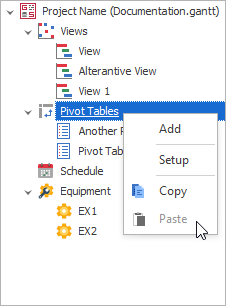
Add: Creates a new Pivot Table and sets the focus for naming the Pivot Table in the tree.
Setup: Opens the Pivot Table Setup. See: Pivot Tables
Copy: Copies all Pivot Tables to the clipboard as XML format.
Paste: Pastes Pivot Tables on the clipboard to the Pivot Tables list.
Individual Pivot Table(s)
Right-click an individual Pivot Table to see the right-click menu:
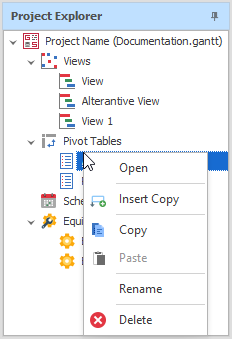
Open : Opens the Pivot Table in the most recently focused Dock Panel.
Insert Copy: Creates a copy of the current Pivot Table in the tree list.
Copy: Copies the Pivot Table to the clipboard as XML format.
Paste: Pastes the settings (except the name) of the Pivot Table on the clipboard over the top of the selected Pivot Table.
Rename F2: Allows the selected Pivot Table to be renamed
Delete: Deletes the selected Pivot Table
Pasting onto an individual Pivot Table
Using the Paste menu on an individual view will overwrite the settings of your Pivot Table with the one on your clipboard.
Schedule
Right-click on Schedule to see the right-click menu:
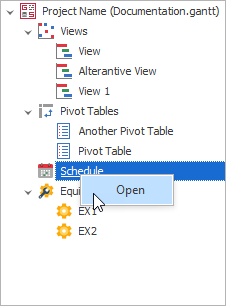
Open Double-click : Opens the Schedule in the most recently focused Dock Panel.
Equipment
Right-click Equipment to see the right-click menu:
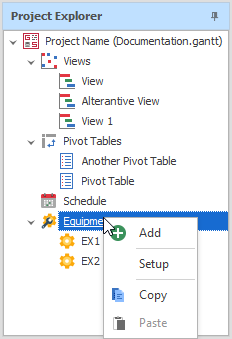
Add: Creates a new piece of Equipment and sets the focus for naming the Equipment in the tree.
Setup Double-click: Opens the Equipment Setup popup. See: Equipment
Copy: Copies all Equipment to the clipboard as XML format.
Paste: Pastes Equipment on the clipboard to the Equipment list.
Individual Equipment
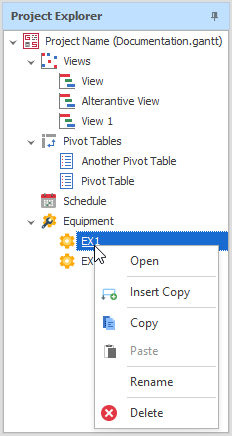
Open Double-click : Opens the selected Equipment in the most recently focused Dock Panel
Insert Copy: Creates a copy of the current Equipment in the tree list.
Copy: Copies the Equipment to the clipboard as XML format.
Paste: Pastes the settings (except the name) of the Equipment on the clipboard over the top of the selected Equipment.
Rename F2: Allows the selected Equipment to be renamed
Delete: Deletes the selected Equipment
Pasting onto an individual piece of Equipment
Using the Paste menu on an individual view will overwrite the settings of your Pivot Table with the one on your clipboard.