

New Model
Start a new project:
-
Open Gantt Scheduler.
-
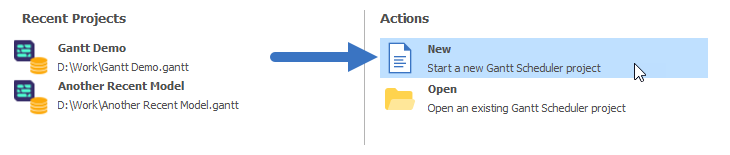
Select New from the Actions list on the splash screen.
-
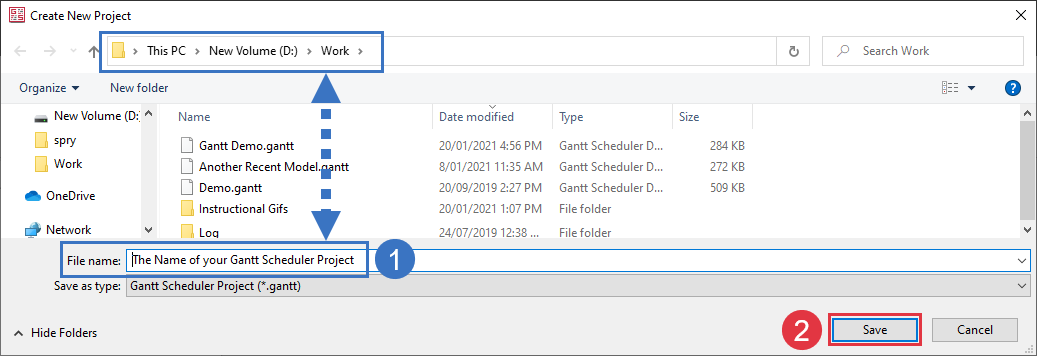
Select a folder and name for your new project and select Save.
Processes
To add processes to represent the different types of Tasks and Delays:
-
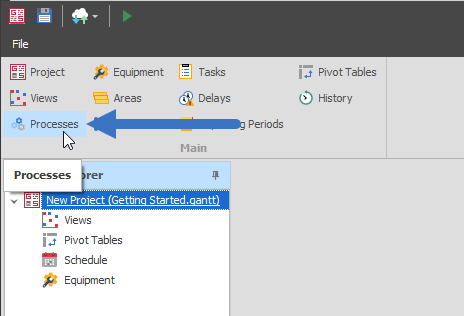
Select the Processes button in the ribbon.
Productive Processes (Task types)
-
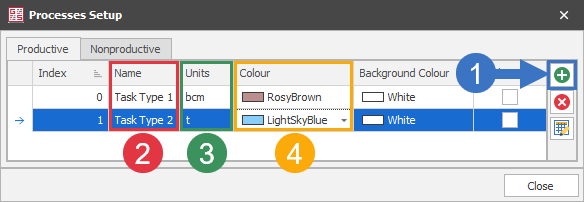
For each different type of Task you want to schedule, create a Productive Process.
-
Click the Add button.
-
Name the Task Type.
-
(Optional) Set the units of measurement.
-
(Optional) Set a unique colour.
Nonproductive Processes (Delay types)
-
Select the Nonproductive tab in the Processes Setup window.
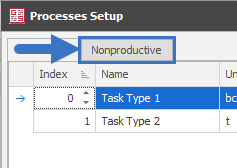
For each different type of Delay you want to schedule create a Nonproductive Process
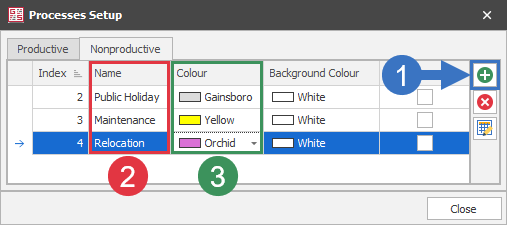
-
Click the Add button.
-
Name the Delay Type.
-
(Optional) Set a unique colour.
Equipment
-
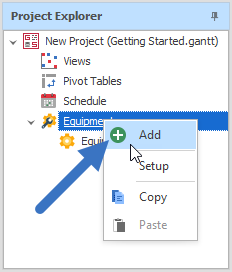
To create equipment, right-click Equipment in the Project Explorer and select Add.
2. Repeat for as many pieces of Equipment are required
Set up Equipment
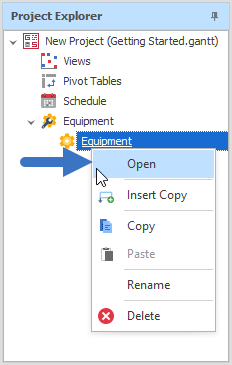
1. Right-click the piece of Equipment you are setting up and select Open
2. Set General settings
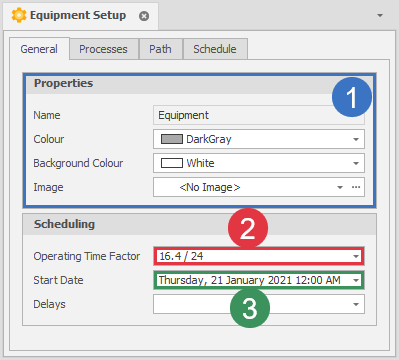
1. (optional) Set visual properties for the Equipment
2. Confirm/change the Operating Time Factor
3. Confirm/change the Start Date for the Equipment
2. Set Processes Settings
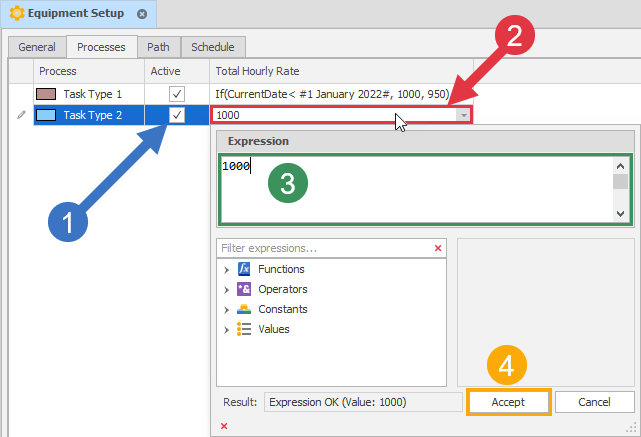
1. Set Active on any Process the Equipment can work
2. Select the Total Hourly Rate dropdown
3. Set a (hourly) rate (e.g 1000)
4. Select Accept
(Optional) Set the Project name
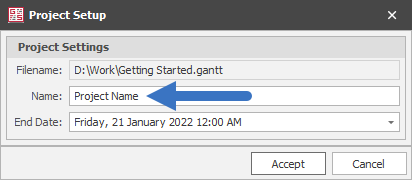
1. Select Project from the ribbon
2. Set the Project Name and click Accept
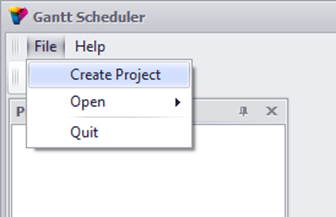
To set up a new model, select File | Create Project:
You will then need to select a name for your project and choose where to store the file on your computer. The file will be stored with the extension .gantt.
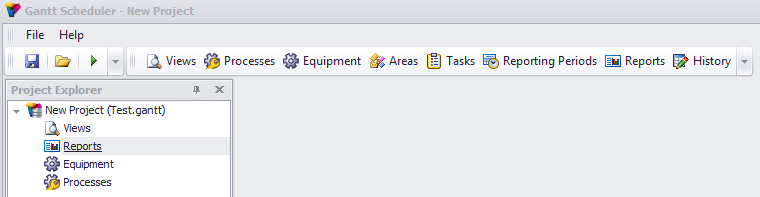
The next time you want to open the project, select File | Open and then find the file in the drop-down list.
History
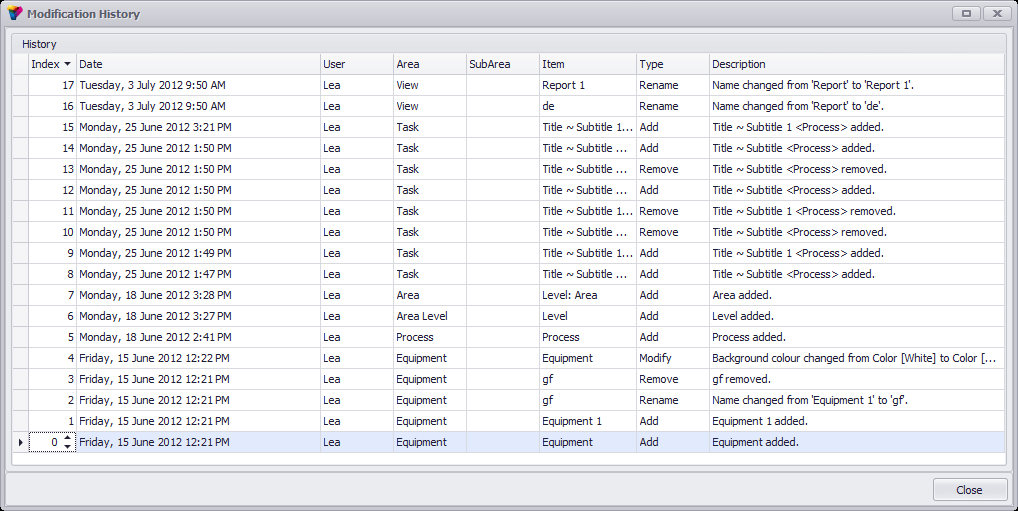
The History tab allows the modification history to be displayed. Hovering over the title allows the information to be filtered (e.g. filter a specific date, area/s, modification type, etc.). A sample screen shot is provided below:
The model is best setup in the following order: Processes, Areas, Tasks, Equipment, Delays then Views.
Process/Activity
A process or activity is a mining operation that takes time (e.g. drilling, loading, excavating).
It can also refer to different material types that need to be reported separately (freedig, blasted material, coal, low grade ore, high grade ore).
Equipment/Resource
Equipment or resources are machinery that do one or more of the defined processes.
There is an hourly rate for each process. Each piece of equipment or resource item will work for a percentage of the calendar time (utilisation/availability).
Task
A task is a single job that consists of a quantity of a certain process.
Dependency
A dependency is the relationship between two tasks that one task (predecessor) must be completed before another task (successor).