

File Menu
The File Menu is the primary location for the settings and model management. It also includes debugging information regarding your version of Gantt Scheduler as well as license and system information to assist support.
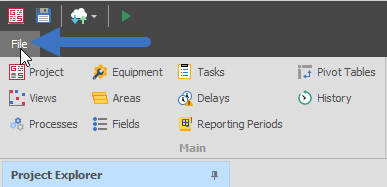
Access the File Menu by clicking the File button in the top-left of your window.
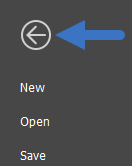
Return to the main interface by clicking the back arrow:
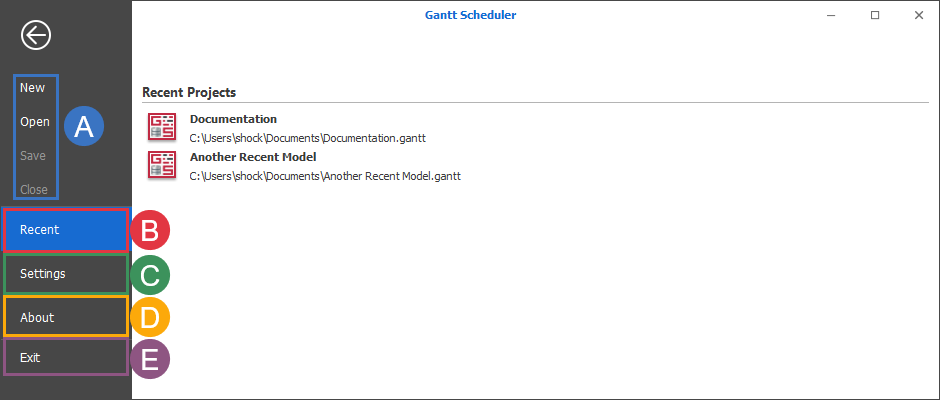
User Interface
-
Basic model management
-
Recent
-
Settings
-
About
-
Exit
Basic model management
New
-
Creates a file creation pop-up window.
-
After naming the file, closes the current model (if relevant) and opens the newly created model in Gantt Scheduler.
-
Closes the File Menu
Open
-
Creates a file selection pop-up window.
-
After selecting the file, closes the current model (if relevant) and opens model in Gantt Scheduler.
-
Closes the File Menu
Save
-
Saves the currently open model
-
Closes the File Menu
Close
-
Saves, then closes the currently open model
-
Returns the user to the Splash Screen
Recent
The eight most recent projects will be available from this list in order (most recent) from top to bottom.
Right-click menu:
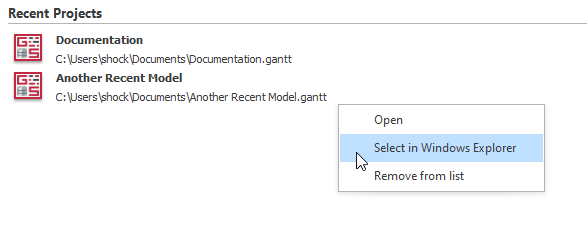
Open: Opens the project in Gantt Scheduler
Select in Windows Explorer: Opens Windows Explorer and selects the file in it's location
Remove from List: Removes the project from the Recent Projects list
Settings
Select File | Settings to change your application settings. Changes made to settings are immediately effective (regardless of pressing the Save button). Pressing the Save button will mean those changes are still present the next time the model loads on this computer only. Settings do not affect how the model behaves on other computers. See: Settings
About
-
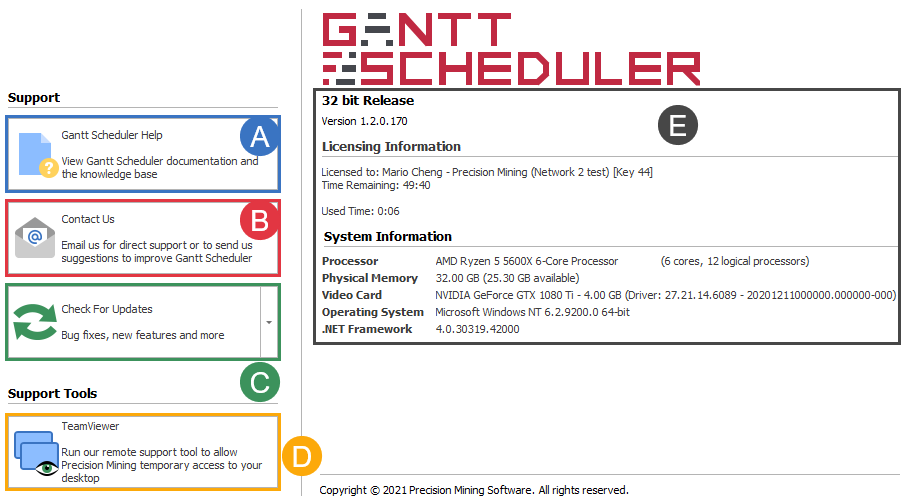
Gantt Scheduler Help
-
Contact Us
-
Check For Updates
-
Teamviewer
-
Version, License and System Information
Online Help
Launches the online help in a new browser window.
Contact Us
Prompts and email to be sent to us. Alternatively visit the Contact Us page.
Check For Updates
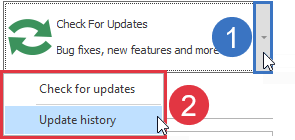
Checks the internet for a new version of Gantt Scheduler. Update Notes are accessible with the following steps
-
Click the drop-down arrow to access an additional menu
-
Click Update History.
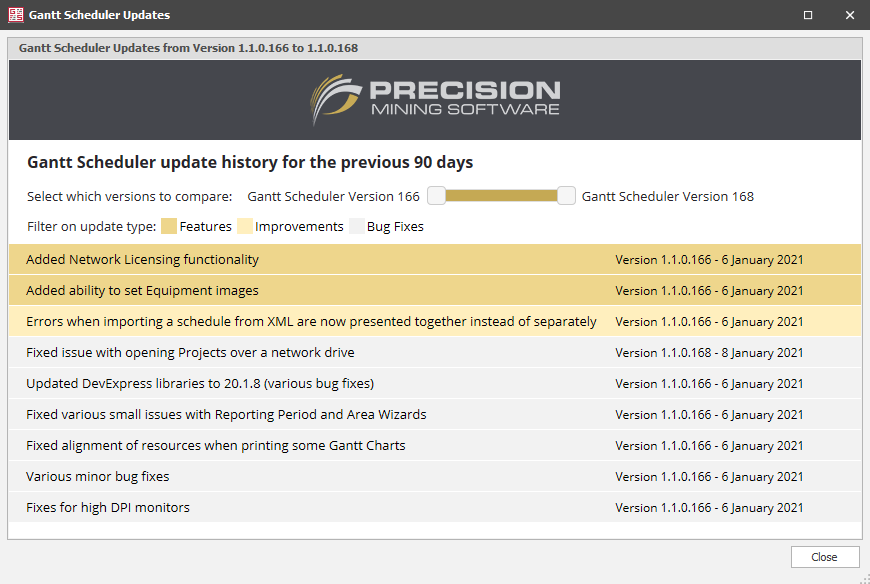
Full Update Notes
Update History shows changes from the last 90 days. For access to patch notes from earlier than this please Contact Us.
TeamViewer
Click this button to launch the TeamViewer Remote Support Utility. Micromine Support may request this and uses TeamViewer to assist in remote support (by providing temporary access to the user's computer).
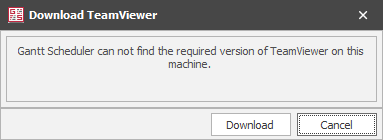
If you have not launched this utility before, you will see the prompt below
Exit
Quits the current Gantt Scheduler session.